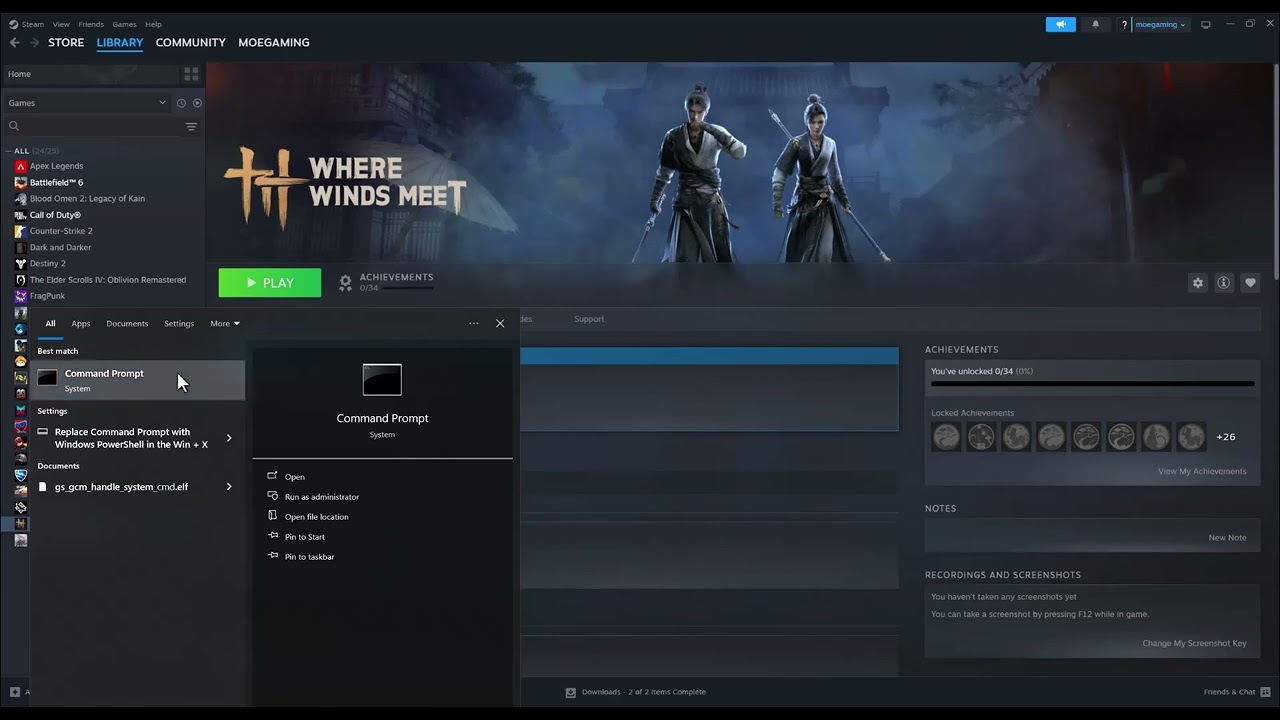
Quick answer: First identify whether Where Winds Meet is suffering from network lag or frame-rate stutter. Rubber-banding and delayed online actions point to latency; choppy camera movement and low FPS point to PC performance. Use Ethernet, stop background traffic, or refresh DNS for connection symptoms. For stutter, verify files, reduce demanding graphics settings, update the GPU driver, and install the game on an SSD that meets the official storage guidance.
Network lag or FPS stutter?
- Network lag: other players jump positions, hits register late, menus report disconnection, or ping spikes.
- Performance stutter: the whole image hitches, FPS drops during combat or traversal, audio may continue normally, and the issue can happen offline.
This distinction matters. Changing DNS can help a name-resolution problem, but it does not raise your frame rate or compensate for a weak GPU.
How to fix Where Winds Meet network lag
- Check for a service or patch issue. Review the game’s official news and current patch notes. If many players are affected immediately after maintenance, wait for the service-side fix.
- Stop competing traffic. Pause downloads, cloud backups, streams, and updates on the PC and other devices. Restart the game and router.
- Test Ethernet. A wired connection removes Wi-Fi interference from the comparison. If Ethernet fixes the problem, improve the Wi-Fi signal or keep the PC wired.
- Flush the Windows DNS cache. Search for Command Prompt, choose Run as administrator, enter
ipconfig /flushdns, and restart the game. Microsoft includes this command in its Windows network troubleshooting. - Try a reputable DNS resolver only if connection lookups remain unreliable. In the active network adapter’s IPv4 properties, you can test Cloudflare Primary
1.1.1.1and Alternate1.0.0.1. Record the original setting so you can return to automatic DNS if it does not help.
How to fix Where Winds Meet FPS drops and stutter
- Compare your PC with the current requirements. The official installation guide lists Windows 10/11 64-bit, at least 8 GB RAM for its minimum tier, and 60 GB or more of storage, with an SSD recommended. Higher presets require substantially stronger hardware and more storage.
- Install on an SSD and keep free space. Texture streaming and patching can hitch when storage is slow or nearly full. Move the game through Steam’s storage settings rather than dragging the folder manually.
- Verify the installation. In Steam, right-click Where Winds Meet > Properties > Installed Files > Verify integrity of game files. Steam will replace files that do not match.
- Update the graphics driver and Windows. Use the official NVIDIA, AMD, or Intel update application for your GPU, restart the PC, and retest before changing many settings.
- Reduce the settings that cause the largest frame-time spikes. Lower shadows, effects, reflections, view distance, and resolution scaling one at a time. Cap the frame rate to a value the PC can sustain instead of chasing an unstable maximum.
- Close overlays and background recording for one test. Disable nonessential overlays, browser video, monitoring tools, and capture software, then add them back individually.
Why these fixes work
Network actions target packet loss, congestion, and name resolution. Performance actions target rendering load, storage access, corrupted files, and background contention. Treating “lag” as one problem can waste time: a DNS change will not repair insufficient hardware, while lowering graphics settings will not fix an unstable connection.
If the game crashes instead of lagging
Crashing is a different symptom. Use our separate guide for Where Winds Meet crashing or not launching on Steam, which focuses on file repair and launch problems.
Optional PC gaming gear
A Cable Matters Cat 6 Ethernet cable is useful for a wired latency test. The WESARY wireless gaming headset for PS5 and PC is an optional PC/PS5 audio accessory, not a performance fix.
As an Amazon Associate I earn from qualifying purchases.
Frequently asked questions
Will 1.1.1.1 increase FPS?
No. DNS resolves names to addresses. It may help a DNS-related connection problem, but it does not make the GPU render more frames.
Should I reinstall the game?
Verify the files first. Reinstall only if verification and the other targeted fixes fail.
Why does the game stutter even when average FPS looks high?
Uneven frame times can feel choppy despite a good average. Storage access, shader work, overlays, background tasks, or settings that cause short spikes can all contribute.