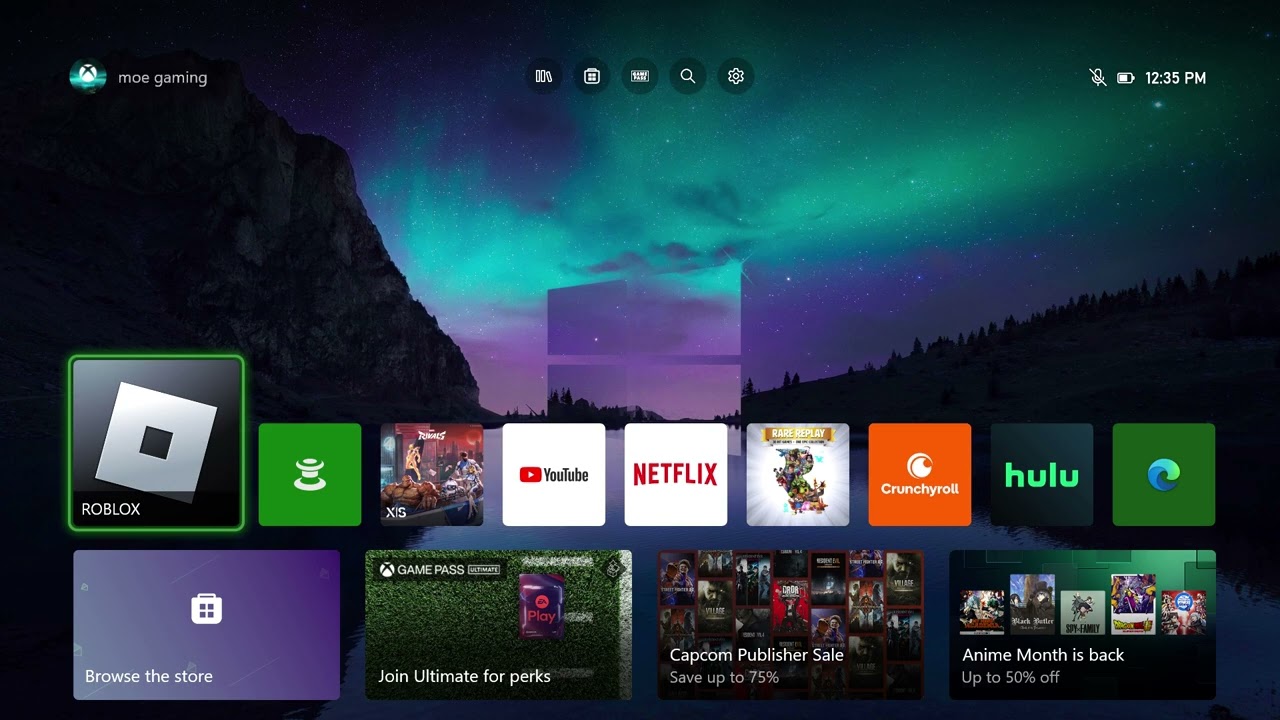
Quick answer: Xbox error 0x8007045D points to a read/write or data-access failure. Restart the console, confirm the internal drive has free space, update the console and game, then retry. If it occurs while downloading a profile, remove only the affected profile and add it again. If it persists across games, use Reset and keep my games & apps before considering a full factory reset.
Before you start
- Know the email address and password for the affected Xbox account.
- Connect the console to stable power and the internet.
- Back up captures that exist only on the console before any reset.
How to fix Xbox error 0x8007045D
- Check Xbox service status. If account, profile or store services are limited, wait until the status page is clear.
- Restart the console. Hold the Xbox button on the controller, choose Restart console, then select Restart. Test the same game or profile action again.
- Perform a full power cycle. Hold the console’s Xbox button for about 10 seconds until it shuts down. Unplug power for 30 seconds, reconnect it and start the console.
- Check storage. Open Settings > System > Storage devices. Make room on the internal drive and confirm any external drive is detected. If the affected game is on an external drive, move it to internal storage and test it there.
- Update the console and game. Go to Settings > System > Updates. Install the console update and any update queued for the affected game.
- Refresh the affected profile. If the code appears while downloading or using a profile, go to Settings > Account > Remove accounts and remove only that profile. Restart, choose Add new, and sign in again. Removing a profile from one console does not delete the Microsoft account.
- Reinstall only the affected game. If one game fails but other games work, uninstall that game, restart and install it again on the internal drive.
- Reset while keeping games and apps. Go to Settings > System > Console info > Reset console, then choose Reset and keep my games & apps. This refreshes the operating system while retaining installed games. You will need to sign in again.
Why this works
0x8007045D is associated with an input/output failure. A hard restart clears a stalled storage or system process, while moving or reinstalling the affected title separates a damaged game installation from a wider console issue. The keep-games reset replaces system files without immediately erasing the full game library.
What to try next
- Disconnect a nonessential external drive and test the game from internal storage.
- If several games fail from the same external drive, stop using that drive until it is checked; repeated retries can worsen data loss.
- If the error continues after the keep-games reset, contact Xbox Support before selecting the erase-everything option.
Warnings
Reset and remove everything erases accounts, saved settings and local content. Choose it only after cloud saves are synchronized and a support technician or the documented troubleshooting flow calls for it. Never remove another person’s account from a shared console without permission.
FAQ
Will removing my profile delete my games?
No. It removes that sign-in from the console. Purchased games remain tied to the Microsoft account and installed files remain unless you uninstall them.
Should I format an external drive?
Not first. Move the affected game to internal storage and test. Formatting erases the drive.
What if the code appears during profile download?
Restart the network and console, then add the profile again. If Xbox services show an incident, wait before repeating the download.
Official references
Source video
As an Amazon Associate I earn from qualifying purchases.