Quick answer: Close Roblox completely, restart Windows, and reinstall Roblox first. If it still hangs, rename the local Roblox folder so the app builds a clean copy. This folder reset is an unofficial, reversible workaround shown in the source video; viewer results are mixed, so it may help corrupted local files but will not fix a Roblox outage, account restriction, or network block.
Before you start
- Save work in Roblox Studio and close Roblox, Studio, and every browser window running Roblox.
- Know which app you use: the browser-installed client or Roblox – Windows from Microsoft Store.
- Use the rename method below before deleting anything so the change is easy to undo.
Fix Roblox stuck loading
- Check for a service problem. If Roblox is having an outage, local changes will not help. Wait and retry after service recovers.
- End Roblox processes. Open Task Manager and close any remaining Roblox or Roblox Studio process, then restart the PC.
- Reinstall the app. Uninstall Roblox from Windows Apps, download it again from Roblox or Microsoft Store, and test it.
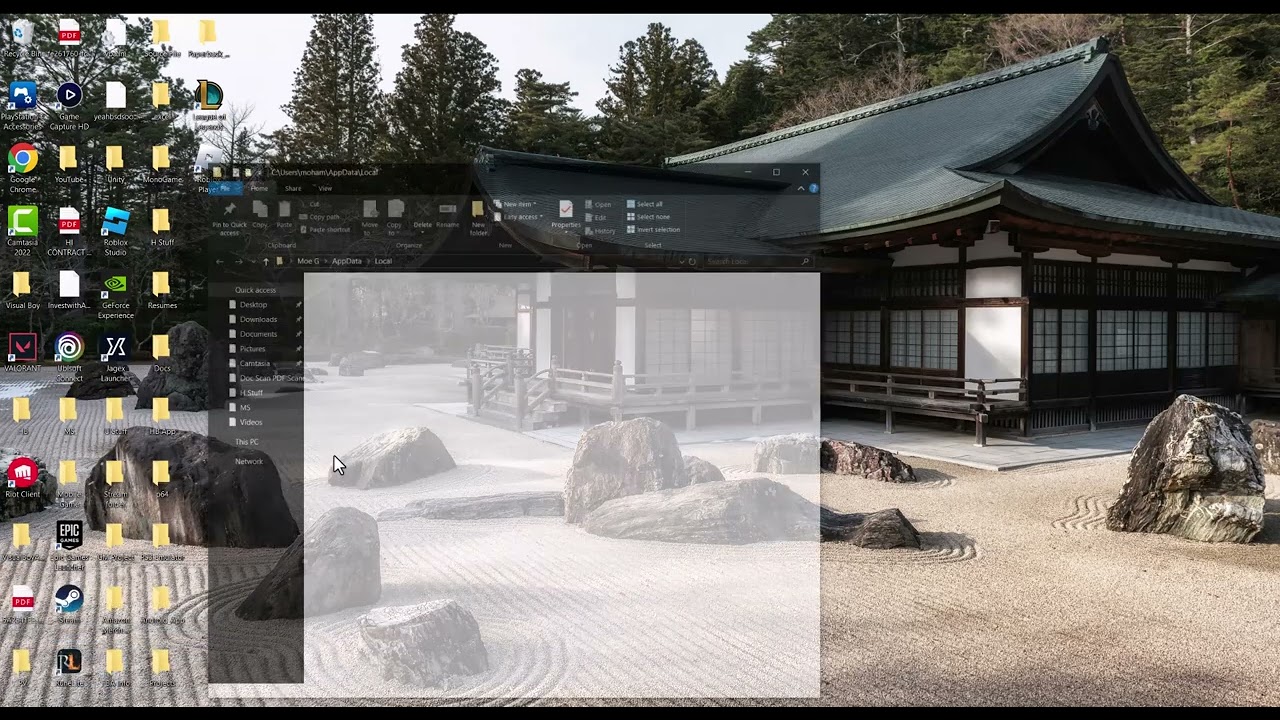
- Reset the local folder if reinstalling did not help. Press Windows + R, enter
%localappdata%, and press Enter. Find the Roblox folder and rename it to Roblox.old. Launch Roblox so it creates a fresh folder. - Test one experience. Sign in only through the official Roblox app or website and open a lightweight experience. If it loads, the old local cache or installation was likely damaged.
Why this works
A clean reinstall replaces missing or broken program files. Renaming the local folder forces Roblox to rebuild device-specific cache and app data instead of reusing a corrupted copy. It does not repair server-side outages or change an account moderation state.
Alternatives
- Try the Microsoft Store version if the website-installed client repeatedly fails, or vice versa.
- Temporarily disable a third-party overlay only long enough to test, then turn it back on.
- If Roblox loads on another network, troubleshoot the original network rather than deleting more files.
Warnings, limitations, and undo
Do not download replacement DLL files or unofficial Roblox installers. Renaming the folder may reset local preferences and cached assets. To undo it, close Roblox, remove the newly created Roblox folder, and rename Roblox.old back to Roblox. If the workaround helps, you can delete Roblox.old later.
FAQ
Why is there no Roblox folder?
You may be using the Microsoft Store build or Roblox may not have completed an installation. Reinstall the correct app instead of creating the folder manually.
Will this delete my Robux or account items?
No. Those are associated with your account, not the local cache. You may need to sign in again.
What if it still hangs?
Check Roblox service status, test another connection, and send Roblox Support the exact screen and Windows version.
Official references
Source video
As an Amazon Associate I earn from qualifying purchases.