Quick answer: Check Epic’s service status first, turn off any VPN or proxy, and test your account in a private browser window. If web sign-in works but the launcher still fails, fully close the launcher and clear its web cache. Use Windows Network Reset only as a last resort because it removes and reinstalls network adapters.
Before you start
- Know your Epic account email and sign-in method.
- Save work before restarting the launcher, router, or PC.
- If you use a work, school, or managed network, do not change its settings without permission.
- Keep access to any two-factor authentication method tied to the account.
Fix the Epic Games login error
- Check the Epic Games status page. If Login or Epic Account Services shows an outage, wait for Epic to resolve it.
- Disable a VPN or proxy temporarily. Reopen the launcher and test. If this works, leave the VPN off only while needed or use a supported route.
- Test web sign-in. Open the Epic account sign-in page in a private or incognito browser window. Try the same sign-in method you normally use.
- Restart the launcher completely. Exit it from the system tray, confirm no Epic Games Launcher process remains in Task Manager, and open it again.
- Clear the launcher web cache. With the launcher closed, open
%localappdata%\EpicGamesLauncher\Saved. Delete only folders whose names begin withwebcache, then reopen the launcher. - Restart the router and PC. Leave the router unplugged for about 30 seconds before reconnecting it.
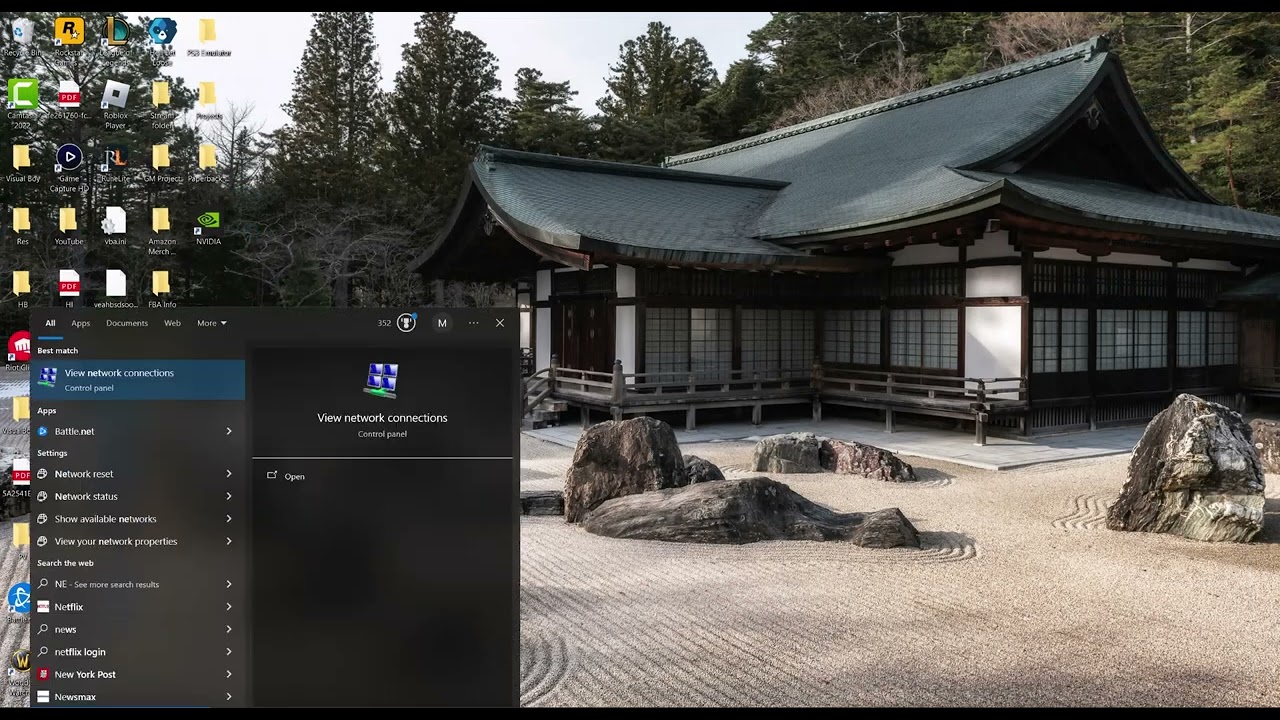
- Use Windows Network Reset only if other steps fail. In Windows 11, open Settings > Network & internet > Advanced network settings > Network reset. Choose Reset now, then let the PC restart.
Why these steps work
Web sign-in separates an account or authentication problem from a launcher-only problem. Clearing the web cache removes stale login-session files without deleting the account. Restarting the connection refreshes local network state. Microsoft says Network Reset reinstalls network adapters and returns their settings to defaults, which is why it belongs at the end.
If web sign-in also fails
- Use Sign in with email instead of a console-network button if the account supports it.
- Confirm your device clock is set automatically; a large time difference can break secure sign-in.
- Use Epic’s account-recovery process instead of repeatedly guessing a password.
- Do not unlink console accounts as a troubleshooting shortcut; unlinking can affect progression and entitlements.
Warnings and how to undo changes
Network Reset can remove saved adapter settings, virtual switches, and VPN configuration. After the restart, reinstall or reconfigure required VPN software and set trusted home networks back to Private if appropriate. If disabling a VPN made no difference, turn it back on. Never enter Epic credentials into unofficial repair tools.
Frequently asked questions
Is this error always an account ban?
No. It can result from an outage, a stale launcher session, a VPN route, or local network configuration. Follow Epic’s account support process if the web login says the account is disabled.
Will clearing webcache uninstall games?
No. Deleting only the launcher’s webcache folders does not uninstall the game library.
Should I reinstall the launcher?
Only after status, web sign-in, cache, and networking checks. Back up or locate installed games first because launcher reinstallation can require re-detection or redownloads.
Official references
- Epic Games Public Status
- Epic connection troubleshooting
- Epic account sign-in errors
- Microsoft Windows network troubleshooting