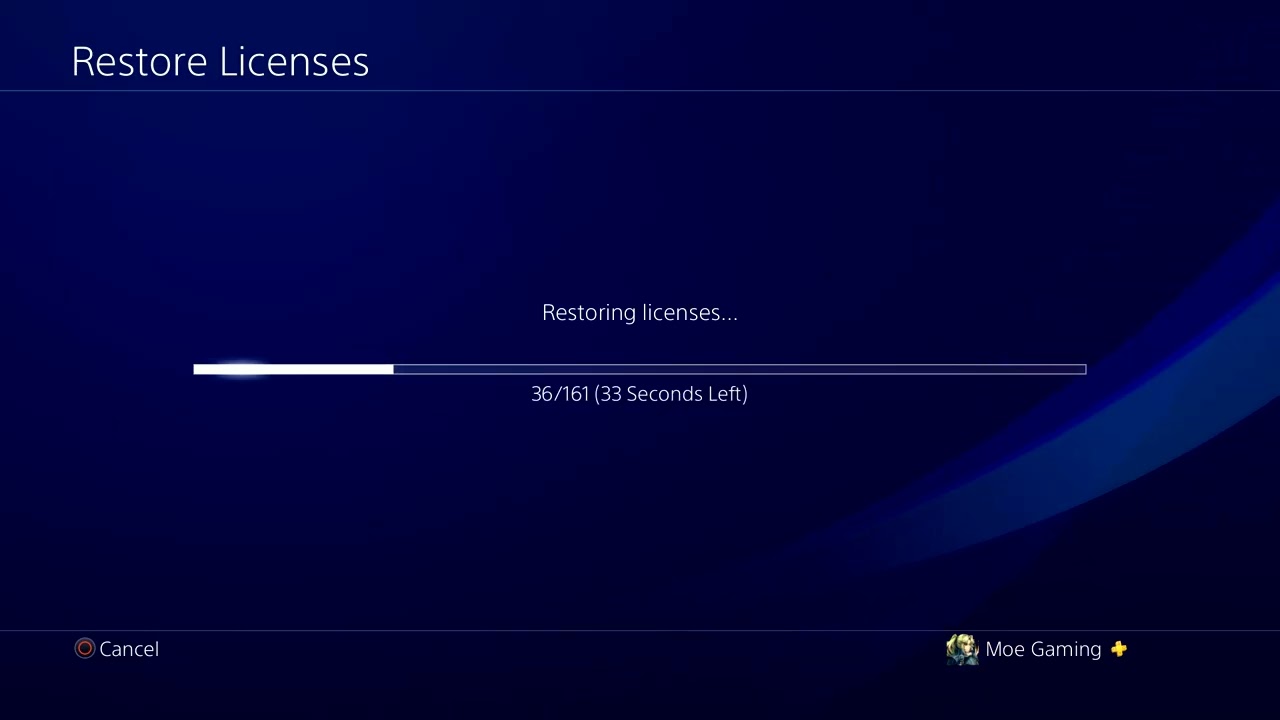
Quick answer: Restart the PS4 and restore licenses first: Settings > Account Management > Restore Licenses > Restore. If only one game still fails, back up its saved data before touching any save file. Delete only a file the PS4 explicitly labels Corrupted Data.
“An Error Has Occurred” is a generic message, so the correct fix depends on when it appears. The sequence below starts with the non-destructive license repair shown in the video and places a backup barrier before the video’s saved-data step.
Before you start
- Record which game or app triggers the message.
- Install pending PS4 system and game updates.
- Have a FAT32 or exFAT USB drive, or active PlayStation Plus cloud storage, before editing saved data.
- Do not initialize the PS4 for a single-game error.
Fix the error in the safest order
- Restart the PS4. Close the game, choose Power > Restart PS4, and test once more.
- Restore licenses. Open Settings > Account Management > Restore Licenses, choose Restore, wait for completion, and relaunch the affected title. Sony states that license restoration does not affect your data.
- Update the affected game. Highlight it on the home screen, press OPTIONS, then choose Check for Update.
- Back up saved data. For a full USB backup, use Settings > System > Back Up and Restore > Back Up. To copy selected saves, use Application Saved Data Management and choose online or USB storage.
- Inspect saved data. Go to Settings > Storage > System Storage > Saved Data, select the affected game, and look for an item explicitly marked Corrupted Data.
- Delete only confirmed corruption. Press OPTIONS on that corrupted item and delete it. Test the game before removing anything else.
- Reinstall the game, not the saves. If no corrupted item is identified, delete and reinstall the application while preserving saved data.
Why these steps work
License restoration refreshes the console’s entitlement records for PlayStation Store content. Updating or reinstalling the application repairs program files. A clearly corrupted save can stop one game from loading, but deleting healthy saves creates unnecessary data loss, which is why backup comes first.
Warnings
- Deleting a save can permanently erase local progress if it is not in cloud or USB storage.
- A full PS4 restore erases console data; it is not part of this fix.
- Do not turn off the PS4 during backup or license restoration.
- If many games fail or the console reports storage errors, stop and use PlayStation hardware support.
Frequently asked questions
Does Restore Licenses remove games or saves?
No. Sony’s current guidance says restoring licenses does not affect data.
What if the error appears in every game?
Check PSN status, update system software, and test storage health. A console-wide symptom is less likely to be one damaged save.
Can I delete one autosave?
Only after backing up and confirming the item is corrupted or expendable. When several saves exist, test one change at a time.
Official references
Source video
As an Amazon Associate I earn from qualifying purchases.
Leave a Reply