Quick answer: First check your GPU’s dedicated video memory. Bethesda says Indiana Jones and the Great Circle requires at least 8 GB of VRAM, and its specific “Failed to allocate video memory” article says this message means the GPU does not meet that minimum. On a dual-GPU laptop, forcing the game to the high-performance GPU can help if Windows selected the integrated chip. It cannot add VRAM to unsupported hardware.
Before you start
- Close the game and save other work.
- Know your GPU model and dedicated VRAM. In Windows, open Settings > System > Display > Advanced display > Display adapter properties, or use the GPU vendor’s control panel.
- Confirm the game is installed on an SSD, which Bethesda lists in the PC requirements.
Fix the video-memory error
- Compare the GPU with the minimum requirement. The supported baseline is 8 GB of dedicated VRAM. If the active GPU has less than 8 GB, skip “VRAM boost” claims: settings, page files, and launch options cannot turn system RAM into supported dedicated VRAM. The reliable fix is compatible hardware.
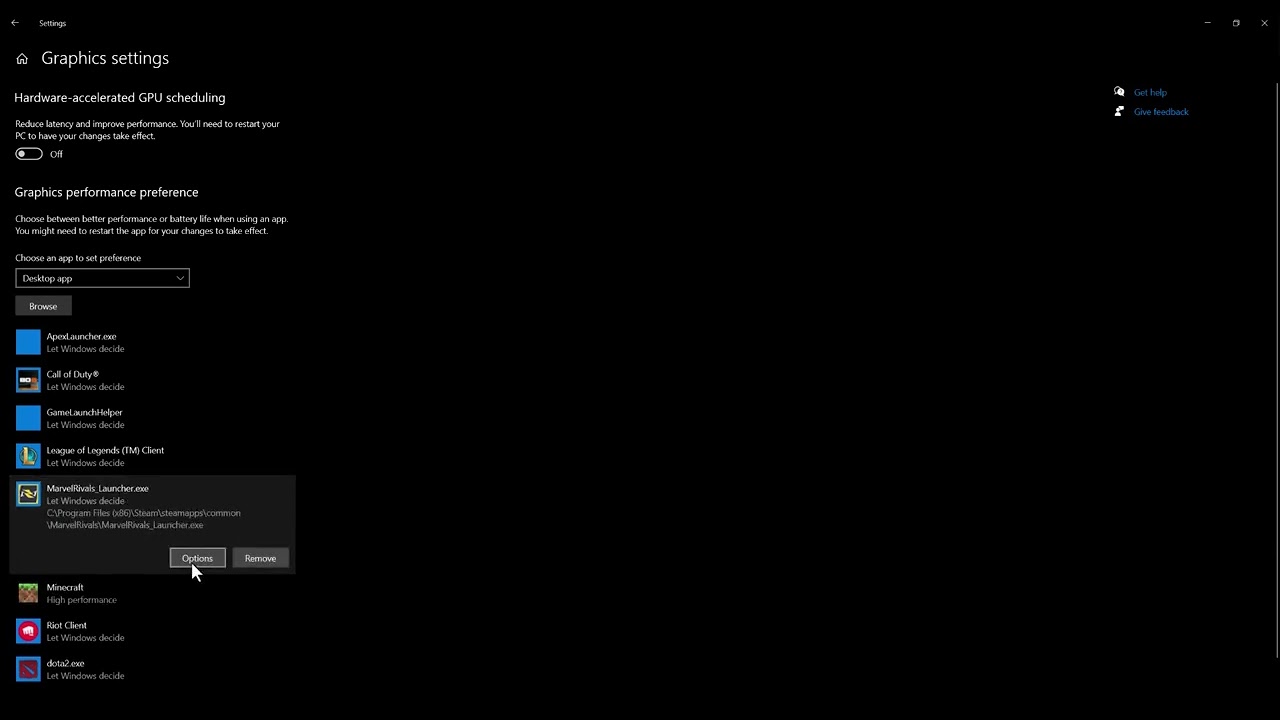
- Select the dedicated GPU on dual-GPU PCs. Open Windows Settings > System > Display > Graphics. Add the Indiana Jones executable if it is not listed, select it, choose Options, then choose High performance and save. The label should identify the discrete NVIDIA or AMD GPU.
- Repeat the choice in the vendor control panel if necessary. In NVIDIA Control Panel, use Manage 3D settings > Program Settings. On AMD systems, use the current Adrenalin graphics profile. Choose the dedicated GPU for the game only.
- Install the current graphics driver. Download it directly from NVIDIA, AMD, or Intel for the exact GPU. Restart Windows after installation.
- Close memory-heavy applications. Exit browsers with many tabs, capture tools, overlays, and other games. Bethesda specifically recommends closing unnecessary background programs.
- Verify the game installation. In Steam, open Library, right-click the game, select Properties > Installed Files > Verify integrity of game files. On the Xbox app or Microsoft Store version, use that launcher’s Repair/Verify option.
- Install Windows and game updates. Restart once more and test with the default game configuration.
Why this works—and when it cannot
The video demonstrates Windows’ High performance selection and a driver update. That is useful when the PC has both integrated graphics and a qualifying discrete GPU but Windows launches the game on the wrong one. A fresh driver can also correct allocation bugs. However, neither step increases physical VRAM. If the only GPU is below Bethesda’s 8 GB minimum, this error is a hardware-support boundary, not a tweakable graphics preset.
Alternatives
- On a desktop, connect the monitor to the ports on the discrete graphics card, not the motherboard video outputs.
- Remove unsupported GPU overclocks and restore default clocks for testing.
- Disable third-party overlays one at a time, then retest.
- Submit a Bethesda Support ticket with the exact GPU model, VRAM amount, driver version, launcher, and a DirectX Diagnostic report.
Warnings
Do not download “VRAM unlockers,” modified DLLs, or registry packs. Do not increase the Windows page file expecting it to satisfy the 8 GB VRAM requirement. Shared system memory is slower and is not the same as dedicated graphics memory.
Frequently asked questions
Can lowering texture quality fix the launch error?
It may reduce memory use after the game starts, but it does not change the official minimum. A launch-time allocation failure on a sub-8 GB GPU may remain.
My laptop has 8 GB VRAM. Why do I still see the error?
Windows may be selecting the integrated GPU, the driver may be outdated, background applications may be consuming resources, or game files may be damaged. Work through the steps in order.
Does adding system RAM increase VRAM?
No. More system RAM can help overall PC performance, but it does not add dedicated memory to a discrete GPU.
Official references
- Bethesda Support: Failed to allocate video memory
- Bethesda Support: Performance issues on PC
- Bethesda Support: PC crash troubleshooting
Source video
As an Amazon Associate I earn from qualifying purchases.
Leave a Reply