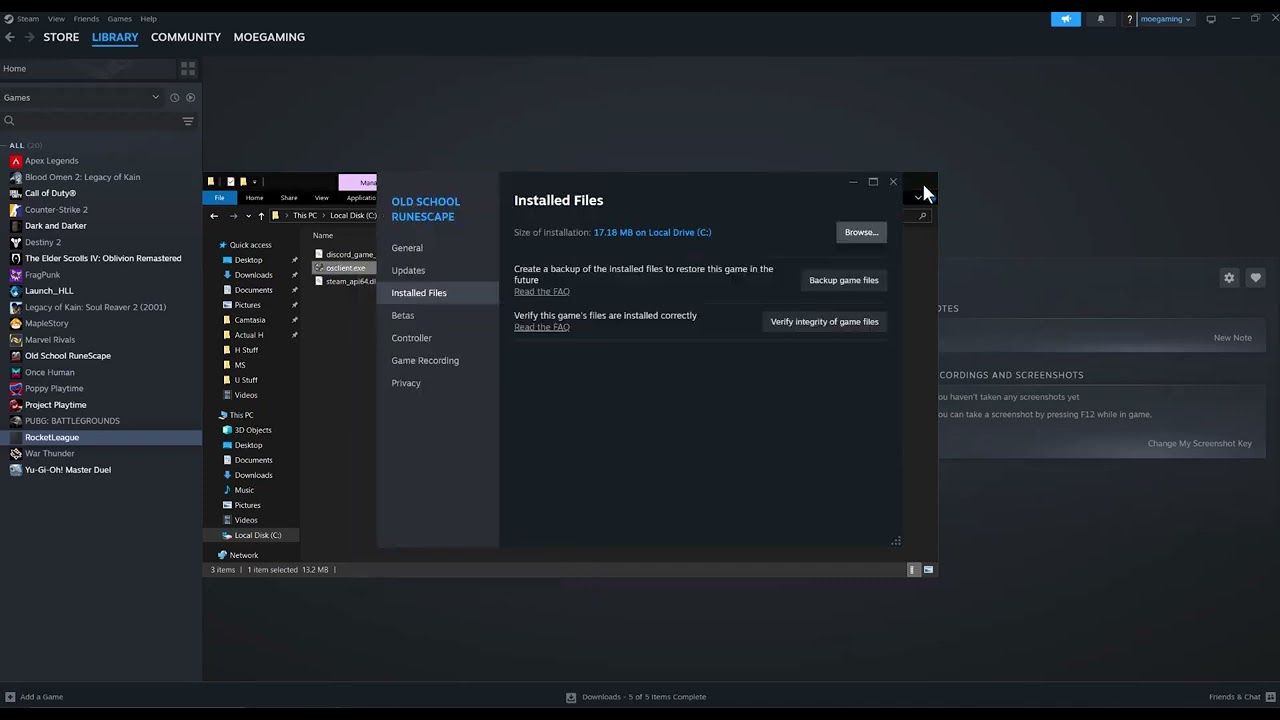
Quick answer: Verify The Last of Us Part I in Steam, install the latest game and graphics-driver updates, then test once without overlays or overclocks. Running the executable as administrator can be used as a temporary diagnostic if Windows permissions are the problem, but do not leave it enabled unless it clearly fixes the crash.
Before you start
- Let Steam finish all game and shader-related updates.
- Save other work and restart Windows.
- Record where the crash happens and any message shown.
- Back up an important save before deleting configuration files or reinstalling.
Fix The Last of Us Part I crashing on Steam
- Verify installed files. Open Steam > Library, right-click The Last of Us Part I, and choose Properties > Installed Files > Verify integrity of game files. Wait for Steam to repair or redownload files.
- Install the current game update. Check the Steam Downloads page and do not launch until patching is complete. Restart Steam afterward.
- Update the graphics driver. Download the supported driver for the exact NVIDIA, AMD, or Intel GPU from the manufacturer. Restart Windows after installing it.
- Disable overlays for a test. Turn off Steam Overlay for this game and close Discord overlay, NVIDIA/AMD capture tools, MSI Afterburner, and RivaTuner. If the crash stops, re-enable one item at a time.
- Return hardware to default clocks. Remove GPU, CPU, or memory overclocks while testing. Stability in another title does not guarantee stability in this one.
- Try administrator mode once as a diagnostic. Browse to the game installation, right-click the game executable, choose Properties > Compatibility, check Run this program as an administrator, and launch it from Steam. If nothing changes, uncheck the box immediately.
- Reboot and retest. Launch with no custom Steam launch options. Allow any shader compilation process to complete instead of ending it early.
Why these steps work
Steam verification replaces damaged or incomplete installation files. Game patches and graphics drivers address known engine and GPU compatibility problems. Overlays attach to the rendering process and can conflict with a game or driver, while unstable overclocks can surface during shader compilation or heavy scenes. Administrator mode only changes Windows permissions; it is useful as a narrow test, not a universal performance fix.
How to undo administrator mode
Right-click the same executable, open Properties > Compatibility, clear Run this program as an administrator, and select Apply. Keeping a game elevated gives it broader access than normal and may also interfere with overlay or launcher behavior.
Alternatives if crashes continue
- Check Naughty Dog’s official PC support page and current patch notes for a known issue affecting your hardware.
- Make sure Windows is current and the PC meets the game’s requirements.
- Confirm the game is on an SSD with enough free space for updates and shader caches.
- Lower graphics settings only after the game reaches its menu; do not treat a preset change as a fix for corrupted files.
- Submit a support request with the PC specifications, driver version, crash timestamp, error text, and a DirectX Diagnostic report.
Warnings
Do not replace game DLLs with files from videos or file-sharing sites. Avoid registry cleaners and “VRAM boost” tools. Do not permanently disable antivirus or Windows security features to launch the game.
Frequently asked questions
Will Verify integrity delete saves?
It is intended to repair installed game files, not saved games. Still, keep a backup of important saves before reinstalling or deleting folders manually.
Why does the first launch take so long?
The game may compile shaders. Interrupting that process can create another troubleshooting variable, so let it finish and keep the PC on stable power.
Should I run the game as administrator forever?
No. Use it only to test whether permissions are involved. If it does not solve the crash, turn it off; if it does, look for the specific folder or security permission causing the problem.
What if the crash started after a driver update?
Use the GPU vendor’s clean-install procedure and compare with its previous stable driver. Obtain both only from the official vendor.
Official references
- Steam Support: Verify integrity of game files
- Naughty Dog Support: The Last of Us Part I
- NVIDIA drivers and AMD drivers
Source video
As an Amazon Associate I earn from qualifying purchases.
Leave a Reply