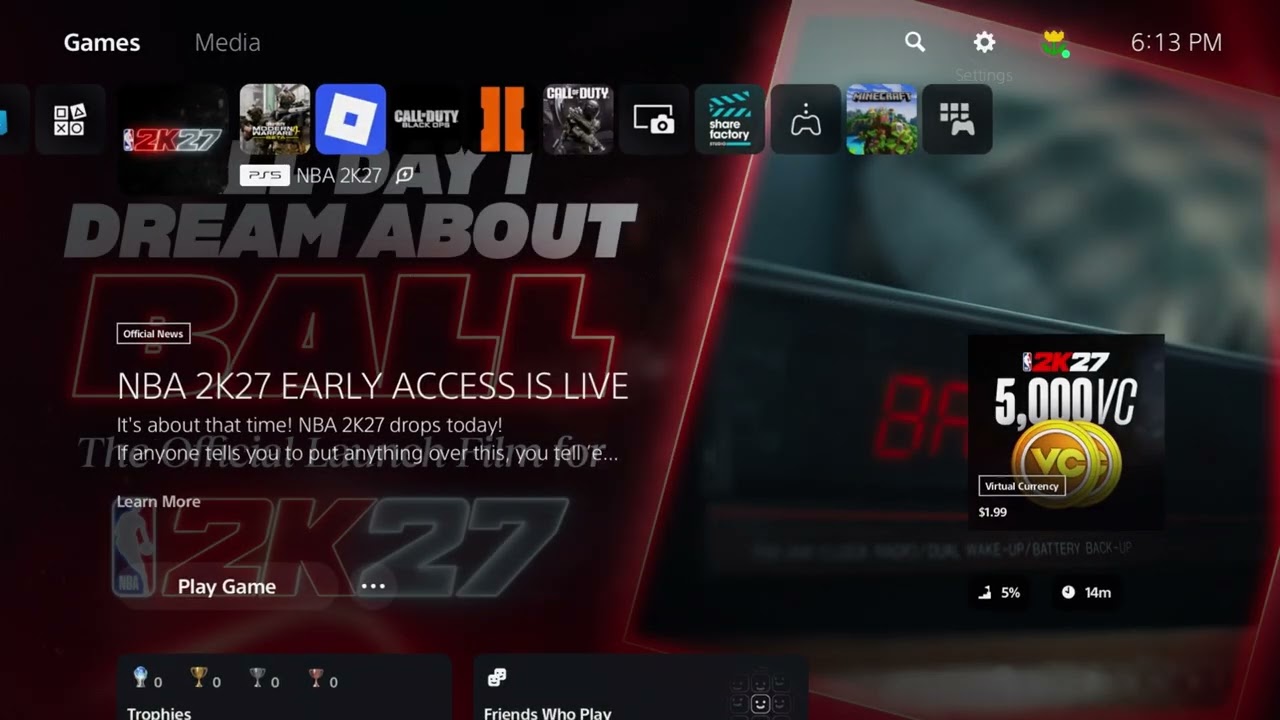
Quick answer: Close NBA 2K27, compare the PS5 console-save and cloud-save timestamps, and download the cloud copy only when you are confident it contains the missing MyPLAYER. A cloud download overwrites the local save, so do not choose the older file blindly. If no usable backup exists or the file is corrupted, stop editing save data and open a 2K Support case.
This guide combines the exact actions demonstrated in Moe Gaming’s source video with current first-party support information. Menu names can move after updates, so use the current on-screen label when it differs slightly.
Before you start
- Close NBA 2K27 completely before managing saved data.
- Confirm the PlayStation account and 2K Account used by the missing build.
- Take photos of the console and cloud timestamps and sizes before overwriting anything.
- PS5 cloud-save recovery requires PlayStation Plus cloud storage.
1. Check whether the file is missing or corrupted
- Launch the game once and check every expected MyCAREER slot.
- Confirm you did not load another PlayStation profile or 2K Account.
- Record any corruption message exactly.
- Close the game again before changing saved data.
2K separates missing files from corrupted files because their recovery paths and support evidence can differ.
2. Compare PS5 sync status
- Highlight NBA 2K27 on the PS5 Home screen.
- Press Options and open Check Sync Status of Saved Data when available.
- Compare the local and cloud timestamps instead of assuming the cloud file is newer or better.
- If automatic sync just uploaded the broken local file, do not overwrite it again.
A timestamp is evidence, not proof. Choose the backup that predates the loss and reasonably contains the missing build.
3. Download a known-good cloud save
- Open Settings > Saved Data and Game/App Settings.
- Choose Saved Data (PS5) > Cloud Storage > Download to Console Storage.
- Select NBA 2K27 only after confirming the desired cloud timestamp.
- Approve the overwrite, relaunch the game, and check the MyCAREER slots.
This is the recovery shown in the source video. It works only if the cloud actually holds a usable earlier copy.
4. Contact 2K Support if the file is absent or corrupt
- Do not create and delete repeated placeholder builds unless 2K Support asks.
- Collect the platform ID, 2K Account email, build position/archetype, overall rating, last-played date, and screenshots.
- Open a case using 2K’s missing- or corrupted-file guidance.
- Follow the support agent’s recovery instructions exactly.
Support may need account-side details that cannot be repaired by reinstalling the game.
Why these steps work
MyPLAYER progress involves local saved data plus online account information. Restoring a known-good local backup can recover the pointer and local state, while 2K Support is the appropriate path when the data is missing or corrupt beyond the available backup.
Warnings and common mistakes
- Downloading from cloud storage overwrites the console copy. Compare timestamps and preserve evidence first.
- Never delete reserved space; 2K explicitly warns that doing so can cause problems.
- Reinstalling the game does not guarantee recovery of a missing MyPLAYER and may waste time before evidence is collected.
Relevant gaming gear
As an Amazon Associate I earn from qualifying purchases.
- WD_BLACK SN850P PS5 M.2 SSD — optional equipment; buy only if it fits the specific setup described above.
Watch the original Moe Gaming walkthrough
Frequently asked questions
Can I recover a MyPLAYER without PlayStation Plus?
You may still have a usable console save, but PS5 cloud-storage downloads require the platform’s cloud-save service. Contact 2K Support if no backup is available.
Should I always choose the newest cloud save?
No. If the damaged or missing state has already synced, the newest file may contain the problem. Compare the timing of the loss with both copies.
Will restoring licenses recover MyPLAYER data?
No. License restoration repairs entitlement issues; it does not restore saved-game data.