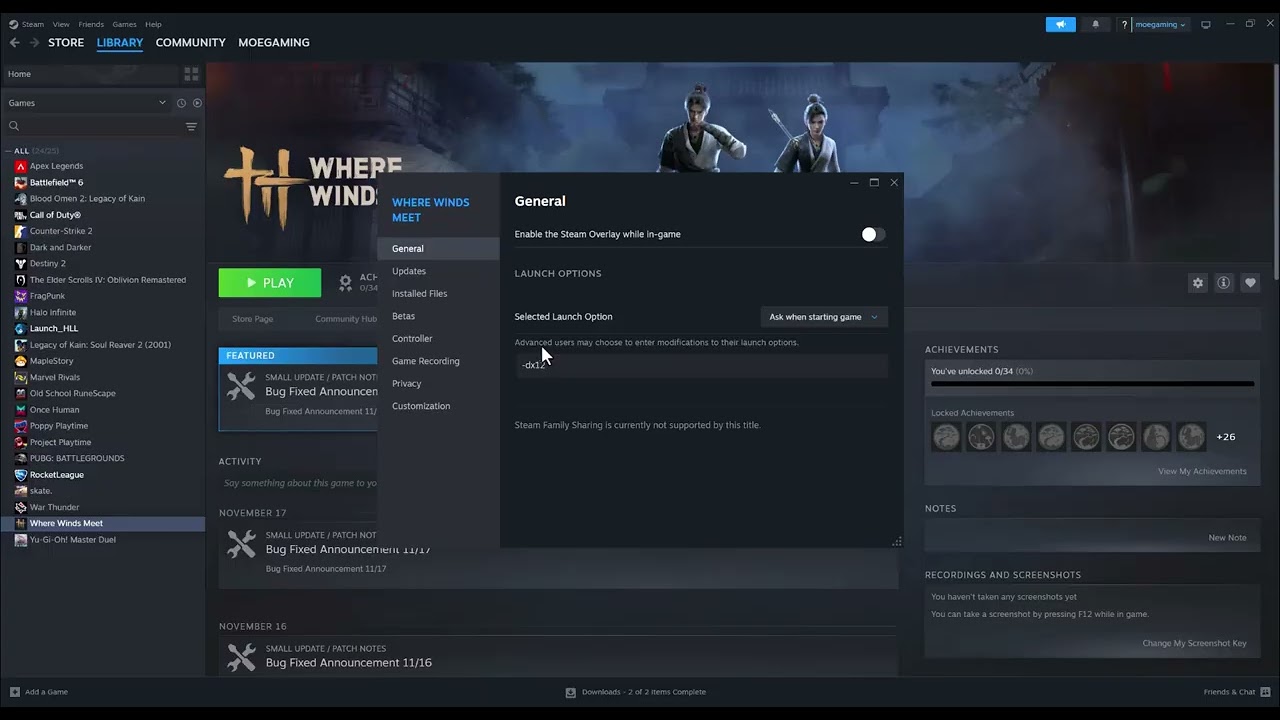
Quick answer: If Where Winds Meet crashes or will not launch through Steam, first install every pending game and Windows update, confirm the PC meets the current requirements, and restart Steam. Then disable the Steam Overlay for a controlled test and use Properties > Installed Files > Verify integrity of game files. If it still fails, open the installation folder and launch the game executable once, update the graphics driver, and reinstall to an SSD only after the simpler checks fail.
The source walkthrough demonstrates the Steam menu paths for the overlay, file verification, and installation folder. This guide keeps those useful steps, removes unverified DirectX launch flags, and adds the current requirements and recovery order from Where Winds Meet and Steam.
Before you start
- Close Where Winds Meet completely and let Steam finish all downloads.
- Restart the PC so an old game or anti-cheat process is not still running.
- Confirm there is enough free storage for both the game and temporary update files.
- Do not add random launch commands copied from unrelated games. Where Winds Meet does not publish a universal
-dx11or-dx12fix.
How to fix Where Winds Meet crashing or not launching
1. Check the current PC requirements and updates
- In Steam, open Library and confirm that Where Winds Meet has no pending update.
- Open Windows Update and install supported Windows updates, then restart.
- Compare the PC with the official Where Winds Meet requirements. The official guide lists 64-bit Windows 10 or 11 and recommends an SSD; its larger packages can require more than 100 GB of free space.
- If the PC is below the minimum requirement, reduce background load before testing. A setting change cannot compensate for unsupported hardware.
This is the first check because missing data, an unfinished update, or insufficient storage can stop the game before its main window appears.
2. Restart Steam and test without the Steam Overlay
- Exit Steam from its menu rather than only closing the window.
- Reopen Steam, right-click Where Winds Meet, and select Properties.
- Under General, turn off Enable the Steam Overlay while in-game.
- Launch the game once.
The overlay is a useful diagnostic because it injects an interface into the running game. If disabling it changes nothing, turn it back on; leaving it disabled is not required.
3. Verify the installed files in Steam
- Right-click the game in the Steam Library and choose Properties.
- Select Installed Files.
- Choose Verify integrity of game files.
- Let the check finish without pausing Steam, then restart Steam and launch the game.
Steam compares the local installation with the expected files and reacquires missing or damaged data. Steam notes that this can take several minutes; Where Winds Meet is a large installation, so allow it to finish.
4. Launch the game executable once from its folder
- Open Properties > Installed Files and select Browse.
- Locate the Where Winds Meet game executable in the installation directory.
- Double-click the executable once and note any Windows error message.
The official Where Winds Meet installation guide recommends launching the executable from the game directory when the launcher does not respond. Do not permanently force administrator or compatibility mode unless official support specifically asks for it; those settings can introduce a different permissions problem.
5. Update the graphics driver and close conflicting software
- Install the current stable driver directly from NVIDIA, AMD, or Intel for the installed GPU.
- Restart Windows after the driver installation.
- Temporarily close recording overlays, hardware-monitoring overlays, RGB utilities, and other nonessential software.
- Keep security software enabled. If it reports a blocked file, verify the file and publisher instead of disabling protection.
If the game opens after one background application is closed, update or reconfigure that specific program rather than turning off every protection permanently.
6. Reinstall only after the repair checks fail
If the executable still will not start and Steam verification repeatedly finds errors, uninstall Where Winds Meet through Steam, restart the PC, and reinstall it. Use an SSD when possible, choose an installation path that uses the Windows system language or English as the official guide recommends, and leave enough free space for updates.
Why this troubleshooting order works
The steps move from low-risk causes to larger changes. Updates and requirements rule out an unsupported or incomplete installation. Disabling the overlay tests one common injected component. File verification repairs the installation without deleting it. Launching the executable can expose a clearer Windows error, and a clean driver/background-software test addresses rendering or process conflicts. Reinstallation is last because it costs the most time and bandwidth.
If the game still crashes
- If it reaches a loading percentage and then stops, record the percentage and whether it happens on every character or save.
- If it crashes only after several minutes, check temperatures and Windows Reliability Monitor for the failing module.
- If an error names a DLL, driver, anti-cheat component, or initialization code, send that exact text to official support.
- If the launcher alone is unresponsive, reinstall the launcher as the official guide recommends before downloading the full game again.
Warnings and common mistakes
- Do not stack multiple undocumented launch flags; you will not know which change caused a new problem.
- Do not download replacement DLL files from third-party websites.
- Do not disable antivirus or firewall protection permanently.
- Do not assume every crash has the same cause. Viewer feedback on the source video includes both successful repairs and different symptoms such as initialization errors and loading stalls.
Watch the original Moe Gaming walkthrough
Frequently asked questions
Should I use -dx11 or -dx12 in Steam launch options?
Not as a default fix. No current first-party Where Winds Meet instruction supports those flags as a universal solution. Leave launch options blank unless the developer gives a command for a specific build or error.
Will verifying files delete my save?
Steam verification repairs installed game files; it is not intended to erase normal save data. Cloud and local save behavior can vary, so back up irreplaceable local saves before uninstalling.
Why does the game launch from the executable but not Steam?
That points toward the Steam handoff, overlay, launcher, or another injected process rather than the core executable. Re-enable changes one at a time to isolate the conflict.
Should I install Where Winds Meet on an SSD?
The official PC guide recommends an SSD for better installation and loading performance. An SSD will not repair every crash, but it can avoid storage-performance bottlenecks and slow patching associated with an HDD.
Affiliate disclosure
As an Amazon Associate I earn from qualifying purchases.