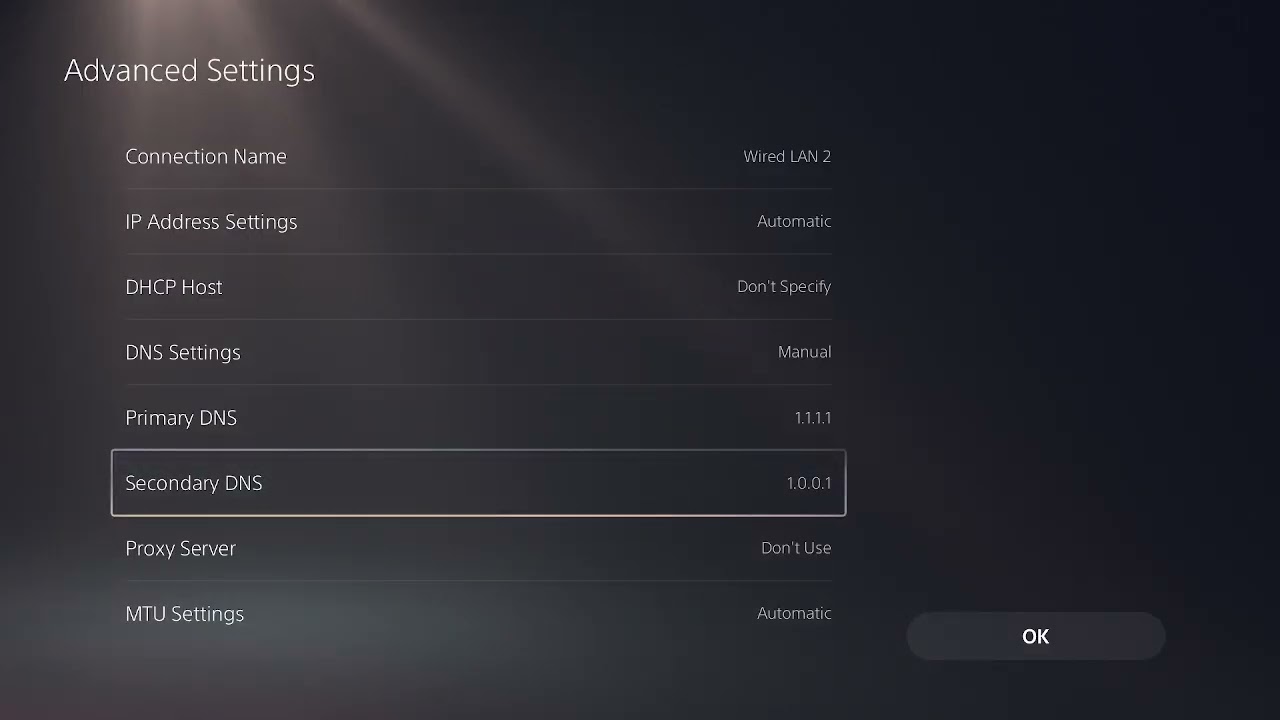
Quick answer: For 2XKO error RGIOP-99005 on PS5, close the game and check PlayStation and Riot service status first. If services are available, restart the PS5 and router, then test a wired LAN connection. On Wi-Fi, open Settings > Network > Settings > Set Up Internet Connection, press Options on the saved network, and test one Wi-Fi band instead of Automatic. If the error continues, use Advanced Settings to test Cloudflare DNS at 1.1.1.1 and 1.0.0.1, then restart the console.
Moe Gaming’s walkthrough shows the PS5 network menus and DNS values used below. Riot does not currently publish a public code-specific explanation for RGIOP-99005, so this guide treats it as a connection/session error and avoids claiming that one DNS change is guaranteed to fix it.
Before changing the PS5 network
- Write down the exact code: RGIOP-99005.
- Confirm that another online game or the PlayStation Store can connect.
- Check PlayStation service status and Riot’s service-status page before changing local settings.
- Record any existing manual DNS or IP values so you can restore them.
How to fix 2XKO error RGIOP-99005 on PS5
1. Rule out a service outage
- Check the official PlayStation Network status page.
- Check Riot’s service status for 2XKO incidents or maintenance.
- If either service reports a problem, wait and retest after the incident is resolved.
A local Wi-Fi or DNS change cannot repair a server-side outage. This check prevents unnecessary changes when many players are affected at once.
2. Restart 2XKO, the console, and router
- Close 2XKO from the PS5 switcher or game menu.
- Restart the PS5; do not use Rest Mode for this test.
- Turn off the router, unplug it for about one minute, then reconnect it.
- Wait for internet service to return fully and launch 2XKO again.
This clears the current game session, console network state, and temporary router session without deleting game data.
3. Test a wired LAN connection
- Connect the PS5 directly to the router with an Ethernet cable.
- Go to Settings > Network > Settings > Set Up Internet Connection.
- Select Set Up Wired LAN, connect, and run Test Internet Connection.
- Launch 2XKO and retry the same action that produced RGIOP-99005.
If Ethernet works while Wi-Fi does not, the game installation is probably not the main problem. Focus on Wi-Fi signal, congestion, or band switching.
4. Choose a stable Wi-Fi frequency band
- Open Settings > Network > Settings > Set Up Internet Connection.
- Highlight the saved Wi-Fi network and press the controller’s Options button.
- Select Wi-Fi Frequency Bands.
- Test 5 GHz when the PS5 is near the router with few walls.
- If 5 GHz is weak at the console, test 2.4 GHz instead.
- Run the connection test and retry 2XKO.
The video demonstrates changing the setting away from Automatic. Automatic is not always defective, but forcing one band is a useful diagnostic when a dual-band router keeps moving the PS5 between links. Viewer feedback on the walkthrough specifically identified band switching as the cause for some players.
5. Test Cloudflare DNS as a fallback
- Highlight the active network under Set Up Internet Connection and press Options.
- Choose Advanced Settings.
- Leave IP address and DHCP settings unchanged.
- Change DNS Settings from Automatic to Manual.
- Enter Primary DNS: 1.1.1.1.
- Enter Secondary DNS: 1.0.0.1.
- Save, test the connection, restart the PS5, and open 2XKO.
Cloudflare documents those addresses for its public resolver. DNS helps the console resolve service names; it does not fix a Riot outage or guarantee lower in-game latency. Return DNS to Automatic if the test makes no difference.
6. Test another network only to isolate the cause
If possible, briefly connect the PS5 to a trusted alternate network or personal hotspot, while watching mobile-data limits. If 2XKO opens there, the normal router or internet route is involved. Switch back afterward; a hotspot is a diagnostic, not the preferred permanent gaming connection.
Why these steps can work
RGIOP-99005 can appear while the PS5 is trying to establish or maintain an online session. Service-status checks rule out remote incidents. Restarting clears stale sessions. Ethernet removes wireless interference. Locking a band tests unstable roaming between 2.4 and 5 GHz. A DNS change tests name resolution without altering the account or game files.
If the error remains
- Install any pending 2XKO and PS5 system-software updates.
- Confirm the correct PlayStation account is signed in and allowed to use online features.
- Return experimental network settings to their original values before contacting support.
- Send Riot Support the exact code, platform, time of failure, region, connection type, and the steps already tested.
Warnings
- Do not factory-reset the router for this error.
- Do not open random ports or enable router DMZ mode without an exact current first-party instruction.
- Do not buy hardware until Ethernet or another controlled test shows that Wi-Fi is the cause.
- Results vary: the source video has reports of the band/DNS steps working and reports where they did not.
Optional network accessory
As an Amazon Associate I earn from qualifying purchases.
- Cable Matters Cat 6 Ethernet cable — useful only when the PS5 can be connected directly to the router for a wired test.
Watch the original Moe Gaming walkthrough
Frequently asked questions
Is RGIOP-99005 a PS5 hardware failure?
The walkthrough and successful viewer reports point to a connection/session problem, not proof of failed hardware. Test service status and the network before considering repair.
Should I always use 5 GHz?
No. Five GHz is often better near the router, while 2.4 GHz usually reaches farther. Use the band that is stable at the PS5.
Will 1.1.1.1 reduce 2XKO ping?
Not necessarily. DNS resolves service names; it does not control the full route to Riot’s game server. Keep it only if testing shows a clear benefit.
Why did a hotspot work?
A successful hotspot test changes the router, DNS path, and internet route at once. It shows that the usual network path is involved, but does not identify which component without further testing.