Quick answer: When Black Ops 7 keeps saying “Update Requires Restart,” fully close Call of Duty instead of returning to the title screen, verify that the game and console updates have finished, and restart the system. If the loop continues on PlayStation, restore the license and verify the correct Black Ops 7 content is installed. Reinstall only after the smaller checks fail.
Before you start
- Do not interrupt an update that is still downloading, copying, or installing.
- Make sure the console or PC has enough free storage for the update to unpack.
- If this appeared immediately after a new patch, check Activision’s current known-issues page before deleting anything.
How to fix the Black Ops 7 restart loop
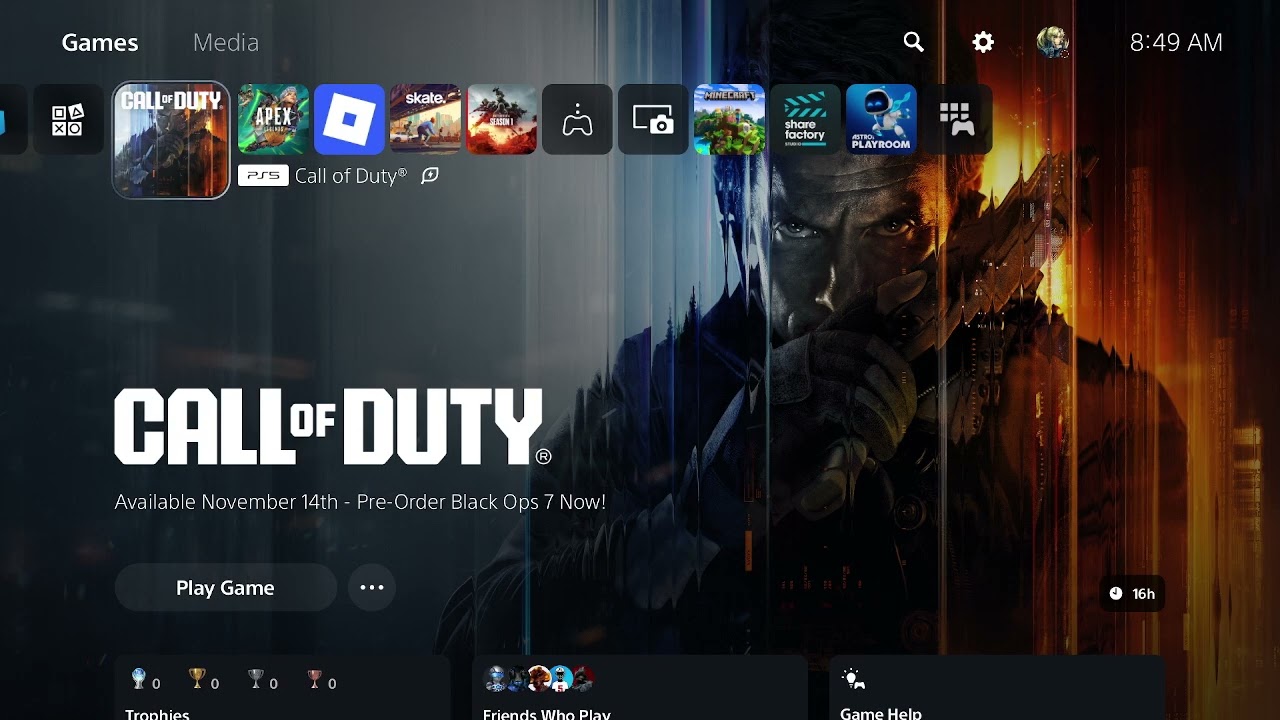
- Close Call of Duty completely. On PlayStation, highlight the game, press Options, and select Close Game. On Xbox, open the game tile’s menu and choose Quit. On PC, exit the game and its launcher. Returning to the main menu is not a full restart.
- Confirm the update has completed. Check the console download queue or the PC launcher. If any Call of Duty update is paused, resume it and wait until installation finishes.
- Check for another game update. On PS5 or PS4, highlight Black Ops 7, press Options, and select Check for Update. Also install any pending console system-software update.
- Restart the device. Use the console or Windows restart command rather than Rest Mode or sleep. Relaunch the platform store or game launcher, then open Black Ops 7.
- Restore the PlayStation license if applicable. On PS5, highlight the game, press Options, and choose Restore License, or go to Settings > Users and Accounts > Other > Restore Licenses. This is safe for saved data.
- Verify installed Black Ops 7 content. On PS5, open the game tile’s Options menu and choose Manage Game Content. On Xbox or PC launchers, open the game’s manage/install options. Confirm the base game and the mode you use are installed. Activision’s installation guide notes that players can select individual content packs, so a partial installation can matter after an update.
- Repair files on PC. Use the launcher’s Scan and Repair or Verify Files feature. This replaces missing or damaged update files without immediately redownloading the entire game.
- Reinstall only as the last step. If the update repeatedly fails after the above checks, reinstall the affected content pack first. Reinstall the full game only if the installation remains inconsistent.
Why the error can repeat
The message means the running game has detected data that should be loaded only after a clean restart. A suspended game session can continue using the old files. The same loop can also occur when an update has not finished, a selected content pack is missing, or a local file does not match the current build. A full close and restart forces the game to reload the installed version.
If you play Warzone through Call of Duty
Check the installed Warzone content separately. Black Ops 7 and Warzone share parts of the Call of Duty launcher but do not necessarily use the same selected packs. If the problem instead says you do not own or cannot find content, use our Black Ops 7 Content Not Found guide. For a session that repeatedly signs you out, see the Black Ops 7 Profile Was Signed Out guide.
Warnings
- Do not delete saved data, cloud saves, or your Activision account.
- Do not remove random content packs unless you know which game mode they support.
- Do not power off the console while an update is installing.
As an Amazon Associate I earn from qualifying purchases.
Frequently asked questions
Why does restarting from inside the game not work?
The game process may still be holding the previous update data. Closing the application completely and restarting the device creates a clean launch.
Will restoring licenses delete progress?
No. PlayStation states that restoring licenses does not affect your data.
Do I need to reinstall all 100+ GB?
Not first. Verify the update and installed content, then repair or reinstall the affected pack. A full reinstall is the final option.