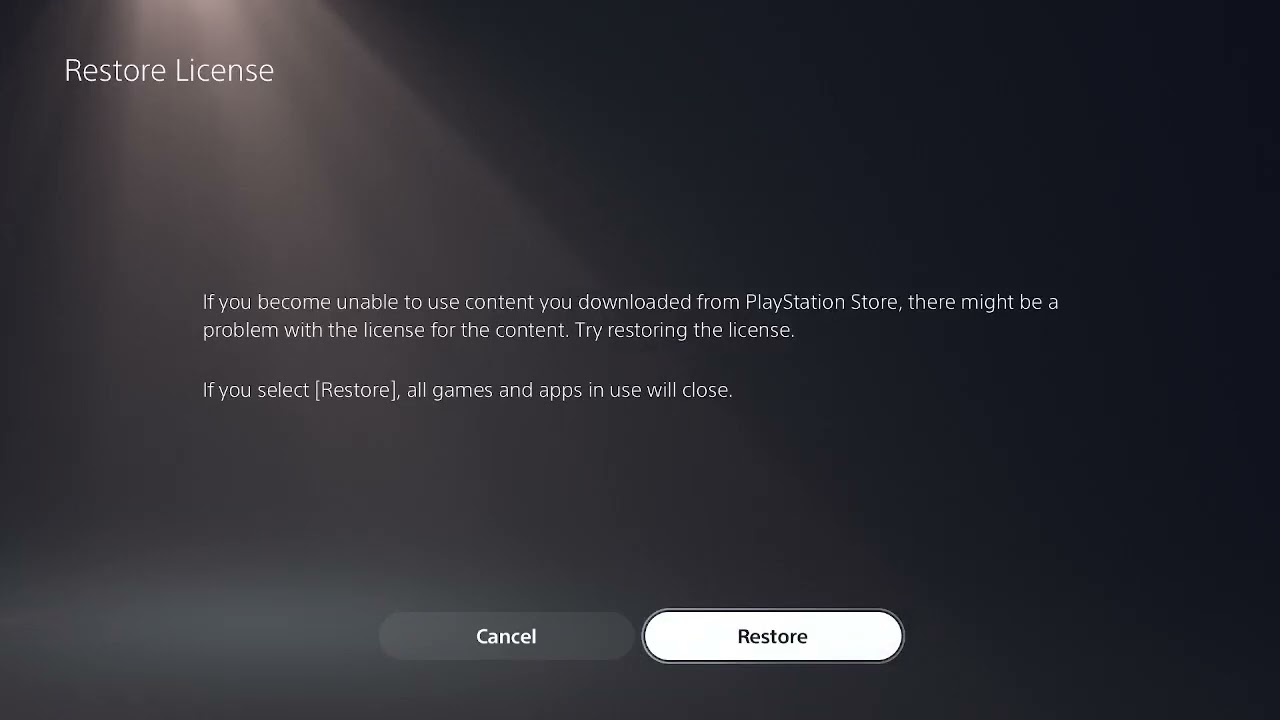
If Battlefield 6 crashes, freezes, returns to the PS5 home screen, or will not launch, update the game and console first, restart the system, disconnect nonessential USB devices, and restore the license. Then verify the installed game content, clear the PS5 cache, rebuild the database, and reinstall only if the failure continues.
Quick answer
- Close Battlefield 6 and install the latest game and PS5 updates.
- Restart the PS5; if needed, shut it down and power-cycle it.
- Disconnect nonessential USB storage and accessories for one test.
- Restore the Battlefield 6 license.
- Verify required content is installed and test from internal storage.
- Clear cache and rebuild the database before reinstalling.
Before you start
- Note whether the game crashes at startup, in the menu, while joining a match, or during gameplay.
- Check whether other PS5 games also crash or power off the console.
- Finish any active game download or update before testing.
- Back up important console data before any destructive option. The steps below do not require a factory reset.
How to fix Battlefield 6 crashing or not launching on PS5
1. Check Battlefield and PlayStation service status
If the game opens but fails while connecting to online services, check EA’s Battlefield support and server status plus PlayStation Network status. A server incident may cause connection failures or menu loops, but it normally does not explain a complete PS5 shutdown.
2. Install all game and system updates
Highlight Battlefield 6 on the PS5 home screen, press Options, and select Check for Update. Then open Settings > System > System Software > System Software Update and Settings. EA and PlayStation both put current software at the start of crash troubleshooting.
3. Close the game and restart the console
Close Battlefield 6 fully rather than resuming a suspended session. Restart the PS5. If the crash returns, turn the console off, disconnect its power cable after the light stops flashing, wait about 30 seconds, reconnect it, and start again.
4. Disconnect nonessential USB devices
For one clean test, disconnect external USB storage, capture devices, hubs, and other accessories that Battlefield 6 does not require. EA recommends removing USB devices when isolating console crashes. Reconnect them one at a time after the game is stable.
5. Restore the Battlefield 6 license
Highlight the game, press Options, and select Restore License. Alternatively, go to Settings > Users and Accounts > Other > Restore Licenses. Sony says this process does not affect saved data.
6. Verify the installed content
Highlight Battlefield 6, press Options, and open Manage Game Content. Make sure the content required for the mode you are launching is installed. If a specific component shows incomplete or damaged, remove and redownload only that component where the menu allows it.
Do not delete packs randomly. Required content can change with updates, and removing the wrong item may create a separate “content not installed” problem.
7. Test the game from internal console storage
If Battlefield 6 is installed on M.2 or USB extended storage, move or reinstall it to the PS5’s internal drive for a diagnostic test. EA recommends internal storage when troubleshooting repeated crashes. A successful test can point to the external drive, connection, or installation location.
8. Clear the cache and rebuild the database
Turn off the PS5, then hold the power button until the second beep. Connect the controller with USB and choose Clear Cache and Rebuild Database. Try Clear System Software Cache first; if needed, return and choose Rebuild Database.
These options are not factory resets. Do not select Reset PS5 or Reinstall System Software for this single-game issue.
9. Reinstall Battlefield 6
If updates, license repair, installed-content checks, and cache/database steps fail, delete Battlefield 6 and download a fresh copy. Let the base game and every required update finish before launching. Test the clean installation before reconnecting optional USB storage.
10. Stop if the PS5 powers off completely
A game closing to the home screen is different from the PS5 losing power. If the console shuts down, shows a heat warning, becomes unusually hot, or does the same thing in other demanding games, stop repeated tests. Ensure open ventilation and use PlayStation’s hardware diagnostic or repair process. A power, cooling, or hardware problem needs different treatment than damaged game files.
Why these fixes work
Updates resolve known compatibility problems. Restarting and power-cycling clear temporary state. Disconnecting USB devices and testing internal storage isolate external hardware. License repair addresses authorization, while content checks and reinstalling replace missing or damaged game files. Cache clearing and database rebuilding repair temporary data and content indexing without erasing the console.
If Battlefield 6 crashes only during multiplayer
Check server status and test a different mode. Restart the router and use Ethernet when possible. If the game itself remains open but a match disconnects, follow connection troubleshooting rather than repeatedly reinstalling. If it closes to the home screen, continue with the crash steps above.
Frequently asked questions
Will restoring the Battlefield 6 license delete my progress?
No. Sony says restoring licenses does not affect data. Battlefield online progress is normally associated with your linked accounts.
Should I delete and reinstall every content pack?
No. First check which content is required and whether a component is incomplete. Randomly deleting packs can create another launch problem.
Is rebuilding the PS5 database safe?
Rebuild Database is a supported diagnostic that scans the content index. It is not the same as Reset PS5. Read each Safe Mode option carefully.
What if Battlefield 6 crashes after a specific update?
Confirm the update fully installed, restart, and check EA’s current Battlefield error and support pages. If many players report the same version-specific crash, document the exact trigger and wait for or report it to EA rather than repeatedly resetting the console.