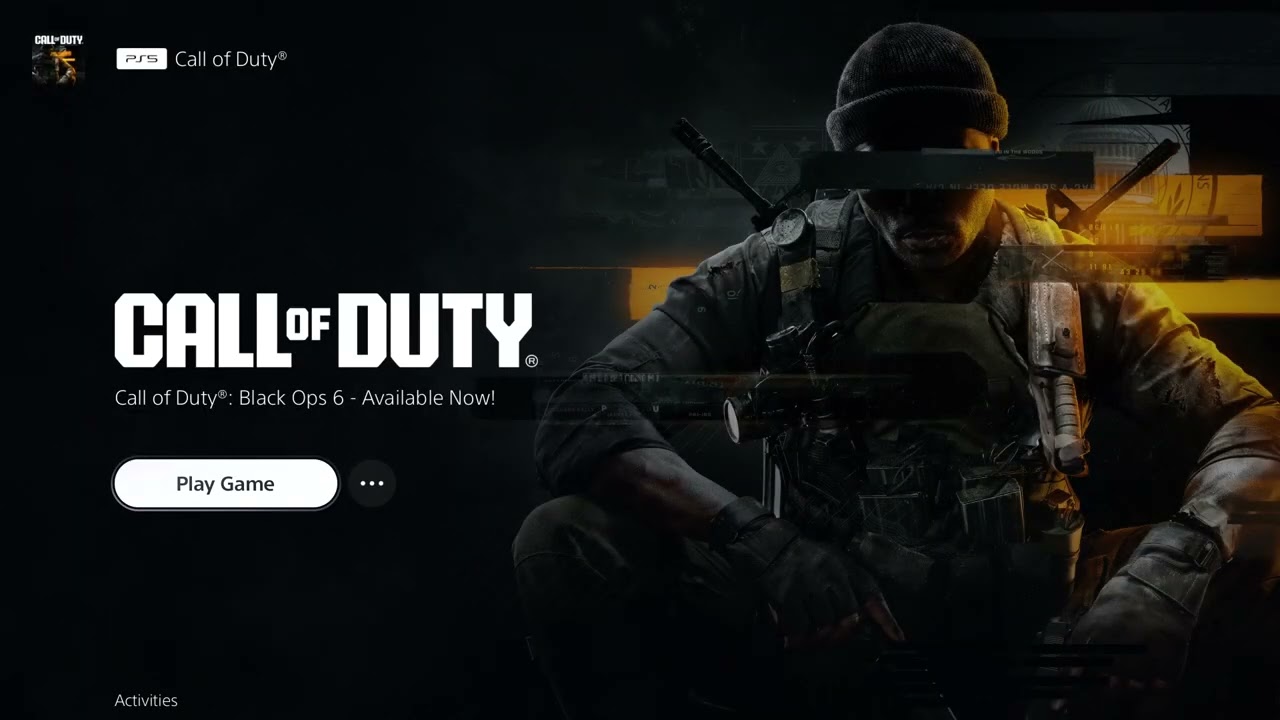
If Black Ops 6 or Call of Duty: Warzone will not install, says content is missing, or sends you back to the PlayStation Store, the usual cause is an account-license mismatch, a missing game component, or an incomplete download. The current PlayStation and Activision menus may look different from older Call of Duty HQ videos, so use the current paths below.
Quick answer: Sign in to the PlayStation account that owns the content, confirm the correct game entry in Game Library, restore licenses, then install the missing component through Manage Game Content or Call of Duty’s Manage Files menu. Check free storage and reinstall only after those steps fail.
Before you start
- Do not delete saved data. Game files and saved data are separate items on PlayStation.
- Make sure the console is connected to the internet and PlayStation Network is available.
- Confirm which account purchased the game or add-on, especially on a shared console.
- Leave enough free storage for both the download and installation process.
Fix Black Ops 6 or Warzone installation problems
- Check the correct product and account. Switch to the primary PlayStation user that owns the game. On PS5, open Game Library > Your Collection and select Black Ops 6 or Warzone. On PS4, open Library > Purchased. If the store asks you to buy content you already own, stop and verify the signed-in account before purchasing anything again.
- Check storage and the download queue. Open Settings > Storage and make room if needed. Then open Downloads/Uploads, cancel any failed duplicate download, restart the console, and begin one clean download.
- Restore the game license. On PS5, go to Settings > Users and Accounts > Other > Restore Licenses, select the affected game license, and restore it. On PS4, go to Settings > Account Management > Restore Licenses. This refreshes ownership data without deleting games or saves.
- Install the missing component from PlayStation. Highlight the game on the home screen, press Options, and choose Manage Game Content. Install the missing Black Ops 6 or Warzone item. For a disc copy, keep the disc inserted and confirm the disc region matches the PlayStation account region.
- Check Call of Duty’s current file manager. If the game opens, select Menu > Manage Files, choose the appropriate game tile, and install the missing campaign, multiplayer, shared-content, or Warzone component. Download only the components you use.
- Use the Store page only as a fallback. Open the game’s official PlayStation Store listing from Game Library and select Download rather than buying it again. Activision notes that reinstalling owners can sometimes be routed to a purchase screen when they are not using the primary account.
- Reinstall cleanly if the component remains stuck. Delete the affected game installation, restart the console, and download it again from the owning account’s Game Library. If possible, use a stable wired connection and do not put the console into a restricted network state while installation is finishing.
Why these steps work
PlayStation verifies a digital entitlement before it installs protected game content. Restoring licenses refreshes that entitlement, while Manage Game Content and Call of Duty’s Manage Files screen repair a different problem: a component that was never installed or did not finish updating. Reinstalling is last because it consumes the most time and bandwidth.
Current menu note
Black Ops 6 now has a standalone installation flow, while Warzone and some shared Call of Duty components may still appear through platform or in-game file-management screens. An older video can show Call of Duty HQ labels that no longer match every console. Follow the names shown on your current console and install the component for the mode you are trying to launch.
If installation still fails
- Test the PlayStation network connection and check the PlayStation service-status page.
- Confirm the game disc and account use the same country or region if you own a physical copy.
- Update PS5 or PS4 system software, then retry the download.
- If the problem changes from missing content to an online-services error, use our Black Ops 6 connection guide.
- Contact PlayStation Support with the transaction receipt if the Store still does not recognize ownership.
Warnings
- Do not purchase the same edition a second time just to bypass a Store prompt.
- Deleting saved data is not required for an installation repair.
- A region mismatch between a disc and Store add-on cannot be fixed by repeatedly reinstalling.
Frequently asked questions
Will restoring licenses delete anything?
No. PlayStation states that restoring licenses does not affect your data.
Why does the game say a pack is installed but still ask me to install it?
The license can be stale, the shared component may be incomplete, or a different console version may be selected. Restore the license, confirm the PS4/PS5 version, and reinstall that component.
Should I install every Call of Duty pack?
No. Install the base experience and the specific mode you play. Extra language or mode packs use storage without helping an unrelated missing-content error.
Watch the source video
Official references
- Activision: Black Ops 6 installation and setup
- Activision: Managing content in Call of Duty games
- PlayStation: Restore licenses
- PlayStation: Troubleshoot add-ons and DLC
- PlayStation: Troubleshoot game downloads
Affiliate disclosure: As an Amazon Associate I earn from qualifying purchases. No product was added here because the safe fixes do not require new hardware.