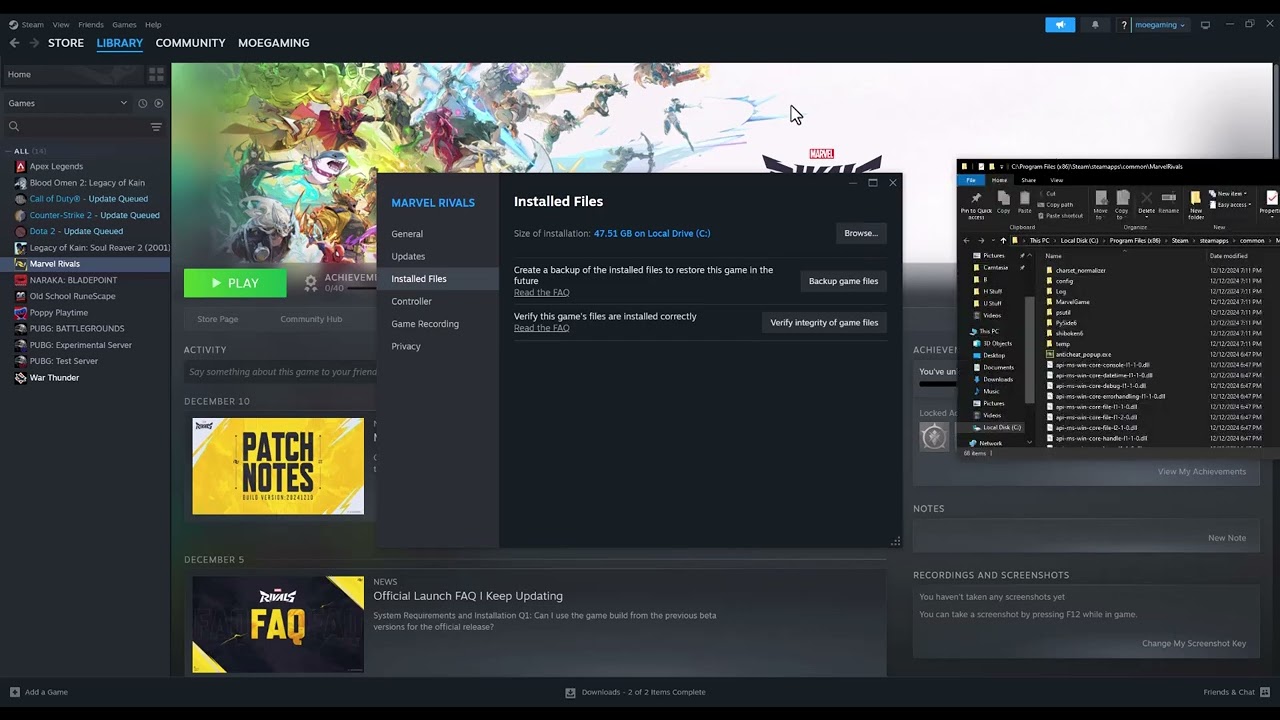
Marvel Rivals can appear frozen at 99% while it finishes loading data from storage. The official Marvel Rivals guidance specifically recommends installing the game on an SSD, and the current PC requirements call for DirectX 12. Start with storage and file integrity before trying launch-option or compatibility tweaks.
Quick answer: Move or reinstall Marvel Rivals on an SSD, verify its files in Steam, restart the PC, and update Windows and the graphics driver. Do not force DirectX 11 as a first-line fix; the current game requirements specify DirectX 12.
Before you start
- Check that the PC meets the current minimum requirements, including 16 GB RAM, a supported DirectX 12 GPU, and adequate free storage.
- Allow the first load after an update a few minutes before deciding it is permanently stuck.
- Close the game before moving its installation or verifying files.
- If the PC uses a hard disk drive, identify an SSD library with sufficient free space.
Fix the 99% loading problem
- Restart the game and PC once. Fully exit Marvel Rivals and Steam, restart Windows, reopen Steam, and test again. This clears a stalled launcher or update process without changing files.
- Move Marvel Rivals to an SSD. In Steam, right-click Marvel Rivals > Properties > Installed Files > Move install folder. Choose a Steam library located on an SSD. If no SSD library exists, add one in Steam’s Storage settings. Marvel Rivals’ official FAQ recommends SSD installation for the 99% loading issue.
- Verify the installation. In Steam, open Properties > Installed Files > Verify integrity of game files. Let the check finish, allow Steam to reacquire any damaged files, and then restart Steam before launching the game.
- Update Windows and the graphics driver. Install pending Windows updates. Then use the official NVIDIA, AMD, or Intel software for the installed GPU. Marvel Rivals recommends a clean driver installation when troubleshooting graphics compatibility.
- Close GPU-heavy background apps. Temporarily exit recording tools, hardware overlays, browsers playing video, and other apps using substantial GPU memory. Reopen only Steam and Marvel Rivals to test.
- Confirm the hardware requirement. An unsupported integrated GPU, insufficient video memory, or an outdated Windows build can cause a loading failure that file verification cannot repair. Compare the PC to the current official requirements.
- Reinstall to the SSD only if needed. Uninstall Marvel Rivals, restart Windows, and install it directly into the SSD Steam library. Avoid copying a partially damaged folder back into the new installation.
Why the SSD fix matters
At 99%, the game may be waiting on asset loading rather than downloading. An SSD handles the large number of reads much faster than a hard drive. File verification addresses a separate cause by comparing installed files with Steam’s current copy and reacquiring damaged or missing data.
What not to try first
The source video also demonstrates compatibility and command-line ideas that have mixed viewer results. Current Marvel Rivals documentation specifies DirectX 12, so a -dx11 launch option is not a safe universal recommendation. Running the launcher as administrator can also create permission mismatches with Steam. Use the supported SSD, verification, update, and requirements checks first.
If the bar still stops at 99%
- Remove any custom launch options in Steam and test the default configuration.
- Make sure the SSD has free space for patches and temporary files, not only the listed install size.
- Check the official Marvel Rivals news and support channels for a current loading issue.
- Collect the game logs and contact official support if the same clean installation fails on supported hardware.
- If the game produces an access-violation code instead of stopping at 99%, use our 0xC0000005 PC game guide.
Warnings
- Moving the game can take time; do not interrupt Steam or power off the PC during the transfer.
- Do not download replacement DLL files or unofficial repair utilities.
- A loading bar and low frame rate are different problems. This guide addresses the game stopping at 99%.
Frequently asked questions
Can I keep Marvel Rivals on a hard drive?
It may run on some systems, but Marvel Rivals officially recommends an SSD and specifically points to SSD installation for slow or failed loading around 99%.
Does Verify integrity delete my account progress?
No. Online account progress is not removed by Steam’s file-verification check. Local configuration files may be recreated only if the game itself determines they are damaged.
Should I use DirectX 11?
Not as a default fix. The current minimum specifications call for DirectX 12. Forcing an unsupported renderer can create a new launch failure.
Watch the source video
Official references
- Marvel Rivals launch FAQ and troubleshooting
- Marvel Rivals PC system requirements
- Steam Support: Verify integrity of game files
- Steam Support: Update and installation issues
Affiliate disclosure: As an Amazon Associate I earn from qualifying purchases. No product was added here because the safe fixes do not require new hardware.