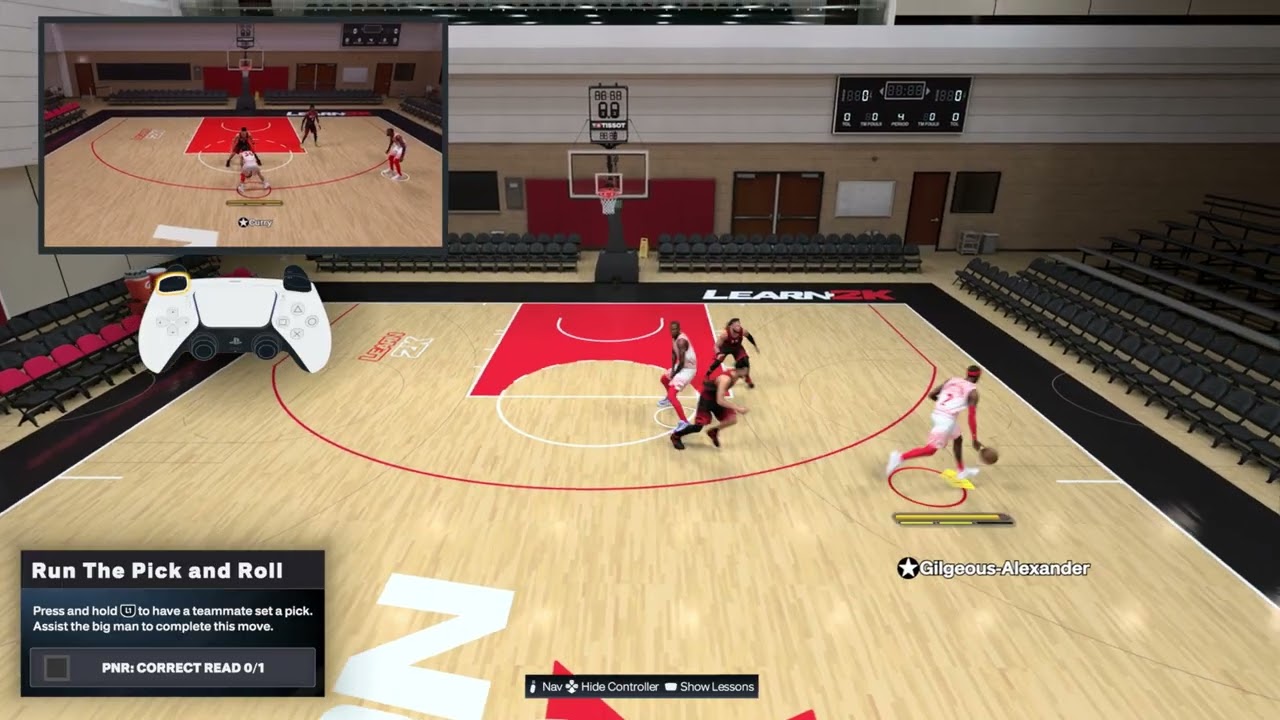
Quick answer: On PS5, hold L1 for a quick on-ball screen, or tap L1 and choose the on-screen teammate icon when you want a specific screener. Once the pick arrives, dribble shoulder-to-shoulder past it and read the defense: drive if the lane opens, pull up when the defender goes under or the big stays in drop coverage, pass to the roller, or tap R1 to make the screener fade. Press L3 to flip the called screen, and press L1 again to send the screener on an early slip.
NBA 2K27 uses several context-sensitive buttons. On offense, R1 can direct a pick-and-fade; on defense, R1 opens the matchup assignment. When playing off the ball, the Learn 2K prompt says to tap R2 while moving for a burst away from a screen. Follow the live prompt if you changed your controller preset or if a later update displays a different command.
| Action | Default PS5 input shown | When to use it |
|---|---|---|
| Quick on-ball screen | Hold L1 | Bring the nearest suitable screener to the ball. |
| Choose a specific screener | Tap L1, then select the teammate icon | Create the matchup or spacing you want. |
| Flip the called screen | Press L3 | Move the pick to the other side of the ball handler. |
| Slip the screen | Press L1 again | Send the big toward the basket before firm contact. |
| Pick-and-fade | Tap R1 after calling the screen | Send the screener toward the perimeter instead of the rim. |
| Set an off-ball screen | Circle near the defender | Free a teammate while you do not have the ball. |
| Adjust screen facing as the screener | L2 or R2 while holding the screen position | Track the defender’s angle without abandoning the screen. |
| Off-ball burst/get open | Tap R2 while moving | Accelerate away from a screen and call for a pass. |
| Change defensive matchup | Press R1, then choose the player icon | Reassign who your controlled defender guards. |
Before you call the screen
- Use a lineup with a capable ball handler and a teammate who can set a useful screen. In MyCAREER, review the NBA 2K27 MyPLAYER build guide before spending VC on a role that does not fit this play.
- If you want to practice supported story games with another player, set up the session with the NBA 2K27 friends and Co-Op MyCAREER guide.
- Give the screener space to approach; a crowded paint or sideline can ruin the angle.
- Check the on-screen controller prompts if you changed your control preset.
- For online modes, expect more input delay and less predictable help defense than in an offline practice session.
1. Start with the ball above or beside the three-point line
- Bring the ball up with enough room between you and the nearest defender.
- Slow down before calling the screen so the teammate has time to reach the correct position.
- Keep the paint in view and notice which defender could rotate to help.
A pick and roll works best when the screener has a clear route and the ball handler can move in more than one direction. Calling it while trapped near the baseline gives the defense fewer decisions to make.
2. Press L1 and select the screener
- Press L1 while you have the ball.
- Read the teammate icons that appear on screen.
- Choose the teammate you want to set the pick. In the source walkthrough, the desired screener is selected with Circle.
- Wait for the teammate to move into position rather than sprinting away immediately.
The button icon is tied to the current lineup and desired teammate. If Circle belongs to a different player in your possession, use the icon displayed over the screener you actually want.
3. Use the screen shoulder-to-shoulder
- Let the screener become set.
- Dribble close to the screener’s shoulder so your defender has to go around the pick.
- Accelerate only after the screen creates separation.
- Keep the screener and the help defender in view as you turn the corner.
Going too wide lets the on-ball defender slide through the gap. Moving too early can cause the screen to miss or produce an offensive foul, while hesitating too long gives the defense time to recover.
4. Read the defense and choose the open result
- Defender trails you: attack the lane before the defender catches up.
- Defender goes under: stop for an open jumper only if the ball handler can make that shot.
- Two defenders pressure the ball: pass to the screener when the roll is open.
- Help defender protects the rim: look for an open teammate on the perimeter instead of forcing a contested finish.
- Nothing opens: pull the ball out and reset the possession.
The walkthrough demonstrates turning the corner for a dunk, but a dunk is not guaranteed. Player ratings, stamina, spacing, defender position, difficulty, and online latency all affect the result.
5. Pass to the roller when the lane opens
- Watch the screener after contact with the defender.
- When the screener turns toward the basket and has a clear passing lane, make the normal pass shown by your current control prompts.
- Pass before the help defender closes the gap.
- If the lane is covered, keep the ball or pass to a different open teammate.
2K says NBA 2K27 improves pick-and-roll pocket passing and off-ball screen decisions. The play is still based on reading coverage: the roller is an option, not an automatic target.
6. Flip the screen or change its angle
If the defender is already positioned to beat the screen, change the pick before you use it.
- Call the screen and wait until the screener is approaching or set.
- Press L3 to flip the screen to the opposite side.
- Pause long enough for the screener to move, then dribble tight to the new shoulder.
When you are controlling the screener off the ball, the Learn 2K demonstration uses L2 or R2 while maintaining the screen position to adjust which way the player faces. These are different actions: L3 flips a called on-ball screen; L2/R2 adjusts the body angle while you are the screener.
7. Slip the screen for an early roll
- Press and hold L1 to call the pick.
- Before the screener makes firm contact, press L1 again.
- Watch the big cut toward the basket.
- Pass only when the lane is clear, then finish with the appropriate shot input.
A slip punishes defenders who jump toward the ball handler or switch too early. In the source caption, one spoken line says “hold R1,” but the visible Learn 2K instruction and the rest of the walkthrough identify L1. Use the on-screen L1 prompt.
8. Run a pick-and-fade
- Hold L1 to call the screen.
- Tap R1 so the screener fades instead of rolling.
- Use the screen and draw the screener’s defender toward the ball.
- Pass to the fading teammate only when the perimeter passing lane is open.
- Take the jumper if the receiver is set and uncontested; otherwise keep the possession alive.
The fade is most useful with a screener who can shoot. It creates spacing, but it does not guarantee the Learn 2K drill will register on a rushed, late, or contested attempt.
9. Attack drop coverage
Drop coverage keeps the screener’s defender closer to the basket. That can take away the roll while leaving space in front of the dropping big.
- Hold L1 and use the screen closely.
- Watch the screener’s defender rather than staring only at your matchup.
- If the big retreats into the paint, stop in the open space for a pull-up jumper.
- If the defender steps up, pass to the roller or attack the gap they leave.
The associated Learn 2K objective specifically describes a pull-up jumper against the drop. A dunk or layup may be a sound live-game read, but it may not satisfy that tutorial objective.
10. Set an off-ball screen
- Move beside the defender guarding the teammate you want to free.
- Press Circle as shown in the source walkthrough to set your body.
- Stay still long enough for your teammate to use the pick.
- Release and reposition after the teammate clears the screen.
Do not keep shuffling into the defender after beginning the screen. Moving contact can trigger an offensive-foul animation, and poor spacing can block your teammate instead of freeing them.
11. Come off a screen and get open off the ball
- Start moving around the off-ball screen.
- Tap R2 for the short acceleration burst shown by the Learn 2K prompt.
- Change direction around the screener rather than running straight into the defender.
- Show your hands, receive the pass, and shoot only if separation remains.
The narration later says R1, but the caption explicitly reads the visible tutorial as “tap R2 while moving around off ball.” That matches R2’s acceleration context, so this guide uses R2. If your screen shows a different input, follow the live prompt.
12. Call for the ball after you separate
In the “get open” demonstration, tapping R2 helps create separation and the player raises a hand as the pass arrives. Timing matters: call for the ball after you clear the defender, not while the passing lane is blocked. Teammate AI may decline the request when a defender can intercept the pass, so reset and try another angle rather than repeatedly demanding the ball.
13. Change a defensive matchup
- While defending, press R1 to open the matchup assignment.
- Select the on-screen icon for the opponent you want your controlled defender to guard.
- Confirm that the matchup indicator changes before the next action develops.
This R1 command is defensive and contextual; it does not conflict with the offensive R1 pick-and-fade command. Matchup icons can change with the players currently on the floor.
Practice the controls in Learn 2K
Moe Gaming’s pick-and-roll walkthrough points to NBA 2K27’s Learn 2K area and its intermediate tutorials. Use those drills first because they show the active button prompt, explain the required finish, and immediately confirm whether the move registered. After the input is consistent, practice reading help defense in a normal offline possession before taking it online.
Why the pick and roll works
The screen forces two defenders to communicate in a small window. The on-ball defender may trail, switch, or go under, while the screener’s defender may drop, hedge, or pressure the ball. Each response can leave a different player or area open. Staying close to the pick and waiting until the defense commits creates the advantage.
Alternatives when the basic pick and roll stalls
- Choose a different screener to create a better speed or size matchup.
- Call the action from the opposite side so the ball handler’s dominant hand faces the open lane.
- Use the screen and reject it—drive the other way—only when the defender commits too early.
- Reset outside the arc instead of driving into a packed paint.
- Practice in a lower-pressure offline mode until the timing feels consistent.
Warnings and common mistakes
- Do not assume Circle always selects the same teammate; read the current icon.
- Do not sprint before the screener is set.
- Do not force a pass through a defender just because the screener begins rolling.
- Do not hold the ball until the shot clock expires while waiting for a perfect animation.
- Control layouts can change with presets or updates. Use the live on-screen prompt if it differs from the walkthrough.
Frequently asked questions
Which button calls a pick and roll on PS5?
Press L1 to bring up the screen action, then select the desired teammate using the icon displayed on screen. The walkthrough uses Circle for its chosen screener.
Why does the wrong teammate set the screen?
The teammate icons change with your lineup and possession. Select the icon over the player you want instead of memorizing one face button.
Why does the screener stay outside instead of rolling?
The screen angle, spacing, play context, player tendencies, or defensive coverage may change the teammate’s movement. Give the screener room, use the pick closely, and reset if the lane does not open.
Should I shoot, drive, or pass?
Choose the open result. Drive when the lane is clear, shoot when the defender leaves space and your player can make the shot, and pass when the screener or another teammate is open.
Does this guarantee a dunk?
No. The video demonstrates a dunk after using the screen, but ratings, stamina, defense, difficulty, and timing determine the finish.
Watch the Moe Gaming controls walkthroughs
These short demonstrations show the active Learn 2K prompts and the resulting movement. Button names in this guide follow the visible prompt when an auto-caption or spoken line conflicts with it.
Basic pick and roll
Run the pick and roll
Flip the screen
Slip the screen
Run a pick-and-fade
Play against drop coverage
Set an off-ball screen
Adjust the screen facing
Come off a screen
Get open off the ball
Change a defensive matchup
Optional controller replacement
As an Amazon Associate I earn from qualifying purchases.
- DualSense wireless controller — relevant only if the existing L1 or face buttons are physically unreliable; a new controller will not fix timing or defensive reads.