Quick answer: Connect the PS5 to the router with Ethernet, put the Portal on a strong 5 GHz Wi-Fi signal, pause large downloads, and test close to the router. Sony recommends at least 5 Mbps in each direction and about 15 Mbps for a better Remote Play experience.
Before you start
- Update the PS5 and PlayStation Portal system software.
- Confirm the PS5 and Portal can both reach the internet.
- If the PS5 uses Wi-Fi, connect both devices to the same router for the first test.
- Have an Ethernet cable available if the router is close enough to the PS5.
How to fix it
- 1. Check the connection before changing settings
On PS5, open Settings > Network > Connection Status and run Test Internet Connection. If the connection is unstable, restart the modem/router and retest before blaming the Portal. - 2. Wire the PS5 to the router
Connect the PS5 by Ethernet, then choose Settings > Network > Settings > Set Up Internet Connection > Set Up Wired LAN. This removes one Wi-Fi hop from the Remote Play path. - 3. Use 5 GHz Wi-Fi for the Portal
Connect the Portal to the router’s 5 GHz network when signal strength is good. If the router combines 2.4 and 5 GHz under one name and the Portal keeps switching bands, temporarily separate the bands or disable band steering if your router supports it. - 4. Reduce congestion
Pause PS5 downloads, cloud backups, 4K streaming, and other large transfers on the home network. Retest the same game in the same room so the comparison is meaningful. - 5. Move closer and remove obstacles
Test within clear range of the router. Thick walls, cabinets, televisions, and crowded wireless channels can add delay or packet loss even when an internet speed test looks fast. - 6. Restart the Remote Play session
Close the session, restart the Portal and PS5, and reconnect. A fresh session can clear a stalled connection without deleting settings. - 7. Isolate the cause
If latency remains, test the Portal on another trusted network. A phone hotspot can be a short diagnostic test, but mobile data charges and inconsistent carrier latency make it a poor permanent fix.
Why these fixes work
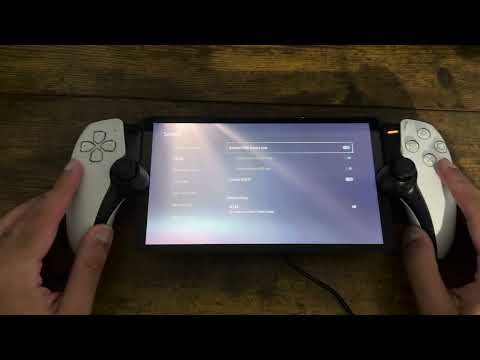
Remote Play sends controller input to the PS5 and streams video back. Delay rises when either direction suffers interference, congestion, or packet loss. Ethernet stabilizes the PS5 side, while a strong 5 GHz connection gives the Portal more bandwidth and usually less interference. The source video demonstrates Ethernet and Wi-Fi-band checks; Sony’s current guidance supports those network changes. It does not support changing HDMI Device Link as a latency fix, so that setting is intentionally omitted.
Other safe options
- If 5 GHz is weak at your usual seat, test 2.4 GHz; it is slower but can travel farther through walls.
- Use router quality-of-service controls only if you understand them, and prioritize the PS5 and Portal rather than blocking other devices.
- If every network shows the same severe delay, contact PlayStation Support and include the results of both network tests.
Warnings
- Do not factory-reset the PS5 or Portal for ordinary latency before completing network tests.
- Do not expose the PS5 directly to the internet or disable router security.
- A fast download result alone does not rule out high latency, jitter, or packet loss.
Frequently asked questions
How fast should my connection be?
Sony lists 5 Mbps as the minimum and recommends at least 15 Mbps for a better experience. Local Wi-Fi quality still matters even with faster internet.
Should the PS5 and Portal use the same Wi-Fi band?
The PS5 is best connected by Ethernet. If it must use Wi-Fi, start with both devices on the same router; place the Portal on 5 GHz when signal strength is good.
Will turning off HDMI Device Link reduce lag?
Sony does not identify HDMI Device Link as a Remote Play latency control. Leave it enabled if you use it; focus on the network path instead.
Why does latency change by room?
Distance, walls, interference, and router placement affect real-time streaming more than ordinary browsing.
Source video
Official references
- PlayStation Portal troubleshooting
- Remote Play on PlayStation Portal
- Remote Play connection troubleshooting
As an Amazon Associate I earn from qualifying purchases.