Quick answer: Check Activision and PlayStation service status, power-cycle the router, use Ethernet if possible, and test both 5 GHz and 2.4 GHz Wi-Fi. Pause competing downloads and measure the PS5 connection. DNS can help name resolution, but it cannot repair true packet loss, congestion, or a poor route.
Before you change settings
- Check whether every player in the match is lagging. If so, the server may be the cause.
- Open Activision Online Services and PlayStation Status.
- Pause downloads, cloud backups, and 4K streaming on the home network.
- Record whether the problem is high latency, packet loss, rubber-banding, or a disconnect.
How to reduce Black Ops 6 lag on PS5
- Restart the game and PS5. Fully close Call of Duty, restart the console, and test one match.
- Power-cycle the router. Unplug the modem and router for about 30 seconds. Reconnect the modem, wait for service, then reconnect the router.
- Test Ethernet. Connect the PS5 directly to the router. If lag disappears, focus on Wi-Fi range or interference rather than reinstalling BO6.
- Choose the better Wi-Fi band. Go to Settings > Network > Settings > Set Up Internet Connection. Highlight the saved network, press Options, and set Wi-Fi Frequency Bands to 5 GHz or 2.4 GHz. Use 5 GHz nearby and 2.4 GHz through more walls.
- Run the PS5 network test. Open Settings > Network > Connection Status > Test Internet Connection. Download speed is not the same as low latency, but a failed sign-in or very unstable result is useful evidence.
- Reduce local congestion. Stop other console downloads, PC updates, cloud sync, and high-bitrate streams. Enable router QoS only if the router vendor documents it and you understand the settings.
- Update everything. Install PS5 system software, BO6 updates, and router firmware from the router maker.
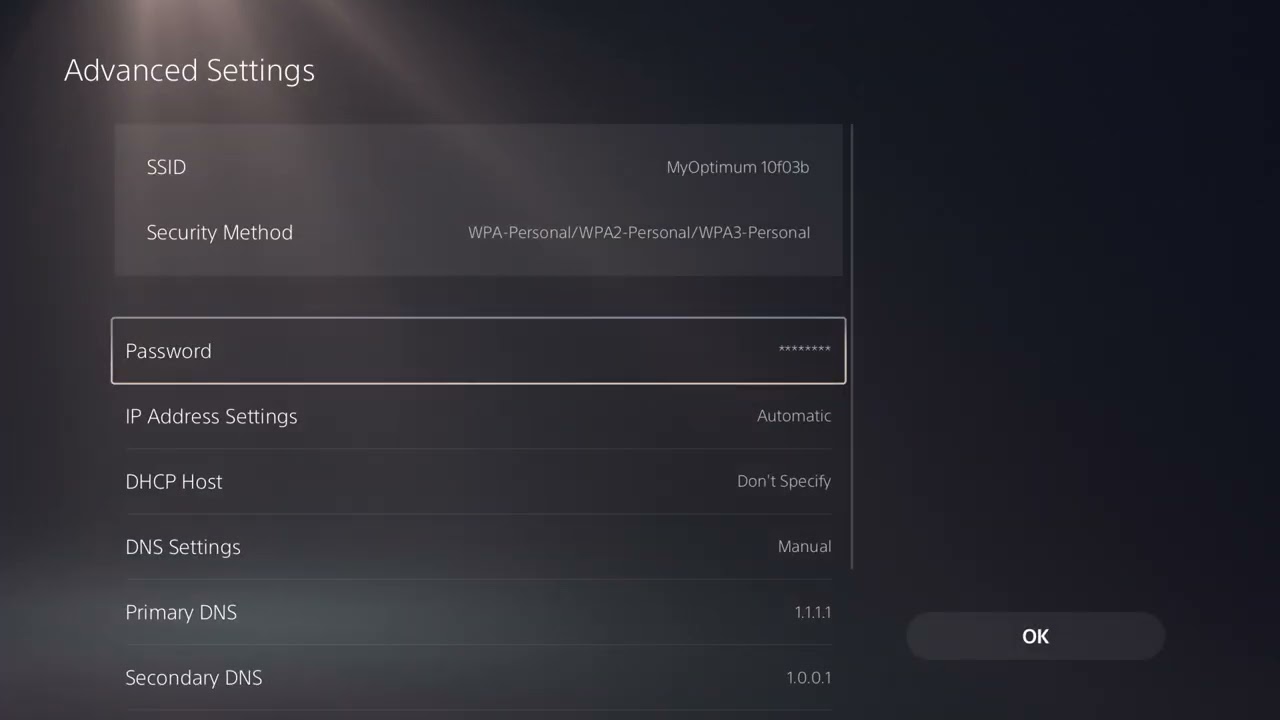
- Optionally test Cloudflare DNS. In the saved network’s Advanced Settings, set DNS to Manual with 1.1.1.1 and 1.0.0.1. If performance is unchanged or worse, restore Automatic.
- Compare another connection. A brief phone-hotspot test can separate the home ISP path from the console or game. Do not use a capped hotspot for large updates.
Why this works
BO6 needs a stable, low-jitter path between the PS5 and the match host or service. Ethernet removes wireless interference. Selecting the correct band can improve either speed or range. Power-cycling renews the local connection. Reducing competing traffic lowers queueing delay on the home router.
DNS is not a ping booster
The video and some viewers report that alternate DNS helped. That can happen if the ISP resolver is failing or slow during service lookup. Once connected to a match, DNS does not carry gameplay packets, so it cannot solve weak signal, bufferbloat, packet loss, or distant servers.
Alternatives
- Move the router higher and away from dense walls, TVs, and metal objects.
- Test a different Ethernet cable and router port.
- Use the closest matchmaking region available through the game; do not use a VPN to force a distant region.
- If BO6 cannot connect at all, use our BO6 unable-to-connect guide.
Warnings
Do not copy an MTU value from a comment. The wrong MTU can create fragmentation or failed connections. Avoid permanent firewall disabling and random port-forwarding rules.
Frequently asked questions
Why does only BO6 lag?
Different games use different servers, routes, tick rates, and matchmaking regions. One game can expose a route or server issue that speed tests miss.
Is 5 GHz always better?
No. It is faster at short range but loses strength through walls. A clean 2.4 GHz signal may be more stable farther away.
Should I reinstall BO6?
Not for ordinary online lag. Reinstall only if the game also crashes, fails verification, or Activision identifies damaged files.
Official references
Source video
As an Amazon Associate I earn from qualifying purchases.