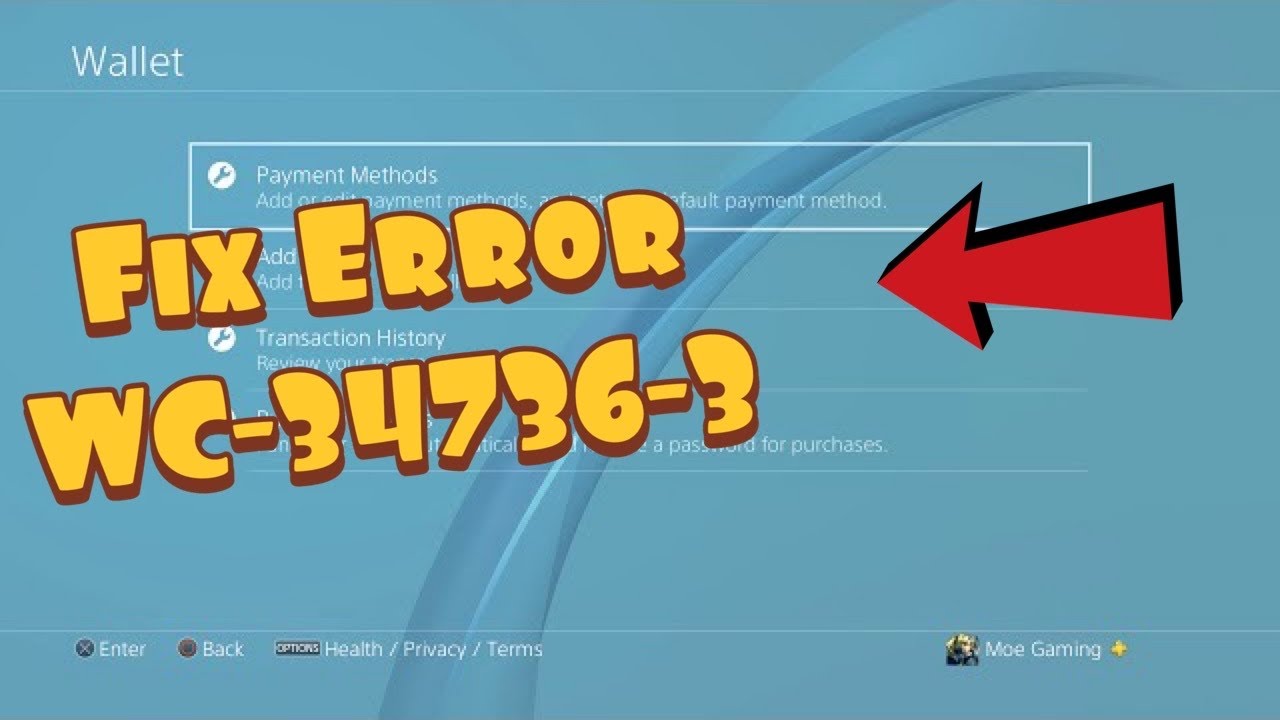
Quick answer: WC-34736-3 means PlayStation could not accept the registered payment information. On PS4, delete the saved payment method, then add it again with the exact card number, expiration date, name and billing address held by the issuer. If it still fails, use a different supported payment method or wait 24 hours before trying again.
Before you start
- Never post card details, voucher codes or account credentials in comments or support forums.
- Check the billing address directly with the card issuer.
- Make sure the PlayStation account country/region is compatible with the payment method.
- Avoid many rapid retries, which can extend a temporary security restriction.
Fix WC-34736-3 on PS4
- Stop repeated attempts. If the error followed several failed entries, wait before trying again. Repeated submissions can look like suspicious activity.
- Verify every billing field. Confirm the card number, expiration date, security code, cardholder name, street address and postal code. Use the issuer’s billing address exactly rather than a delivery address or nickname.
- Remove the saved payment method. On PS4, open Settings > Account Management > Account Information > Wallet > Payment Methods. Select the affected method and remove it.
- Add it again carefully. Re-register the card using the verified details. Avoid copying spaces into numeric fields.
- Try the PlayStation App or account website. Adding the same payment method through another official PlayStation interface can rule out a console form or cache problem. Use only the official app or PlayStation domain.
- Try another supported payment method. If available in the account’s region, use another card, PayPal or redeemed PlayStation Store wallet funds. A prepaid card may fail if it does not support address verification.
- Wait 24 hours. PlayStation’s code-specific guidance says the issue may be temporary and recommends waiting 24 hours before trying again. The source video suggests a longer wait in some cases, but that timing is not guaranteed; follow the official 24-hour minimum first.
Why this works
PlayStation and the payment processor compare submitted details with the issuer’s record and apply fraud controls. Removing and re-adding the method clears stale saved fields. Exact billing information passes address checks, while a pause allows a temporary risk block or service problem to expire.
Alternatives
- Contact the card issuer and ask whether it is declining an online digital-goods transaction.
- Check PlayStation Network status for Store or Account Management incidents.
- Redeem a legitimate PlayStation Store voucher purchased for the same account region, then pay from wallet funds.
- Contact PlayStation Support if the method works elsewhere and still fails after 24 hours.
Warnings
Do not use a false billing address, buy codes from unverified resellers or share a card screenshot. PlayStation accounts and vouchers are region-specific. A voucher from another region may not redeem and should not be treated as a workaround for a card-address mismatch.
FAQ
Will a gift or prepaid card work?
Only if the card supports online transactions and address verification, and its billing details can be registered correctly. Otherwise use another supported method.
Why wait instead of retrying?
Multiple failed attempts can trigger temporary fraud protection. A pause avoids feeding the same invalid or blocked request repeatedly.
Does deleting the payment method cancel subscriptions?
It removes that saved method. Check active subscriptions and add a valid replacement before the next renewal date.
Official references
Source video
As an Amazon Associate I earn from qualifying purchases.