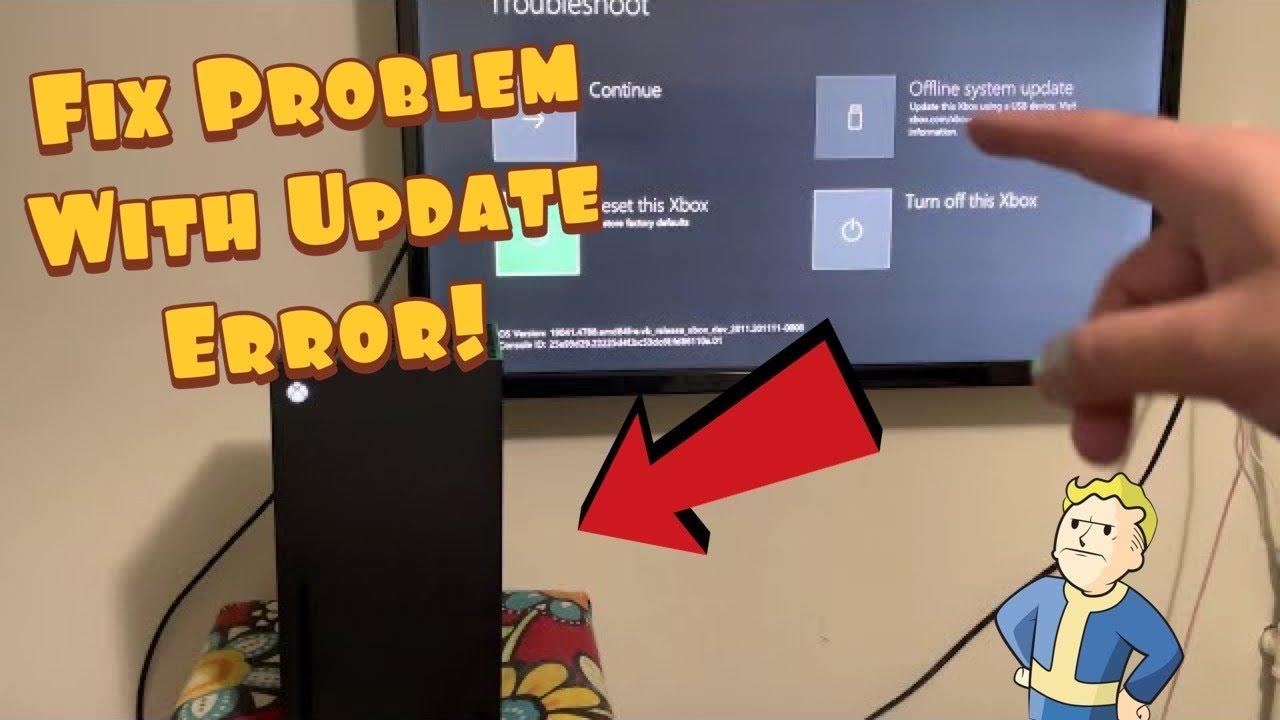
Quick answer: Restart the Xbox and network equipment, then retry the system update on a stable wired connection. If the console returns to the update error, open the Xbox Startup Troubleshooter. Use an Offline System Update with Microsoft’s current OSU1 file when supported. If updating still fails, choose Reset and keep my games & apps before considering the destructive Reset and remove everything option.
Before you start
- Keep the console connected to reliable power.
- Have the Microsoft account email and password available for sign-in after a reset.
- Use a Windows PC and a suitable NTFS-formatted USB drive if an Offline System Update is required.
- Do not unplug the console while an update or reset is actively applying.
Fix Xbox error 0xE0E8000F
- Restart the console. Hold the Xbox button on the controller, choose Restart console and retry the update. If the interface is unavailable, hold the console’s Xbox button for about ten seconds, wait and start it again.
- Power-cycle the network. Unplug the modem/router for about 60 seconds, reconnect it and wait until it is fully online. Use Ethernet if possible and avoid downloading on other devices during the retry.
- Check Xbox service status. If the Account, Store or Games services report an incident, wait rather than resetting the console.
- Open the Startup Troubleshooter. Turn the console fully off and unplug power briefly. On consoles with a Pair button and an Eject button, hold Pair and Eject, press the Xbox button and keep holding until the second startup tone. On an all-digital model without Eject, use Pair plus the Xbox button. Button combinations vary by model, so follow Microsoft’s model-specific page.
- Try an Offline System Update. On a Windows PC, download the current OSU1 file from Xbox Support, extract it and copy the $SystemUpdate folder to the root of an NTFS USB drive. Insert it at the troubleshooter and select Offline system update. If the option is unavailable, verify the console model and OS requirements on the official page.
- Reset while keeping games and apps. In the troubleshooter, choose Reset this Xbox > Keep games and apps. This removes accounts, settings and damaged system data but keeps installed game/app files. You must sign in and configure the console again.
- Remove everything only as the last resort. A full factory reset deletes accounts, settings, local saves not synchronized to Xbox network, and installed games/apps. Use it only after the offline update and keep-games reset fail.
Why this works
Update error 0xE0E8000F can leave the console unable to finish its normal startup path. A clean restart and stable connection address interrupted downloads. The Offline System Update supplies known system files from USB. The keep-games reset replaces console settings and system data while avoiding a full game reinstall.
If the console keeps returning to the troubleshooter
- Recreate the USB drive with a freshly downloaded OSU1 package.
- Try another USB port and a known-good drive.
- Disconnect external storage while updating, then reconnect it after the console starts.
- If both reset options fail or the internal drive makes unusual noises, request Xbox service rather than repeatedly power-cycling it.
Warnings
The source video demonstrates both reset choices. Start with Keep games and apps. Remove everything is destructive and should never be presented as the first fix. Offline files must come from Xbox Support; unofficial update packages can damage the installation.
FAQ
Does Keep games and apps preserve everything?
No. It preserves installed game and app files, but removes accounts, settings and potentially local data that has not synchronized. You will need to sign in again.
Why is Offline system update unavailable?
The drive format, folder structure, console model or installed OS version may not meet the requirements. Recheck Microsoft’s instructions for the exact console.
Should I choose Remove everything?
Only after the less destructive update and reset paths fail and important data has synchronized or been accepted as at risk.
Official references
Source video
As an Amazon Associate I earn from qualifying purchases.