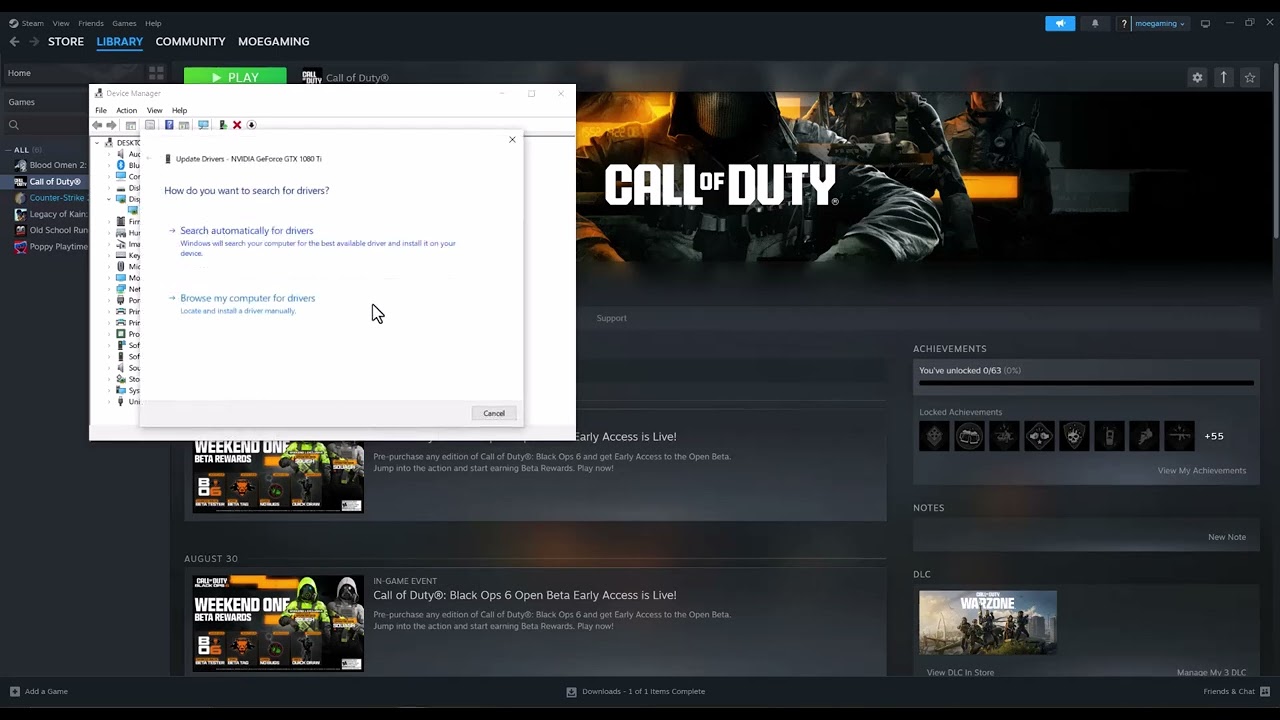
Quick answer: Close Black Ops 6 and its launcher, identify whether your PC uses NVIDIA, AMD, or Intel graphics, then install the current driver recommended by Activision from the GPU maker’s official site. Restart Windows before testing the game. If the warning began immediately after a newer driver, return to Activision’s recommended version instead of repeatedly reinstalling the same release.
Before you start
- Save open work because the driver installer and Windows restart can interrupt running apps.
- Make sure you know which GPU is actually running the game, especially on a laptop with integrated and discrete graphics.
- Create a Windows restore point if you plan to roll back or perform a clean driver installation.
How to fix the GPU driver version error
- Exit the game and launcher. Close Call of Duty HQ and Steam, Battle.net, or the Xbox app. Open Task Manager and make sure the game is no longer running.
- Identify the graphics adapter. Right-click Start, choose Device Manager, expand Display adapters, and note the exact NVIDIA, AMD, or Intel model. If two adapters appear, the higher-performance discrete GPU is normally the one that needs the game-ready driver.
- Download only from the manufacturer. Use the official NVIDIA driver page, AMD Drivers and Support, or Intel Driver & Support Assistant. Avoid third-party driver download sites.
- Install the recommended driver. Follow the vendor installer and leave the display driver selected. A clean-install option can help when a previous update is damaged, but it may reset graphics profiles.
- Restart the PC. Do this even if the installer does not demand it; the game can keep detecting old components until Windows reloads the driver.
- Confirm the version. In Device Manager, open the GPU’s Properties > Driver, then compare the installed version and date with the package you installed.
- Launch Black Ops 6 and let shaders rebuild. Do not interrupt shader preloading. Test a private match or menu first.
Why this works
Black Ops 6 checks the graphics driver because its DirectX features depend on vendor components outside the game files. Windows’ automatic search may report that the “best” driver is installed even when a newer game-ready package exists. Installing from the GPU manufacturer replaces the complete driver stack that the game detects.
If the warning remains
- Compare your version with Activision’s current video-card driver guidance. Activision also notes that a newer driver can occasionally introduce trouble; use its recommended version when that happens.
- Verify the game files in Steam or Battle.net after the driver restart.
- On laptops, set Call of Duty to the high-performance GPU in Settings > System > Display > Graphics.
- If the error started with the newest package, use the vendor’s official installer for the previous recommended version. Do not download an old package from an unofficial mirror.
Warnings
Do not uninstall a display adapter at random on a laptop, flash a GPU BIOS, or use a registry “driver fixer.” Those steps are unnecessary for a normal version warning. A brief black screen during a legitimate driver installation is expected.
Frequently asked questions
Can I use Update driver in Device Manager?
You can try it, but Windows often offers a stable general driver rather than the newest game-ready release. The GPU maker’s official package is the better check.
Should I always install the newest driver?
No. Use Activision’s current recommendation. If a just-released driver causes the warning or crashes, a known-good recommended version may be safer.
Will updating the driver erase my game or progression?
No. It can reset per-game graphics profiles, but it does not remove Black Ops 6 or online progression.
Source video
Official references
As an Amazon Associate I earn from qualifying purchases.