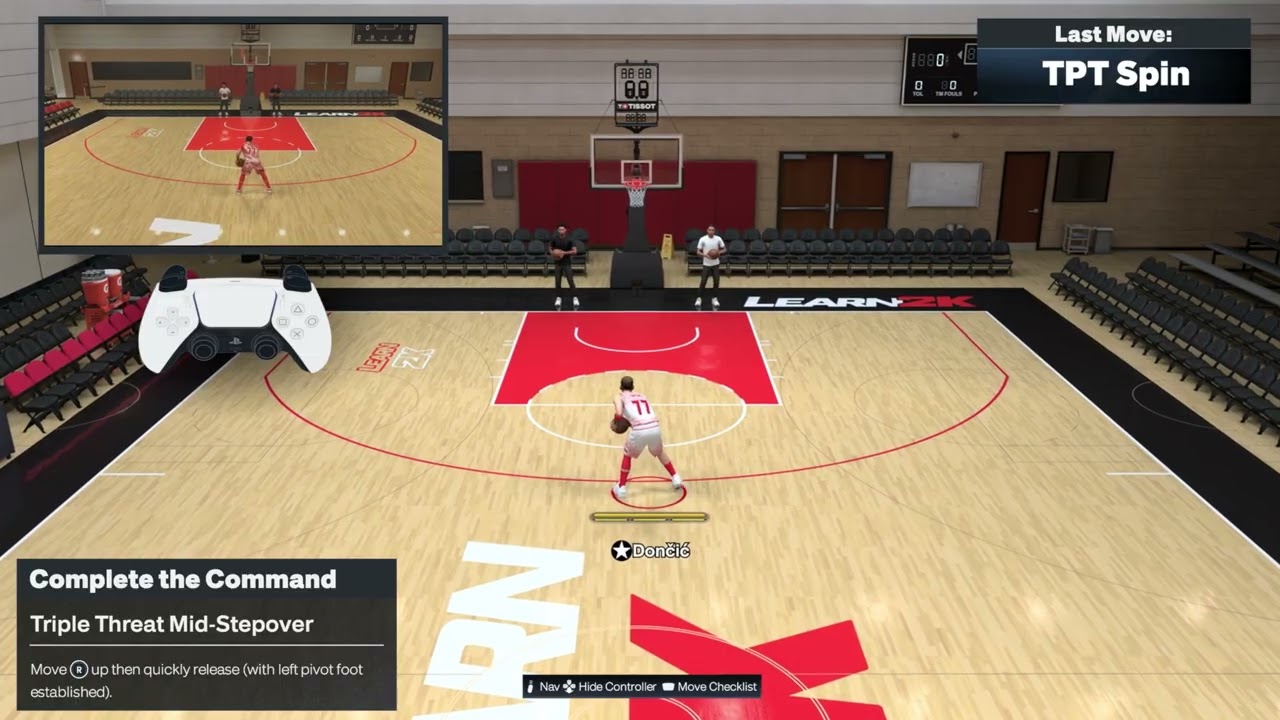
Quick answer: Most of these NBA 2K27 triple-threat moves start from a stationary catch before the dribble. Use a quick Right Stick flick or rotation, then release it immediately. The demonstrated PS5 inputs include an up-left flick for a stepover, a clockwise half-rotation for a spin out, a counterclockwise rotation for a cross spin out, R2 + Right Stick down for a stepback, and a down-left flick with the left pivot foot established for a back-to-basket stepover.
This guide combines seven short Moe Gaming demonstrations into one reference. The inputs below come from those demonstrations, while 2K’s official gameplay page confirms that NBA 2K27 has separate Triple-Threat Style, Breakdown, Jab-Step and Stepover animation categories. Your equipped package, pivot foot, camera orientation and timing can change the animation, so use the current Learn 2K prompt when it differs.
| Move | PS5 input demonstrated | Key condition |
|---|---|---|
| Mid stepover | Quickly flick Right Stick diagonally up-left, then release | Start in triple threat before dribbling |
| Cross spin out | Quickly rotate Right Stick counterclockwise, then release | Use one clean rotation |
| Spin out | Rotate Right Stick clockwise to about the halfway point, then release | Do not keep circling the stick |
| Back-to-basket stepover | With the left pivot foot established, quickly flick Right Stick down-left, then release | Pivot-foot setup matters |
| Stepback | Hold R2 and press or flick Right Stick down/back | Leave space behind the ball handler |
| Hesitation escape | Hold R2 and move left on the analog stick | The source narration does not name which stick; confirm the live Learn 2K prompt |
| Stepover | Quickly flick Right Stick diagonally up-left, then release | The animation can vary with the equipped triple-threat package |
Before you practice
- Catch the ball and stay stationary so your player is in a true triple-threat stance.
- Use the default PlayStation control preset or compare every input with the current Learn 2K display.
- Practice offline first. Online delay can make a correct flick appear late.
- Make short, clean stick motions. Holding a direction can call a shot or a different animation.
- Check your equipped Triple-Threat Style, Breakdown, Jab-Step and Stepover packages because packages change the motion produced by the same input.
- If R2 or the Right Stick responds inconsistently, test the controller before changing your timing.
1. Perform a triple-threat mid stepover
- Catch the ball and stop before beginning a dribble.
- Keep the Left Stick neutral.
- Quickly flick the Right Stick diagonally up-left.
- Release the stick immediately and let the stepover animation complete.
The demonstration uses a fast up-left diagonal motion. If your player mirrors the move or shows a different stepover, check the pivot foot and equipped triple-threat package rather than repeating the input faster.
2. Perform a cross spin out
- Enter triple threat with room to turn away from the defender.
- Make one quick counterclockwise rotation with the Right Stick.
- Release the stick as the rotation finishes.
- Wait for the player to begin the cross spin before adding a drive or shot input.
A continuous circle can add an unintended input. The source demonstration uses a quick rotation followed by an immediate release.
3. Perform a regular spin out
- Start stationary in triple threat.
- Rotate the Right Stick clockwise.
- Stop at roughly the halfway point and release it.
- Let the spin-out animation begin before steering into open space.
The important difference from the cross spin is the rotation direction. Practice the clockwise and counterclockwise versions separately until you can trigger each one deliberately.
4. Perform a back-to-basket stepover
- Set up with your back angled toward the basket and the left pivot foot established.
- Quickly flick the Right Stick down-left.
- Release it immediately.
- Allow the stepover to finish before starting the dribble.
This input is stance-dependent. If the opposite pivot foot is established, the animation or direction may mirror. Recreate the left-pivot setup from the demonstration before assuming the timing is wrong.
5. Create space with a triple-threat stepback
- Start from triple threat with clear floor behind the ball handler.
- Press and hold R2.
- Press or flick the Right Stick down/back.
- Release the stick and read the defender before shooting or driving.
The stepback uses turbo plus a backward Pro Stick request. Do not hold the Right Stick after the animation begins because a longer input can call another action.
6. Try the hesitation escape carefully
- Begin in triple threat and hold R2.
- Use the current Learn 2K prompt for the leftward escape direction.
- Move left on the stick identified by that prompt and release.
- Reset if a different animation triggers.
Source limitation: the video narration says to hold R2 and move left on “your analog stick,” but it does not identify Left Stick or Right Stick. This guide does not guess. Confirm the current in-game prompt before using the move in a competitive game.
7. Trigger the standard stepover
- Settle into triple threat before starting a dribble.
- Quickly flick the Right Stick diagonally up-left.
- Release it instead of holding the diagonal.
- Allow the equipped stepover package to determine the exact animation.
The standard and mid-stepover demonstrations use closely related up-left inputs. Package selection and stance determine which animation you see, so treat Learn 2K as the final reference if your result differs.
Why these inputs work
NBA 2K27 separates triple-threat and dribbling motions into individual animation categories. A quick Pro Stick flick requests a directional move, while a rotation requests a spin-family move. R2 modifies some requests into escape or stepback actions. The game then applies the animation package equipped on the current player, which is why two builds can respond to the same input with different-looking movement.
Alternatives and follow-ups
- Use a simple jab or pass if the defender stays balanced. A complicated animation is not always the best possession.
- Reset to a stationary catch if a move becomes a live dribble.
- Use the NBA 2K27 dribbling controls guide after you put the ball on the floor.
- Use the NBA 2K27 shooting controls guide when the move creates a clean shot.
- If the controller feels late in every mode, check the NBA 2K27 input-delay checklist.
Warnings and common mistakes
- Do not practice first in a ranked or wagered mode. Learn the package offline.
- Do not hold the Right Stick after a flick; longer inputs can request a shot or another move.
- Do not assume a left/right input is identical with the opposite pivot foot or camera angle.
- Packages, attributes, fatigue, defensive contact and patches can change the resulting animation.
- The hesitation-escape narration is ambiguous about which analog stick to use. Follow the live Learn 2K prompt.
- A replacement controller will not fix timing or package selection.
Frequently asked questions
Why does my stepover look different?
Your Triple-Threat Style or Stepover package may differ from the player in the demonstration. Pivot foot and camera orientation can also mirror the movement.
Why do I start dribbling instead of staying in triple threat?
You may be moving the Left Stick or holding the Pro Stick too long. Stop completely, keep the Left Stick neutral and use one quick flick.
What is the difference between spin out and cross spin out?
The demonstrations use opposite Right Stick rotations: clockwise for the regular spin out and counterclockwise for the cross spin out.
Can I use these inputs online?
Yes, but online delay changes when the animation appears. Confirm each move offline before judging its timing in multiplayer.
Are these controls guaranteed after every update?
No. 2K can change control prompts and animation behavior. The current in-game Learn 2K prompt takes priority.
Watch the Moe Gaming demonstrations
Triple-threat mid stepover
Triple-threat cross spin out
Triple-threat spin out
Back-to-basket stepover
Triple-threat stepback
Triple-threat hesitation escape
Triple-threat stepover
Optional controller replacement
As an Amazon Associate I earn from qualifying purchases.
- DualSense wireless controller — consider replacement only after confirming stick drift or an unreliable R2 input.