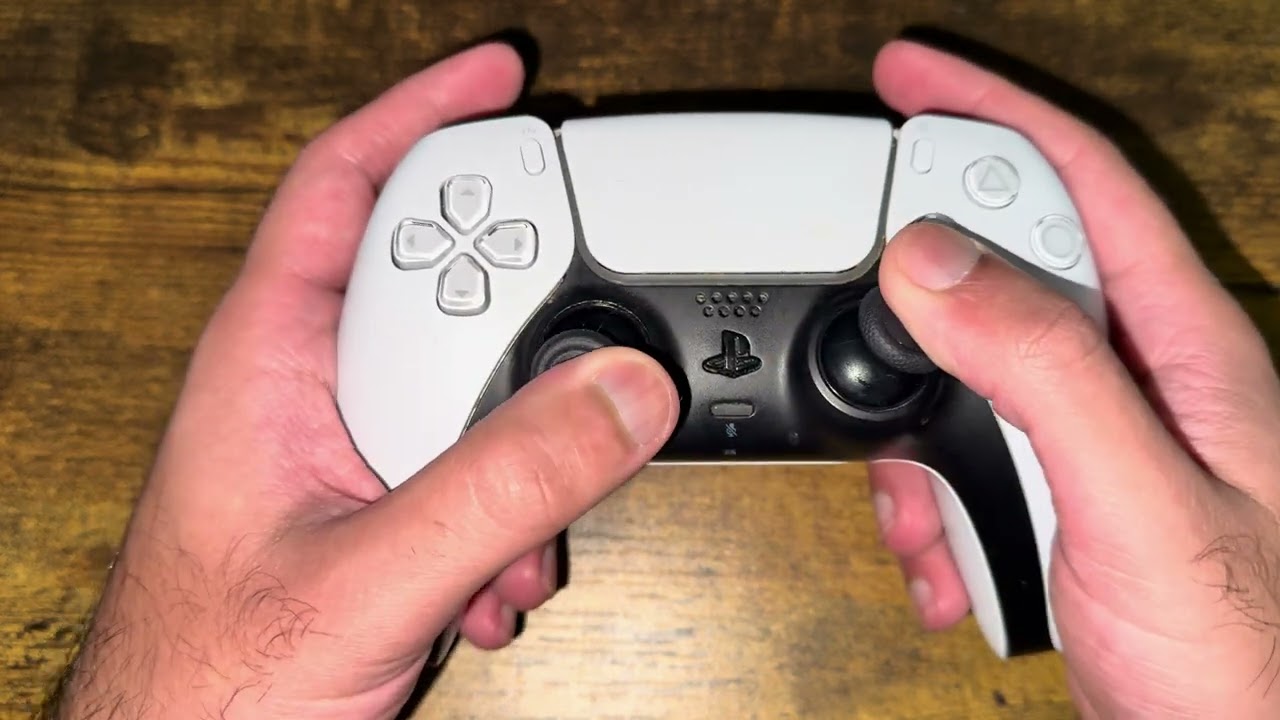
Quick answer: Turn the PS5 and DualSense controller off, then use PlayStation’s official reset procedure first. Reconnect with the USB cable and test. If the drift remains, the source video demonstrates gently cleaning around each raised analog stick, pressing and rotating each stick clockwise and counterclockwise, and clearing loose dust without opening the controller. Treat the cleaning method as an unofficial, possibly temporary workaround; persistent drift usually needs repair.
Before you start
- Test in more than one game so a game’s dead-zone setting is not mistaken for hardware drift.
- Turn off the console and disconnect the controller before cleaning.
- Use no sharp tool, lubricant or household cleaner around the sticks.
- Do not open the controller if it is under warranty or if you are not trained to repair electronics.
Fix PS5 controller stick drift without opening it
- Update and test. Install the latest PS5 system software and any controller device-software update. Test both sticks in another game or menu.
- Reset the DualSense officially. Turn off the PS5 and disconnect the controller. Find the small reset hole beside the Sony logo on the back. Use a pin to press and hold the button for at least five seconds.
- Reconnect by USB. Connect the controller to the PS5 using the official or another data-capable USB cable, then press the PS button.
- Inspect the stick edges. With the controller off, gently lift or tilt one stick and look for visible dust around the base. Remove surface debris with a clean, dry microfiber cloth or a hand-operated air blower.
- Use a barely damp alcohol pad only if necessary. The source video wipes around the outside edge while the stick is tilted. If you try this, use a pad lightly dampened with electronics-safe isopropyl alcohol, never dripping. Keep liquid out of the controller and let it dry fully before reconnecting. Skip this step if you are unsure.
- Rotate the stick. Press the stick straight down gently and rotate it around its full range clockwise for about 60 seconds, then counterclockwise for about 60 seconds. Repeat on the other stick without forcing it.
- Test before repeating. Reconnect the controller and test in the same game and another title. If the drift returns quickly, stop repeating the cleaning cycle and arrange repair.
Why this may work
The official reset can clear a controller software or pairing problem. Gentle movement and surface cleaning may dislodge loose debris around the stick mechanism. Viewer feedback on the source video is mixed: several people reported immediate improvement, while others said the drift returned within minutes or later. That pattern is consistent with a temporary cleaning effect rather than a repair for worn internal parts.
Alternatives and next steps
- Increase the in-game stick dead zone slightly as a temporary workaround, if the game offers the setting.
- Test the controller with a different PS5 profile and game.
- Start a PlayStation Repairs request for a button or analog-stick issue.
- If the controller is out of warranty, use a qualified repair service rather than applying more liquid or forcing the stick.
- Consider a DualSense Edge only if replaceable stick modules and its other features justify the cost; it is not required for ordinary PS5 play.
Warnings
Do not spray canned cleaner or liquid directly into the controller, use WD-40, put the controller in rice, or blow moisture into it with your mouth. Do not force the sticks. Cleaning does not restore worn potentiometer parts, and opening the controller can damage it or affect warranty service.
FAQ
Is the video method permanent?
Not necessarily. Some viewers reported lasting improvement, while others said drift returned quickly. Use repair for persistent or severe drift.
How long should I hold the reset button?
PlayStation says at least five seconds. The source video suggests longer, but the official five-second procedure is sufficient to reset the controller.
Can software cause stick drift?
A pairing, firmware or game-setting problem can resemble drift. True recurring movement across games often points to debris or internal wear.
Official references
Source video
As an Amazon Associate I earn from qualifying purchases.