Quick answer: Repair or reset Xbox Game Bar in Windows Settings first. If the popup continues and you do not use Game Bar recording, disable app capture with the AppCaptureEnabled GameDVR value. Back up the registry key so the change is easy to undo.
What the popup means
The ms-gaming-overlay link is handled by Xbox Game Bar. Windows displays the message when a game or shortcut calls that link but the registered Game Bar component is missing, damaged, or disabled.
Before you start
- Install pending Microsoft Store and Windows updates.
- Decide whether you use Game Bar capture, clips, or the Win+G overlay.
- Create a restore point before changing the registry.
Fix the ms-gaming-overlay popup
- Repair Xbox Game Bar. Open Settings > Apps > Installed apps, find Xbox Game Bar, open Advanced options, and select Repair. Test the shortcut or game again.
- Reset the app if repair fails. Return to Advanced options and select Reset. This clears the app’s local settings, so reopen Game Bar afterward if you use it.
- Reinstall from Microsoft Store if it is missing. Search for Xbox Game Bar in Microsoft Store, install the Microsoft listing, restart Windows, and test.
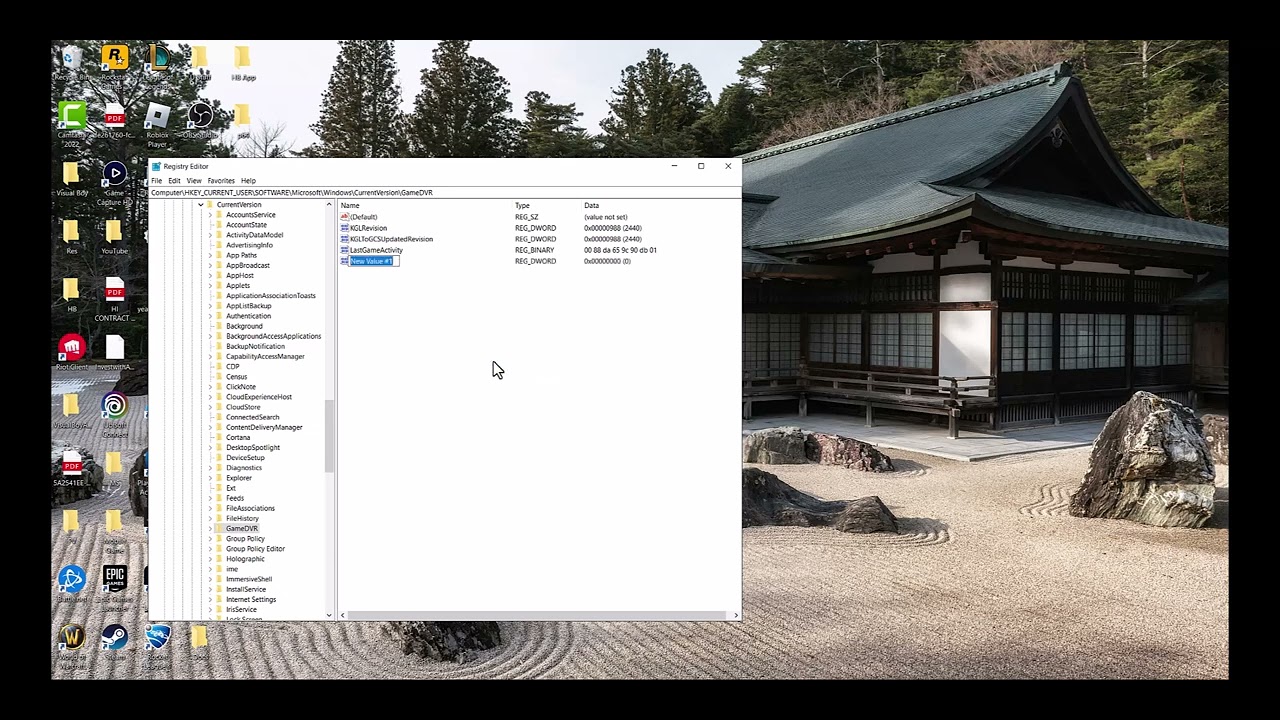
- Use the registry workaround only if you do not want capture. Press Win+R, type
regedit, and approve the prompt. Browse toHKEY_CURRENT_USER\Software\Microsoft\Windows\CurrentVersion\GameDVR. - Back up the key. Right-click GameDVR, choose Export, and save the
.regfile somewhere you can find it. - Set app capture to off. Open the
AppCaptureEnabledDWORD and set its value to0. If it is absent, create a 32-bit DWORD with that exact name and value. Restart Windows.
Why this works
Repairing restores the Windows app registration that handles the overlay link. The registry workaround stops apps from requesting GameDVR capture, which can prevent the repeated prompt when you intentionally do not use Xbox Game Bar.
How to undo the registry change
Return to the same key and set AppCaptureEnabled to 1, or delete the value only if you created it for this guide. You can also double-click your exported registry backup. Restart Windows afterward.
Warning: Disabling app capture may stop Game Bar recording and game clips. Do not delete the entire GameDVR key, and do not run registry files from untrusted websites.
Frequently asked questions
Can I just uninstall Xbox Game Bar?
If games continue calling its link, uninstalling can make the popup more frequent. Repair or reinstalling is the better first step.
Will the registry change affect every Windows account?
The path starts with HKEY_CURRENT_USER, so it applies only to the current Windows user.
What if the popup opens when I press Win+G?
Repair or reinstall Game Bar. The registry workaround is intended for people who do not need that feature.
Official references
Source video
As an Amazon Associate I earn from qualifying purchases.