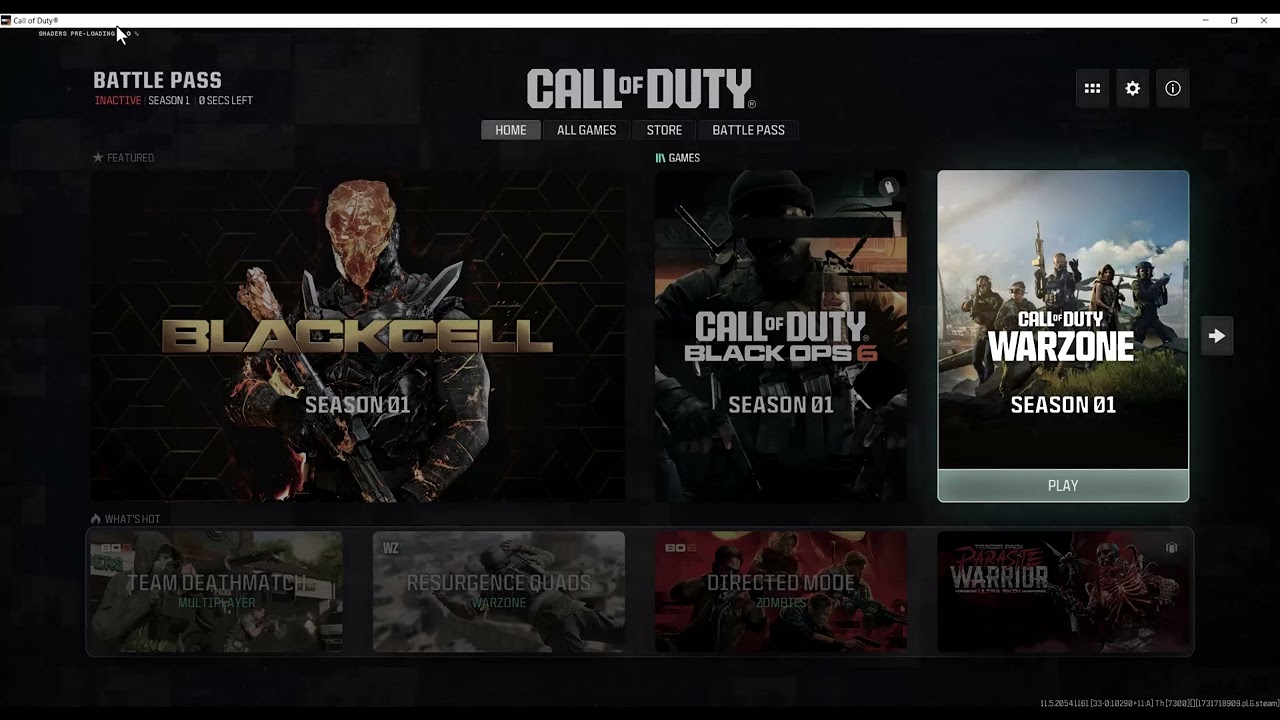
Quick answer: Leave Black Ops 6 on the main menu until shader preloading reaches 100%. Activision says navigating away pauses the process. If the percentage does not move after a reasonable wait, restart the game, verify its files, and check the graphics driver.
Before you troubleshoot
- Stop other game downloads and large Windows updates.
- Make sure the game drive has free space.
- Use the current driver recommended on Activision’s Black Ops 6 PC troubleshooting page.
- Do not enter Multiplayer, Zombies, Campaign, or Warzone while shaders are compiling.
Fix shaders stuck preloading
- Return to the main menu and wait. Stay on the main menu. Do not open a mode while the shader indicator is moving. On slower CPUs or after a large update, compilation can take several minutes.
- Restart one time if progress is frozen. If the percentage has not changed for a long period, close Call of Duty normally, restart the PC, reopen the correct launcher, and wait at the main menu again.
- Verify the installation. On Battle.net, use the gear beside Play > Scan and Repair. On Steam, open Properties > Installed Files > Verify integrity of game files. Let any replacement download finish.
- Check the graphics driver. Install the current supported NVIDIA, AMD, or Intel driver from the vendor’s official application or website, then restart Windows.
- Confirm the correct content is installed. In the launcher, open the Call of Duty content-management screen and confirm Black Ops 6 is installed. Removing unrelated content can free space, but do not uninstall the Black Ops 6 files you are trying to use.
- Reinstall only as a last resort. If file verification repeatedly fails or the installation is incomplete, reinstall the affected Black Ops 6 content. A full reinstall is not necessary for ordinary shader compilation.
Why this works
Shader preloading compiles instructions tailored to the GPU and driver. A game update or driver change can require a fresh build. Leaving the main menu interrupts it, while damaged files or an unsupported driver can keep it from completing.
What to avoid
- Do not repeatedly switch modes while the percentage is moving.
- Do not delete random cache folders from unverified guides.
- Do not reinstall the entire game before verifying files.
- Do not assume a slow first run is frozen; confirm that the percentage has truly stopped.
Note: The source video proposes reinstalling content. That can help a damaged installation, but it is intentionally last here because Activision’s first-party guidance says to let shader preloading complete and use repair tools first.
Frequently asked questions
Can I play while shaders are preloading?
You may be able to enter a mode, but Activision warns that leaving the main menu stops preloading and can cause performance problems.
Why did shader preloading restart after an update?
A game patch or graphics-driver change can invalidate the previous cache and require a new compilation.
Does reinstalling guarantee a fix?
No. It helps damaged or incomplete files, but it will not resolve an unsupported driver or a background software conflict.
Official reference
Source video
As an Amazon Associate I earn from qualifying purchases.