Quick answer: A Dota 2 PAK01.VPK corrupt error means Steam cannot read one of the game’s packaged data files correctly. Close Dota 2, verify the installed files in Steam, restart the PC, and only then clear Steam’s download cache if verification keeps failing.
Before you start
- Let any active Steam download finish or pause it cleanly.
- Keep enough free space for Steam to replace damaged files.
- Do not download a VPK file from a file-sharing site.
How to fix the PAK01.VPK corrupt error
- Exit Dota 2 and Steam. Close the game, then use Steam > Exit so no game file remains locked.
- Restart Windows. This clears file handles and pending disk writes.
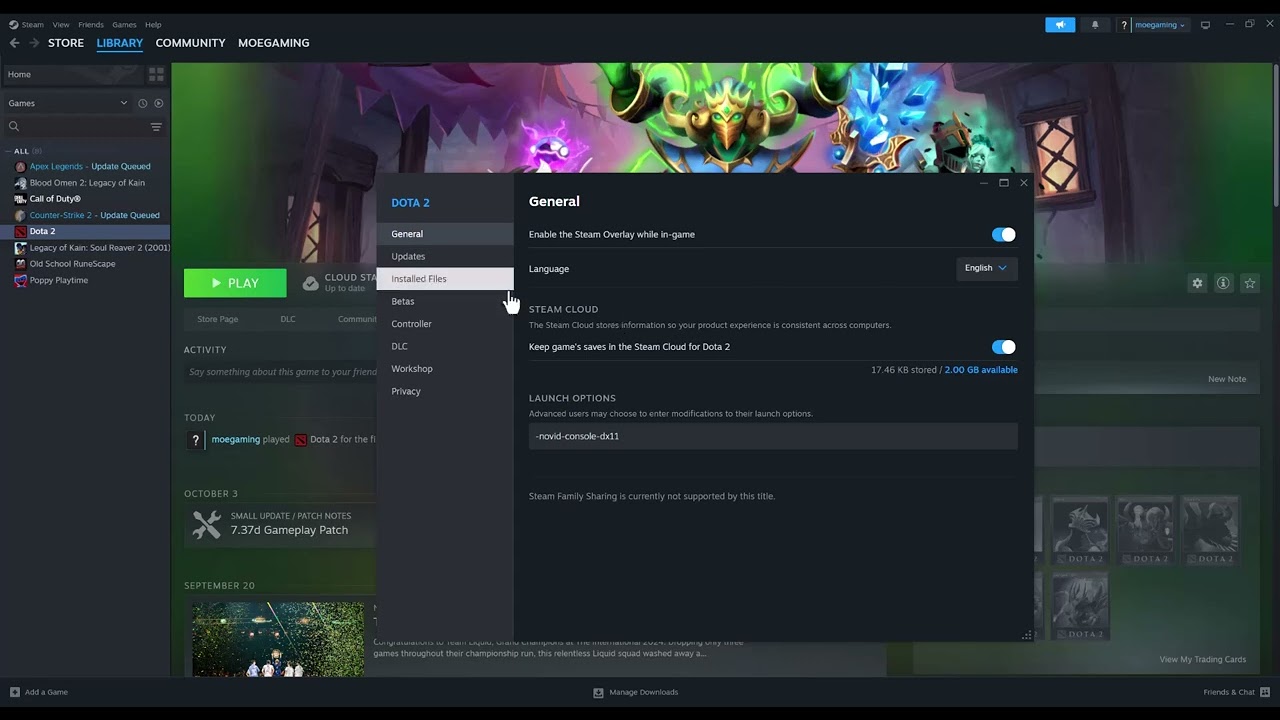
- Verify Dota 2 files. Open Steam > Library, right-click Dota 2, choose Properties > Installed Files > Verify integrity of game files. Let the check complete without launching the game.
- Launch once with default options. Temporarily remove custom Dota 2 launch options and test. Old commands can complicate diagnosis, although they do not normally repair VPK data.
- Clear Steam’s download cache if the same file fails again. Open Steam > Settings > Downloads > Clear Download Cache. Steam will restart and ask you to sign in again; this does not uninstall games.
- Try another download region. In Steam Downloads settings, select a nearby different region, restart Steam, and verify once more.
- Check the storage device. If multiple games report corrupt files, confirm the drive has free space and use Windows drive error checking. Back up important data if disk errors appear.
- Reinstall Dota 2 last. Use this only after repeated verification failures. Reinstall to a healthy library drive if another drive is available.
Why these steps work
VPK archives contain many Dota 2 assets. Steam verification compares installed data with Valve’s current manifest and downloads only files that do not match. Clearing the download cache and switching regions address a damaged partial download; recurring corruption across games points to storage or memory stability rather than Dota 2 alone.
Alternatives
- Disable an overclock temporarily if the system is unstable under load.
- Ensure security software is not quarantining Steam files; use a narrow game-folder exception only if the security vendor documents it.
- Move the Steam library to another healthy drive through Steam Storage settings.
Warnings
Never replace PAK01.VPK with a random download. It may be outdated or malicious. Avoid deleting the entire Steam library manually. Clearing the download cache signs you out of Steam, so have your account-recovery method ready.
Frequently asked questions
Will verification delete my Dota 2 settings?
It normally replaces game installation files, not Steam Cloud settings. Custom modified files may be restored to official versions.
Why does Steam reacquire files?
That means one or more local files did not match the current manifest. Let Steam finish the replacement before launching.
What if the error returns after every update?
Repeated corruption across updates can indicate a drive, RAM, security-software, or download-cache problem. Check those before reinstalling again.
Official references
- Steam Support: verify game files
- Steam Support: content and download troubleshooting
- Dota 2 on Steam
Source video
Transcript note: YouTube captions were unavailable after repeated checks. The repair sequence uses Valve’s supported Steam verification path.
As an Amazon Associate I earn from qualifying purchases.