Quick answer: When inZOI reports limited graphics-card performance, first compare the PC with the current requirements, then install the latest driver directly from NVIDIA, AMD or Intel. Restart Windows and make sure inZOI is using the dedicated GPU. If the warning remains, verify the game files and reduce the heaviest graphics options.
Before you start
- Save your work and close inZOI.
- Identify the GPU in Task Manager > Performance > GPU.
- On a laptop, connect the power adapter and disable battery-saver mode for the test.
- Download drivers only from the GPU maker or the PC manufacturer.
How to fix the limited graphics card performance warning
- Check the current requirements. Compare the processor, memory, storage and GPU with the specifications on the inZOI Steam page. A driver cannot add hardware features that the GPU does not support.
- Install the correct graphics driver. Use NVIDIA App, AMD Software: Adrenalin Edition, Intel Driver & Support Assistant, or the laptop maker’s support page. Choose the driver for the installed GPU and Windows version, finish the installation, and restart the PC.
- Make Windows use the high-performance GPU. Open Settings > System > Display > Graphics, add the inZOI executable if necessary, choose Options, select High performance, and save. Restart the game.
- Verify the game files. In Steam, open Library, right-click inZOI, choose Properties > Installed Files > Verify integrity of game files.
- Reset graphics options. Start with a lower preset. Reduce ray tracing, shadows, reflections and crowd/detail settings before lowering resolution. Change one group at a time so you can identify the expensive option.
- Close competing GPU workloads. Exit recording tools, browsers playing video and unnecessary overlays. Check Task Manager for another application using the GPU heavily.
Why this works
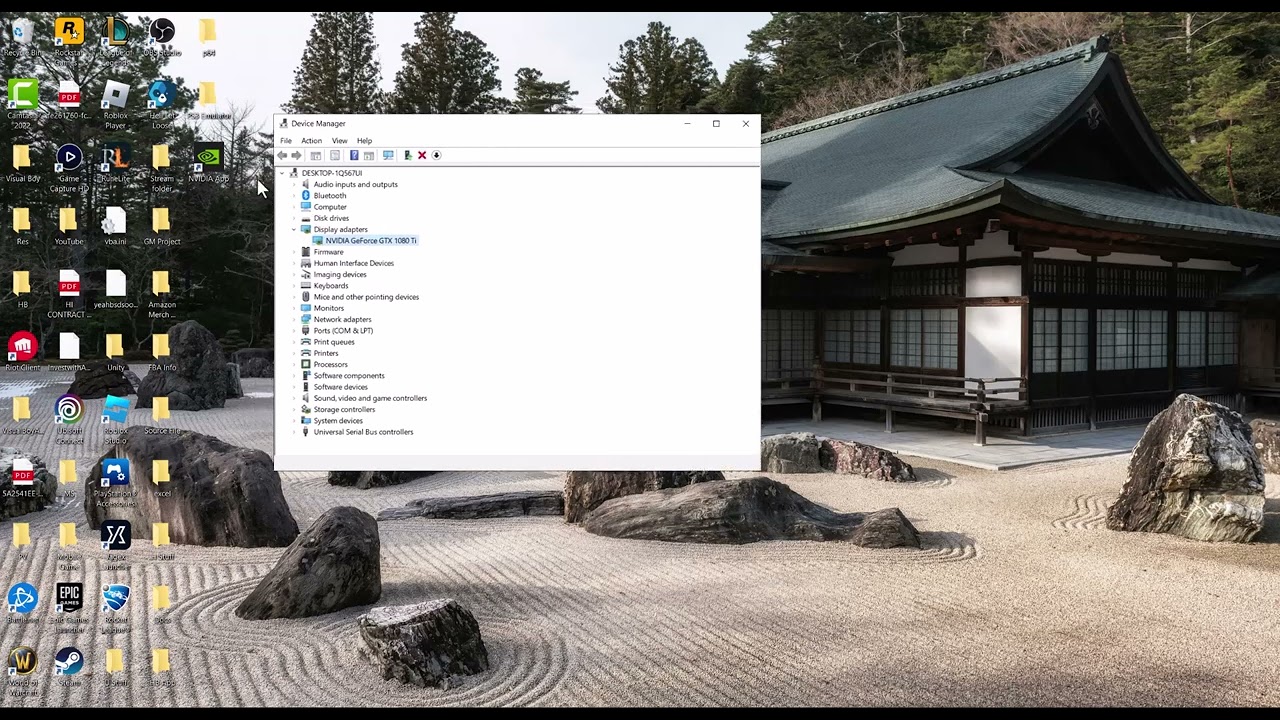
The source video demonstrates updating the graphics driver. Drivers provide the game-facing DirectX support and game profiles used by the GPU. Selecting the dedicated GPU prevents a laptop from launching inZOI on slower integrated graphics, while verification replaces damaged files. Lowering demanding options reduces load when the hardware is near the minimum requirement.
Alternatives
- Install pending Windows updates and restart.
- Use the laptop manufacturer’s driver if a generic GPU driver causes instability.
- Remove a recent GPU overclock and retest at default settings.
- If the warning began after a driver update, use the vendor’s supported rollback or clean-install option instead of third-party driver cleaners.
Warnings and undo steps
Do not use random driver-download sites. Do not disable the integrated GPU in Device Manager; laptops may need it for the display path. To undo the Windows GPU preference, return the app to Let Windows decide. If lowering settings does not help, restore the previous preset.
FAQ
Can Device Manager always find the newest driver?
No. Windows may offer a stable driver that is older than the latest game-ready release. Check the GPU vendor or PC maker directly.
Will a driver update make unsupported hardware compatible?
No. It can fix bugs and improve support, but it cannot add missing VRAM or hardware features.
Should I reinstall inZOI?
Verify files first. Reinstall only if verification and the driver steps fail.
Official references
- inZOI on Steam: current system requirements
- NVIDIA App
- AMD drivers and support
- Intel Driver & Support Assistant
Source video
The video below is the original source for the driver-update method. Menu labels may vary with the installed GPU.