Quick answer: The PS5 “This USB drive’s file system is unsupported” message usually appears when a media or update drive is formatted as NTFS. Back up the drive, then format it as exFAT or FAT32. If you want the drive for game storage, format it as USB Extended Storage on the PS5 itself instead.
Warning: Formatting erases every file on the selected drive. Copy anything important to another location before you begin, verify the drive letter or device name carefully, and do not disconnect the drive while formatting is in progress.
First, choose the correct PS5 USB format
For videos, music, screenshots, or PS5 update files
Use exFAT or FAT32. PlayStation officially supports both for USB media and manual system-software files. ExFAT is generally the better default for a modern drive because it can hold individual files larger than FAT32 allows.
For PS4 or PS5 game storage
Do not stop at a normal Windows exFAT/FAT32 format. Connect a compatible SuperSpeed USB drive to the console and go to Settings > Storage > USB Extended Storage > Format as USB Extended Storage.
PlayStation lists a 250 GB minimum, an 8 TB maximum, and SuperSpeed USB 5 Gbps or later for extended storage. PS4 games can run directly from compatible USB extended storage. PS5 games can be stored there, but they must be copied back to console or M.2 SSD storage before playing.
How to format the USB drive on Windows
- Back up every file you want to keep.
- Connect the USB drive to the PC.
- Open File Explorer > This PC.
- Confirm the correct drive by its name and capacity.
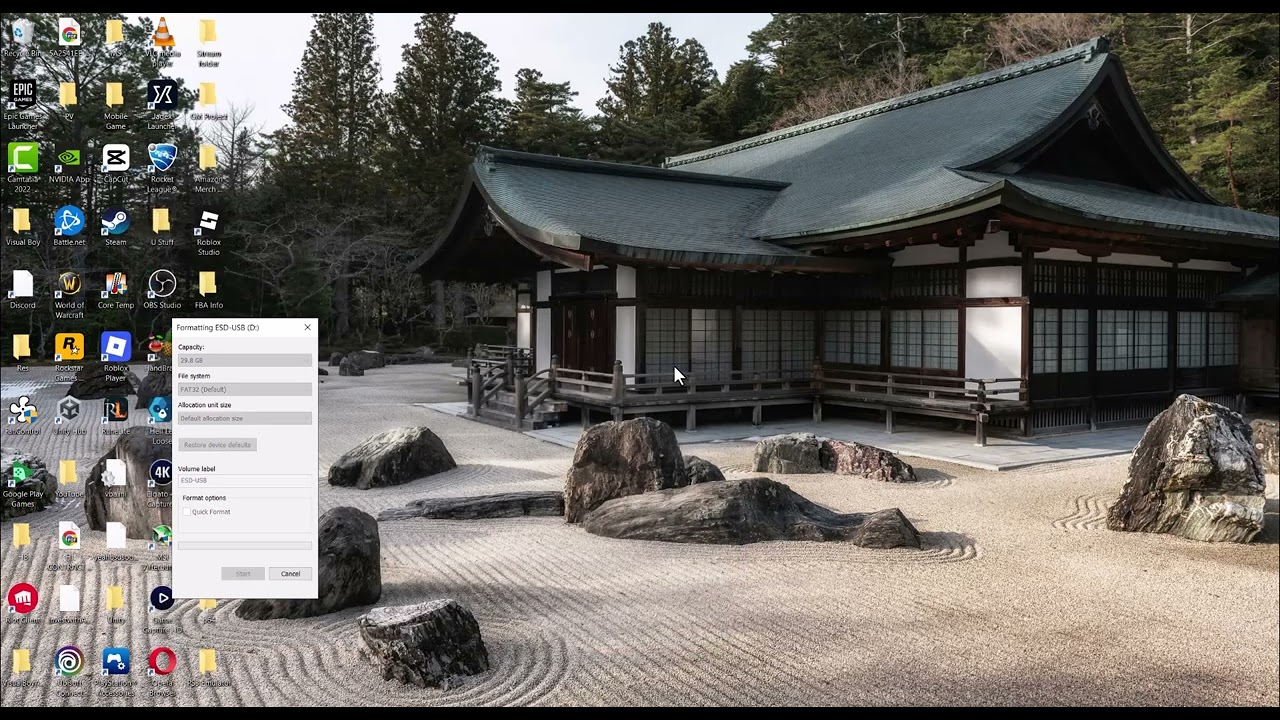
- Right-click the drive and select Format.
- For File system, choose exFAT or FAT32. Do not choose NTFS for PS5 media or update use.
- Leave Allocation unit size on Default.
- Choose whether to use Quick Format, then select Start and accept the erase warning.
- Wait for completion, safely eject the drive, and reconnect it to the PS5.
The video recommends turning off Quick Format for a full format. A full format takes much longer and can be useful when you suspect drive errors. For a healthy drive that only needs its file system changed, a quick format is normally sufficient; Sony does not require one specific Windows formatting mode.
If FAT32 is missing from the Windows menu on a larger drive, choose exFAT. Both are supported for the PlayStation uses described above.
How to format the USB drive on a Mac
- Back up the USB drive.
- Open Disk Utility.
- Select View > Show All Devices.
- Select the physical USB drive—not your Mac’s internal disk.
- Choose Erase.
- Set Format to exFAT or MS-DOS (FAT).
- Choose Master Boot Record as the scheme when that option is shown.
- Select Erase, wait for completion, then eject the drive safely.
How to format a drive as PS5 USB Extended Storage
- Back up the drive because the console format erases it.
- Connect a compatible SuperSpeed USB drive directly to a supported PS5 USB port—not through a USB hub.
- Open Settings > Storage.
- Select USB Extended Storage > Format as USB Extended Storage.
- If more than one drive is connected, use Select Another USB Drive and confirm the exact device before formatting.
Do not unplug extended storage while it is being formatted or used. Follow the PS5 safe-removal option if the console is turned on.
If the PS5 still says the file system is unsupported
- Reconnect the drive directly to another supported USB port.
- Confirm that the format completed as exFAT or FAT32, not NTFS.
- For an update drive, verify the required uppercase folder and filename structure from PlayStation’s official update instructions.
- For media, place files in the folder structure PlayStation describes and verify that the media file type itself is supported.
- For game storage, confirm that the device meets the PS5 extended-storage speed and capacity requirements.
- Test the drive on a computer. If it disconnects or reports errors there too, the hardware may be failing.
Choosing a compatible external drive
For game storage, verify SuperSpeed USB support, capacity, and direct-connection requirements before buying. As an Amazon Associate I earn from qualifying purchases. You can view the WD_BLACK 5TB P10 portable game drive on Amazon. PS5 games can be stored on compatible USB extended storage but must be copied back to console or M.2 SSD storage before play.
Optional PS5 accessories
- For a compatible PS5 display setup, view the certified Silkland HDMI 2.1 cable on Amazon.
- For transporting a PS5 console and gaming accessories, view the GDNasist PS5 carrying case on Amazon.
- For a spare or replacement controller, view the DualSense wireless controller on Amazon.
These are general PS5 accessories and will not resolve an unsupported USB file system.
Video walkthrough
Frequently asked questions
Can PS5 read NTFS USB drives?
Not for the media and update workflows covered here. Use exFAT or FAT32, or let the PS5 create its own USB Extended Storage format for game storage.
Should I choose FAT32 or exFAT for PS5?
Both are supported for media and update drives. ExFAT is usually more practical for modern, larger files. FAT32 remains useful when a particular device or workflow specifically requires it.
Can I play PS5 games from a USB external drive?
No. You can store PS5 games on USB extended storage, but you must copy them back to console storage or a compatible internal M.2 SSD to play. Compatible PS4 games can run directly from USB extended storage.