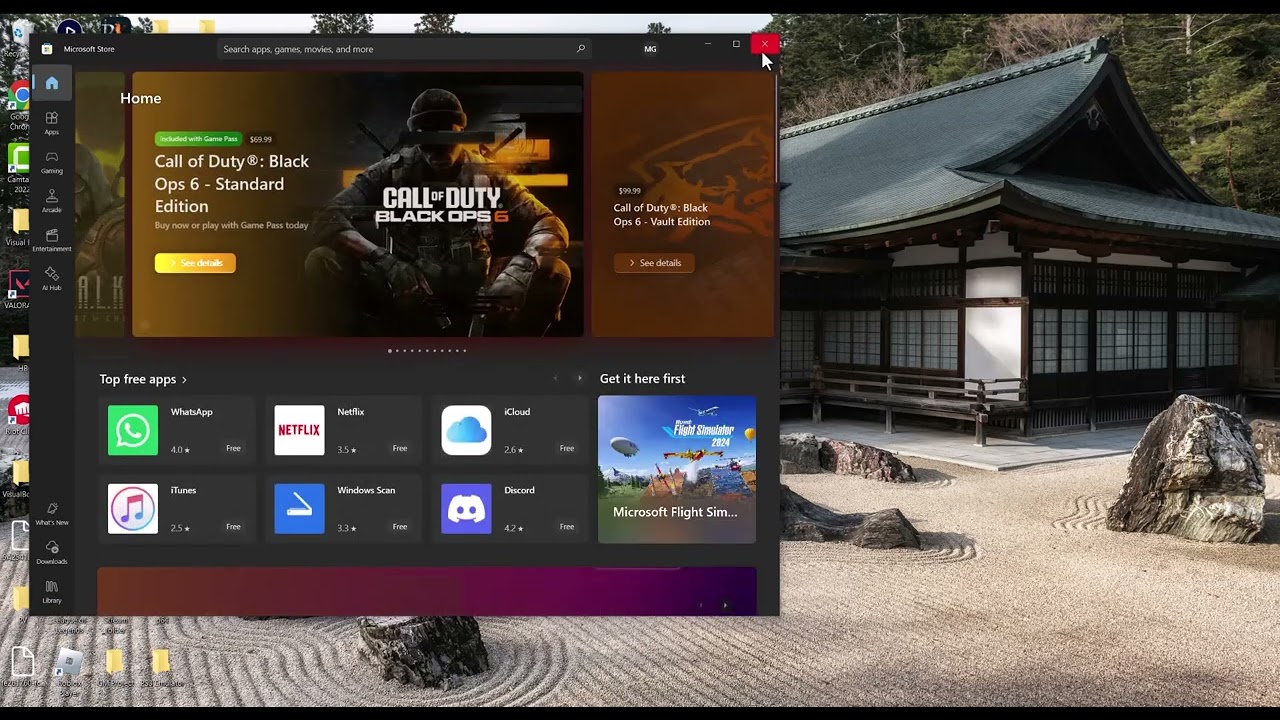
Quick answer: Restart Windows, run wsreset.exe, then use Windows Repair for the Xbox app and Microsoft Store. Repair keeps app data; Reset is the stronger fallback and may sign you out or remove local app settings. Use Microsoft’s Gaming Services Repair Tool before reinstalling the game.
Before you start
- Write down the exact code and whether the crash occurs at launch or after the menu.
- Finish pending Microsoft Store, Xbox app and Windows updates.
- Confirm free storage space and save work before restarting.
Fix the Xbox app crash codes
- Check Activision service status. If Black Ops 6 online services are degraded, local Xbox app repairs may not help.
- Refresh the Microsoft Store cache. Press Windows + R, enter
wsreset.exe, and press Enter. Wait for the Store to reopen, then restart the Xbox app. - Repair the Xbox app. Open Settings > Apps > Installed apps > Xbox > Advanced options, choose Terminate, then Repair. Test before using Reset.
- Repair Microsoft Store. Open the Store’s Advanced options page and choose Repair. Reopen Store, select Library > Get updates, and install all gaming-component updates.
- Run the Gaming Services Repair Tool. Use the official Xbox support tool. Restart Windows when it finishes, sign back into Microsoft Store and Xbox with the account that owns or can access the game, and test again.
- Reset only the failing app. If Repair does not work, return to Advanced options and choose Reset for Xbox, then Microsoft Store if necessary. This can remove local app data and require sign-in again; it does not erase online game progression.
- Verify or reinstall the game last. Use the Xbox app’s Manage/Files options when available. Reinstall only after Store and Gaming Services are healthy because a broken service layer can survive a game reinstall.
Why these steps work
The Xbox app, Microsoft Store, account licensing and Gaming Services share components. A stale Store cache or damaged app registration can prevent Black Ops 6 from starting even when the game files are present. Repair targets the app without removing its data; Reset recreates more of its local state.
Alternatives
- Install Windows updates and restart.
- Confirm the Windows date, time and time zone are automatic.
- Turn off third-party overlays for one test, but keep Windows Security enabled.
- Contact Xbox or Activision support with the code, Xbox app version and Gaming Services result.
Warnings
Do not paste boot-configuration commands such as bcdedit from viewer comments. They can disable security or virtualization features and are not part of the video’s demonstrated method. Avoid registry cleaners and unofficial Gaming Services packages.
Frequently asked questions
Does Repair delete games?
No. Windows Repair for an app is designed to keep its data. Reset is more disruptive and may clear the app’s local settings or sign-in.
Why repair both Xbox and Microsoft Store?
The Xbox app uses Store licensing and Gaming Services, so a failure in one component can affect game launch.
Do these codes always mean the same thing?
No. Short hexadecimal launch codes can accompany different component failures. Record the full message and context for support.
Official references
- Microsoft: Repair apps and programs in Windows
- Xbox Gaming Services Repair Tool
- Activision Online Services
Source video
The video demonstrates wsreset plus Windows Repair and Reset for Xbox and Microsoft Store. This guide keeps Reset behind the non-destructive Repair step and excludes an unsupported boot-setting suggestion from comments.
As an Amazon Associate I earn from qualifying purchases.