Quick answer: Restart the PC, verify Helldivers 2 in Steam, install current Windows and graphics-driver updates from official sources, and remove overclocks or overlays for one test. If crashes began after a game update and affect many players, save the crash ID and check Arrowhead’s current known issues.
Before you start
- Note whether the crash occurs before the menu, when selecting a mission, or during play.
- Save the Arrowhead crash-reporter ID if one appears.
- Do not delete random AppData folders or download DLL files from third-party sites.
Fix Helldivers 2 crashes
- Restart Windows and check current incidents. A clean restart clears a stuck game or anti-cheat process. Then review Arrowhead support and the Steam community announcements for a newly acknowledged issue.
- Verify the game installation. In Steam, right-click Helldivers 2, select Properties > Installed Files > Verify integrity of game files. Let Steam replace files that fail validation.
- Update Windows. Open Settings > Windows Update, install available quality updates and restart when requested.
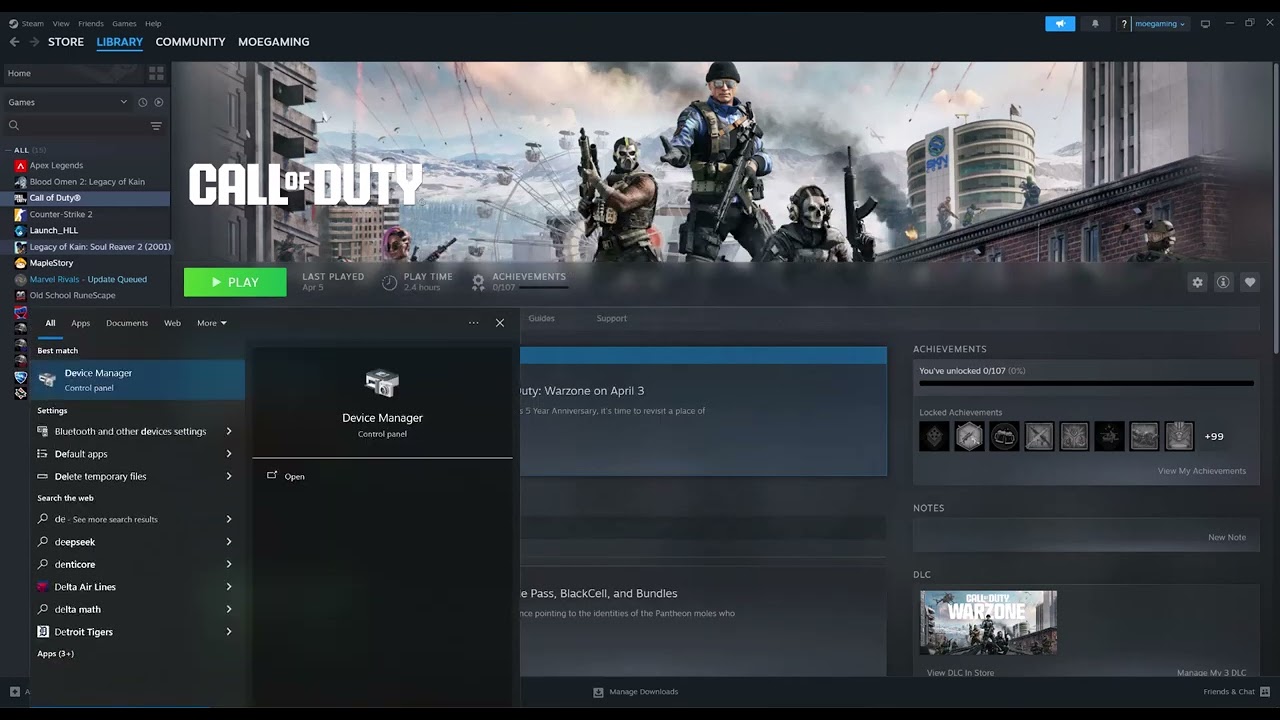
- Install the correct GPU driver. Identify the graphics card under Device Manager > Display adapters, then use NVIDIA, AMD or Intel’s official driver page. Windows’ automatic search may not offer the newest gaming driver.
- Return performance settings to stock. Disable CPU, GPU and memory overclocks or undervolts temporarily. Close monitoring overlays and recording hooks for one test. Record what you change so it can be restored.
- Reduce load as a diagnostic. Use the in-game frame-rate cap and a lower graphics preset, then test the same mission. If stability improves, raise settings gradually. This is a diagnostic workaround, not proof of a hardware fault.
- Check security software without disabling protection. Allow Helldivers 2, Steam and its anti-cheat through the firewall. Use the security product’s documented exclusion feature only for the verified game folder.
Why these steps can work
Crashes can come from damaged game assets, a driver mismatch, a game update, an unstable system tuning profile or a third-party hook. Verification and official driver updates address common local causes; a repeatable lower-load test helps separate a performance-triggered crash from a launch-file problem.
If it still crashes
- Remove launch options in Steam and retest with default settings.
- Capture the exact time, crash ID, Windows version, GPU model and driver version.
- Contact Arrowhead support with those details. A full-PC freeze or restart may require Windows Reliability Monitor and hardware diagnostics, not repeated game reinstalls.
Warnings and limitations
The source video demonstrates file verification and GPU-driver updating. It promises a permanent result more strongly than the evidence supports; viewer feedback shows mixed outcomes and update-specific crashes. Do not change BIOS memory speed solely because a comment recommends it. BIOS tuning can destabilize the system and is outside this guide.
Frequently asked questions
Will Verify Integrity remove saves?
Steam verification checks installed files. Helldivers 2 progression is associated with the online account, but keep normal system backups.
Should I delete the Arrowhead AppData folder?
Not as a first step. It can remove local settings, and the exact effects can change. Start with verification and official support guidance.
What if the whole PC freezes?
Return overclocks to stock, update drivers and Windows, check Reliability Monitor, and test system stability. A full freeze is broader than a normal game crash.
Official references
- Arrowhead Help Center
- Steam Support
- NVIDIA driver downloads
- AMD support and drivers
- Intel Driver & Support Assistant
Source video
The video below demonstrates Steam file verification and identifying the display adapter. The expanded guide uses only official driver sources and treats performance changes as reversible tests.
As an Amazon Associate I earn from qualifying purchases.