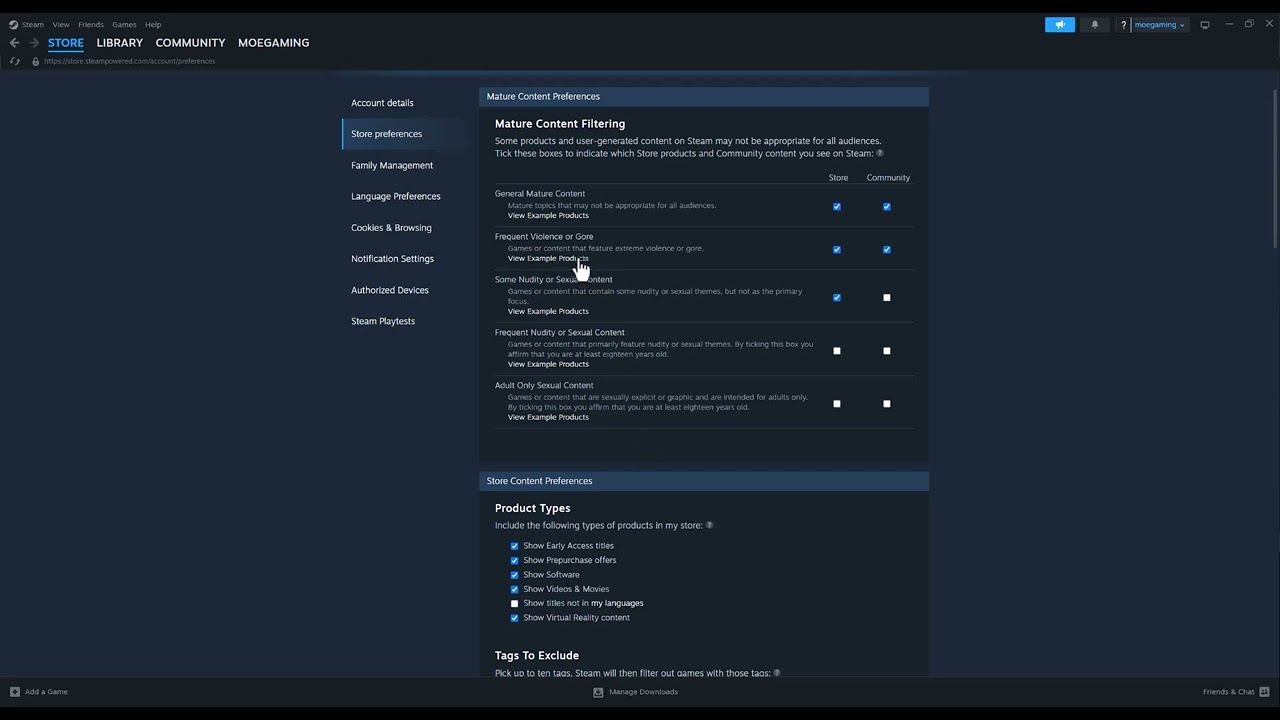
Quick answer: Open Steam, select your account name, choose Store Preferences, and review mature-content and language filters. Also check ignored products and Family View. If a store page still says the product is unavailable, the publisher may not sell it in your region or on your current platform.
Before you start
- Sign in to the Steam account that is missing the title.
- Confirm the exact game name and publisher from an official page.
- If this is a child or supervised account, do not bypass household restrictions; ask the account manager.
How to make a filtered game appear
- Open Store Preferences. In the Steam desktop client, select your account name in the upper-right, choose Store Preferences, and review the content-preference section.
- Review mature-content filters. Enable only the types of content you are comfortable seeing. Steam applies these choices to search and recommendations. Some games disappear when their content category is excluded.
- Check language preferences. Review the setting that limits store results to languages you use. A title may be hidden when its listed supported languages do not match the current filter. Broadening the filter changes discovery only; it does not add a translation to the game.
- Check ignored products. In Store Preferences, open the list of ignored products. Remove the title if it was ignored accidentally.
- Check Family View or household controls. If the Store or a content category is restricted, the family PIN or organizer is required. Do not attempt to defeat the restriction.
- Open the direct product page. Search the web for the official Steam product page or follow the publisher’s Steam link. A direct page can reveal whether the title is delisted, unreleased, age-gated or unavailable in the account’s country.
- Restart Steam after saving. Exit the client completely, reopen it and repeat the search. Also test the Steam website while signed in to the same account.
Why this works
Steam search is personalized. Content, language and ignored-product preferences can remove items from normal discovery without removing them from the catalog. Family settings and regional sale rights are separate controls, so a preference change cannot override them.
Other reasons a game may be missing
- The publisher has not released the game yet, has delisted it, or does not sell it in your country.
- The title is available only as downloadable content and requires a base game.
- A temporary Store or search issue is affecting discovery. Reopen Steam and try the direct page later.
- The game was purchased but is hidden from the Library rather than the Store. Use View > Hidden Games in the client.
Warnings
Changing Store Preferences does not prove a title is appropriate for every player. It also does not change the account’s date of birth, country, payment region or family permissions. Avoid VPN purchases or false region information; those actions can conflict with Steam rules and licensing.
Frequently asked questions
Why can I see the game in a browser but not Steam search?
The browser may be signed out or using different preferences. Sign in to the same account and compare Store Preferences.
Will enabling a content type buy or install anything?
No. It only changes what the Store can show.
What if the product page says unavailable in my region?
A local preference cannot change publisher distribution rights. Check the publisher’s official availability information or contact Steam Support.
Official references
Source video
The source demonstrates the account-name and Store Preferences route, including mature-content and language filters. Viewer reports indicate that the filter check helped many people, but it cannot solve delisting or regional availability.
As an Amazon Associate I earn from qualifying purchases.