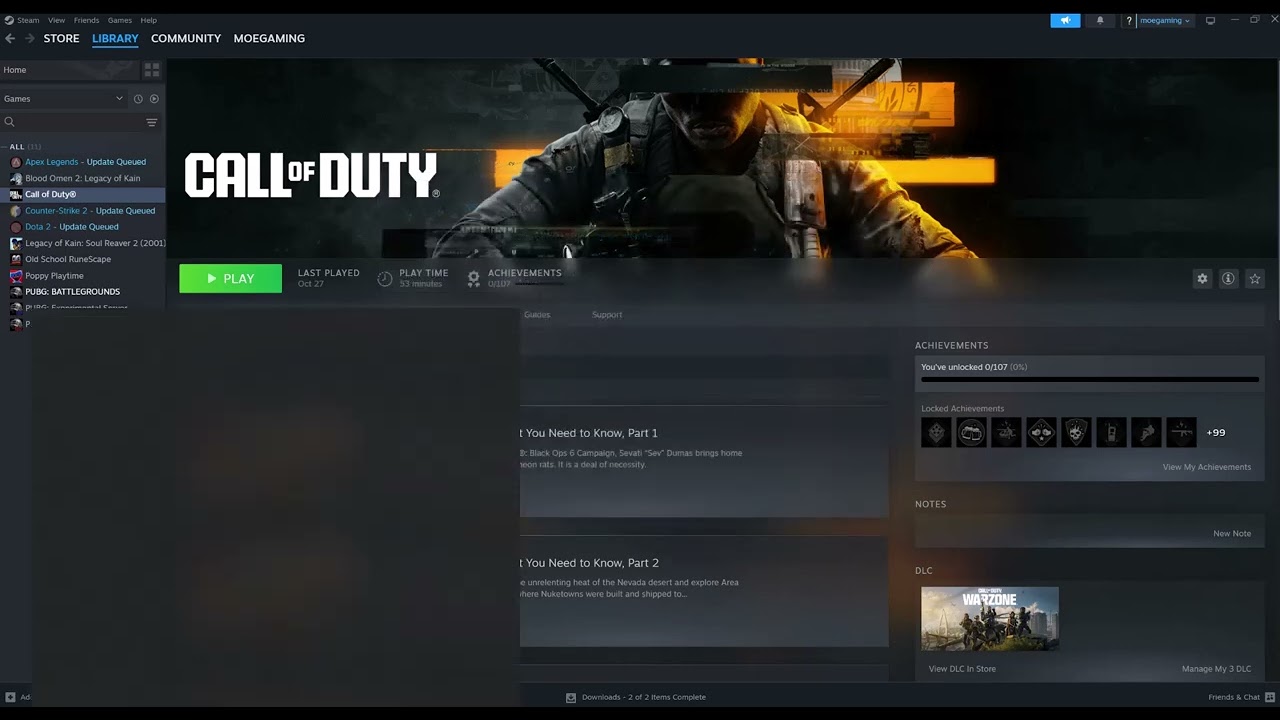
Quick answer: If Black Ops 6 reaches the lobby but hangs when a Steam match begins, restart Steam so it can finish updates, verify the Call of Duty installation, then restart the PC and router. Check Activision service status before changing Windows networking. Use a DNS change only as a reversible last test, not as a guaranteed fix.
Before you start
- Close Call of Duty and let any Steam download finish.
- Save work before restarting Windows.
- Know whether the problem affects every mode or only one playlist; a single broken playlist can be server-side.
How to fix the match loading screen
- Check for a service incident. Open Activision Online Services and select Call of Duty. If a current outage or maintenance notice appears, local file or DNS changes will not repair it; wait and test again later.
- Refresh Steam and the game update. Exit Steam completely from Steam > Exit, reopen it, select Library > Call of Duty, and allow every update to complete. Do not launch while Steam shows disk activity or a pending restart.
- Verify the installation. In Steam, right-click Call of Duty, choose Properties > Installed Files > Verify integrity of game files. Steam compares the local installation with the current depot and downloads missing or changed files.
- Restart the PC and network equipment. Restart Windows. If other online games are also slow or disconnecting, power the modem/router off for about 30 seconds, reconnect it, and wait for internet service to return.
- Allow Call of Duty through Windows Security. Open Windows Security > Firewall & network protection > Allow an app through firewall. Confirm Call of Duty and Steam are allowed on the network profile you use. Do not disable the firewall globally.
- Flush the DNS cache. Open Command Prompt as administrator, run
ipconfig /flushdns, close the window, and test again. This removes cached name-resolution entries; it does not erase saved Wi-Fi networks or game data. - Optional: test a public DNS provider. The source video demonstrates Cloudflare IPv4 DNS (
1.1.1.1and1.0.0.1). This may help only if the current resolver is failing. Record the original setting first. To undo it, return the adapter’s IPv4 DNS setting to Obtain DNS server address automatically.
Why these steps can work
A match transition depends on current game files, a synchronized Steam client, Activision services and a working route to matchmaking endpoints. File verification addresses damaged assets; restarting and flushing DNS clear stale local state. They cannot fix a live server outage or an account enforcement issue.
Alternatives if it still hangs
- Try another playlist and disable any VPN or proxy for one test.
- Install current Windows and GPU-driver updates from Microsoft and the GPU manufacturer.
- Use Activision support and include the time, region, platform, playlist and any error code.
Warnings and limits
Do not open ports at random, disable antivirus protection, or download replacement DLL files. The video-derived DNS method is an unofficial workaround and may have no effect. Viewer feedback is mixed, so treat each change as a test and reverse it if it does not help.
Frequently asked questions
Will verifying files delete my progress?
No. Black Ops 6 progression is tied to the online account. Steam verification checks the local installation, though it may redownload changed files.
Is this for console?
No. The source demonstration and Steam menus are for Windows PC. Console troubleshooting uses different storage and network menus.
How do I undo the DNS change?
Open the active adapter’s IPv4 properties and restore automatic DNS, then restart the PC.
Official references
Source video
The video below demonstrates Steam updates, file verification, DNS settings and the Windows DNS-cache command. Captions were used as source material; the steps above distinguish supported guidance from the optional workaround.
As an Amazon Associate I earn from qualifying purchases.