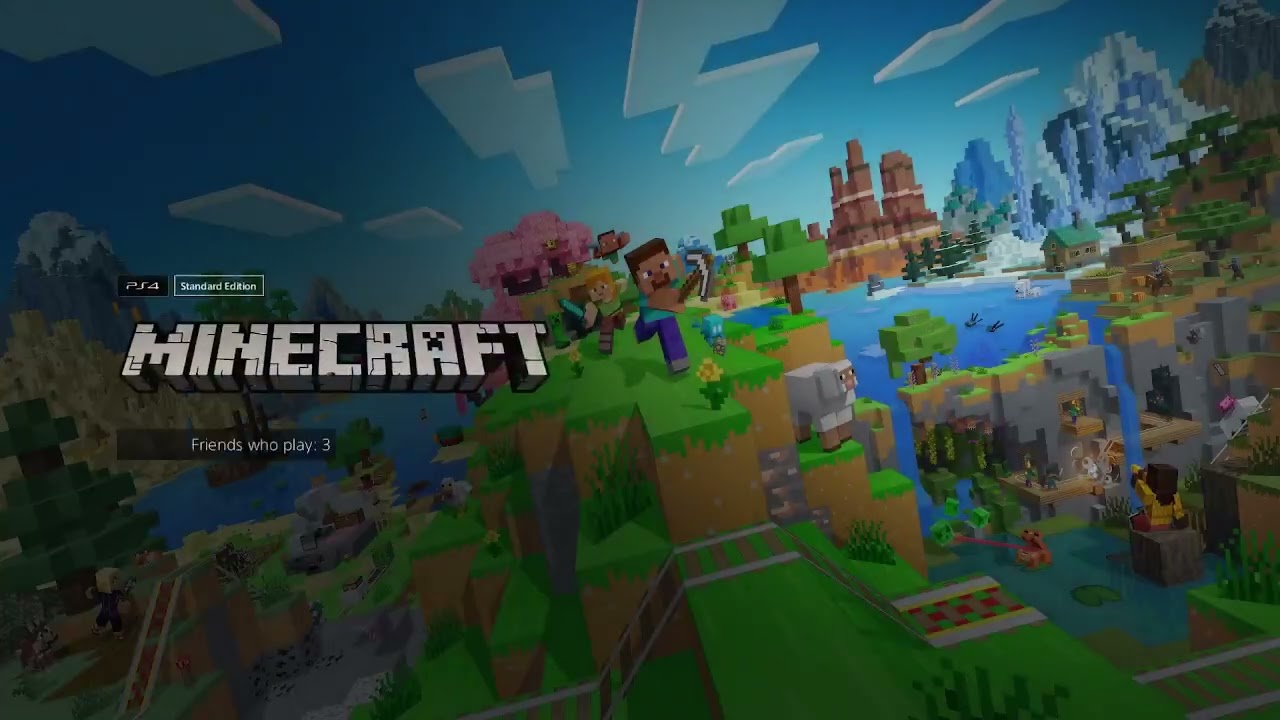
Quick answer: If you already own Minecraft: Bedrock Edition for PS4, open the Minecraft product page on PS5, select the three-dot menu, choose the regular Standard Edition, and select the PS5 version to download. Mojang announced the native PS5 edition as a free upgrade for existing PS4 owners. The store may still show paid bundles, so select the correct edition before confirming.
Before you start
- Sign in with the PlayStation account that owns the digital PS4 version, or insert the eligible PS4 game disc.
- Update the PS5 system software and connect to PlayStation Network.
- Make sure the console has enough storage for a separate PS5 installation.
Download the Minecraft PS5 version
- On the PS5 home screen, highlight Minecraft. If it is not installed, open Game Library > Your Collection or search for Minecraft in PlayStation Store.
- Open the product page, then select the three-dot menu beside the price or download button.
- Choose the normal Minecraft Standard Edition. Avoid selecting a paid deluxe bundle unless you intentionally want its extra content.
- Select Download or Select Version, then choose the version marked PS5, not PS4.
- Let the installation finish. From the game tile, use the three-dot menu again to confirm that the active version is PS5 before launching.
- If you own the PS4 disc, keep the disc inserted whenever you download or play the upgraded copy. A disc cannot grant an upgrade on a PS5 Digital Edition without a disc drive.
Why the option can be confusing
The Store groups multiple editions, platforms, and bundles on one product page. The first button may advertise a paid bundle even when the account is eligible for the Standard Edition upgrade. Choosing the edition menu exposes the separate PS4 and PS5 entitlements. The Moe Gaming video demonstrates this exact product-page path.
If the PS5 version is not free
- Check account ownership: use the same PlayStation account that bought or redeemed the PS4 Bedrock edition.
- Insert the disc: disc ownership must be validated by the console. Region compatibility can also affect Store entitlements.
- Restore licenses: go to Settings > Users and Accounts > Other > Restore Licenses, then reopen the product page.
- Try Game Library: the entitlement may appear in Your Collection even when Store search emphasizes a bundle.
- Confirm the edition: Minecraft Preview, Minecraft Legends, Dungeons, Deluxe Collection, and token packs are different products.
What carries over?
Your Microsoft account can provide access to cross-platform services and Marketplace content, but local worlds should be backed up before removing the PS4 version. Do not delete the old installation or its saved data until you have opened the PS5 version and confirmed the worlds you need are available.
Warnings
Read the purchase screen before confirming. This guide does not make paid bundles free; it only helps eligible PS4 owners locate the separate native PS5 Standard Edition. Availability can vary by account ownership, disc compatibility, region, and Store listing.
Frequently asked questions
Is Minecraft for PS5 actually a native version?
Yes. Mojang announced the native PlayStation 5 release for October 22, 2024, with support for a longer render distance while preserving cross-play on Bedrock.
Do I need to keep the PS4 version installed?
No, not once you have verified the PS5 installation and backed up any local worlds you care about. Disc owners still need the disc as proof of ownership.
Can a PS5 Digital Edition use a PS4 disc upgrade?
Not without a compatible disc drive. The console must be able to read the source disc whenever ownership validation is required.
Why do I only see a price?
The wrong bundle may be selected, the account may not own the eligible PS4 edition, the disc may not be inserted, or the entitlement may need a license restore.
Official references
- Minecraft: PS5 release and free upgrade announcement
- PlayStation Store: Minecraft PS5 Standard Edition
- PlayStation: Restore licenses
Source video
As an Amazon Associate I earn from qualifying purchases.
Leave a Reply