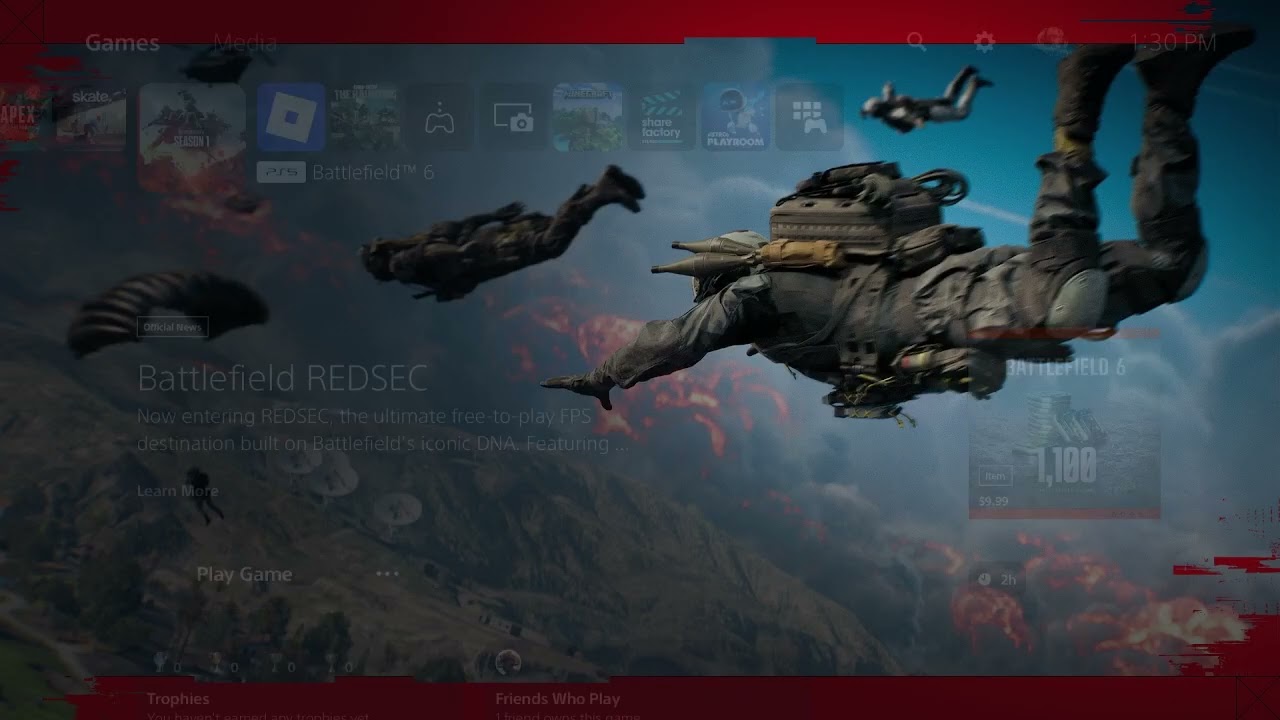
Quick answer: If Battlefield REDSEC keeps crashing or freezing on PS5, fully close the game, restart the console, install both the game and PS5 system updates, and restore your PlayStation licenses. If the crash continues, check service status, test without the current save where possible, clear the PS5 cache, and reinstall the game as the last non-destructive step.
Before you start
- Make sure the PS5 has enough free storage for an update or reinstall.
- Know your PlayStation Network sign-in details before signing out.
- Sync or back up important saved data first. A reinstall normally leaves saved data alone, but a console reset does not.
Fix Battlefield REDSEC crashing on PS5
- Check the game update. On the PS5 home screen, highlight Battlefield, press the Options button, and select Check for Update. Let the installation finish before launching REDSEC again.
- Restart the PS5. Choose Power > Restart PS5. A restart clears the active session more reliably than Rest Mode.
- Update PS5 system software. Open Settings > System > System Software > System Software Update and Settings, then install any available update.
- Restore licenses. Go to Settings > Users and Accounts > Other > Restore Licenses. This refreshes the console’s entitlement data without deleting games or saves.
- Sign out and back in. Sign out of PlayStation Network, restart the console, and sign in again. This is a reversible account-session refresh demonstrated in the source video; it may help, but it is not a guaranteed crash fix.
- Check EA and PlayStation services. If other online games also fail, wait for any active outage to clear instead of reinstalling repeatedly.
- Clear cache in Safe Mode. Turn the PS5 off, hold the power button until the second beep, connect the controller by USB, then choose Clear Cache and Rebuild Database and clear the system software cache. Do not select a reset option.
- Reinstall Battlefield. Delete only the game application, download it again, and allow every content pack and update to finish before testing REDSEC.
Why these steps can work
Updates replace known-bad game or system files, a full restart clears a stuck game session, restoring licenses refreshes ownership data, and cache clearing removes temporary indexes without erasing your saves. Reinstalling is slower, but it replaces damaged application files when an update cannot.
Alternatives and limits
Try another game to separate a Battlefield-specific crash from a console-wide problem. If multiple games crash, use PlayStation’s crash guide and repair flow. If only one save or mode crashes, test a new session before deleting any save. The source video focuses on updates, license restoration, and a PSN sign-in refresh; those are reasonable, reversible checks, not a promise that the underlying REDSEC bug is local.
Warnings
- Do not initialize or reset the PS5 for a single-game crash unless PlayStation Support directs you and your data is backed up.
- Do not interrupt a system-software update.
- A reinstall can be large; use a stable connection and verify every add-on is installed.
Frequently asked questions
Will restoring licenses delete my games?
No. It refreshes digital entitlements and does not erase installed games or saved data.
Should I delete my Battlefield save?
Not first. Test a new session if the game allows it, and back up the original save before removing anything.
What if every PS5 game crashes?
That points away from REDSEC alone. Follow PlayStation’s system-level crash and repair guidance.
Official references
- PlayStation: troubleshoot games that freeze or crash
- PlayStation: Safe Mode options
- EA: check server status
Source video
As an Amazon Associate I earn from qualifying purchases.