Quick answer: GTA 5 ERR_MEM_EMBEDDEDALLOC_GUARD_1 is often reported in modded PC installations when the game cannot allocate memory for loaded content. Back up the modded setup, test a clean unmodded game, verify the official files, update the graphics driver and leave Windows virtual memory set to system managed. Do not download random “heap” or “packfile” fixes.
Before you start
- Back up saves and the current mod configuration.
- Keep mods out of GTA Online; test only Story Mode.
- Do not download DLL, heap-adjuster or packfile tools from unknown sites.
- Record any custom page-file settings before changing them.
Safe steps to fix the memory error
- Restart the PC. This releases memory held by stopped processes and gives the game a clean test.
- Test an unmodded launch. Disable the mod loader and move optional mod files out of the GTA 5 directory using the mod author’s removal instructions. Do not simply delete files if you cannot distinguish official and modded data.
- Verify the official game files. Use Rockstar Games Launcher, Steam or Epic Games Launcher to verify/repair the installed copy. The launcher will replace missing or altered official files.
- Update the GPU driver. Install the correct driver from NVIDIA, AMD or Intel, restart Windows and test again.
- Close memory-heavy background apps. Exit unnecessary browsers, recording software and overlays. Check Task Manager for unusually high memory use.
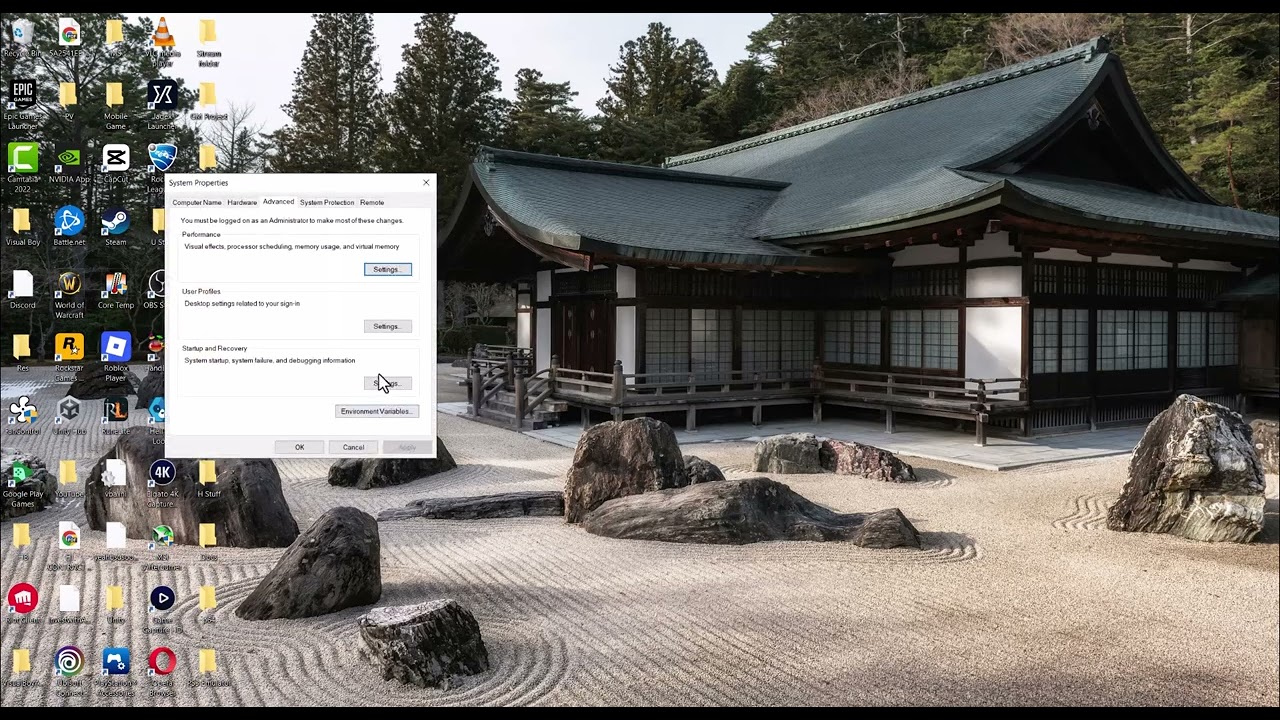
- Return virtual memory to automatic. Search Windows for View advanced system settings, open Performance > Settings > Advanced > Virtual memory > Change, and enable Automatically manage paging file size for all drives. Restart the PC.
- Add mods back one at a time. Confirm that each mod and dependency explicitly supports the current GTA 5 build. Stop when the error returns.
Why these steps work
The source video identifies modded installations and memory allocation as the main context, but it suggests searching for third-party adjusters and manually guessing page-file sizes. That can create security or stability problems. A clean-game test establishes whether a mod is responsible, verification restores official data, and a system-managed page file lets Windows adjust committed memory safely.
What if the unmodded game still crashes?
- Check free space on the Windows drive because the page file needs room.
- Remove GPU and memory overclocks for the test.
- Install Windows updates and run the launcher’s repair again.
- Review Rockstar Support and submit the launcher logs and exact code.
- Test the Windows Memory Diagnostic if other applications also crash.
Warnings and undo steps
Third-party mod tools are not official Rockstar fixes and may stop working after an update. Never take a modded client into GTA Online. To undo this guide, restore the backed-up mod files only after confirming compatibility. If you previously set a custom page file, keep the automatic setting unless a qualified administrator has a documented reason to change it.
FAQ
Does this error mean the GPU lacks VRAM?
Not necessarily. The code can occur because of modded resources, corrupted files or overall memory allocation. Test a clean install before replacing hardware.
Should I set a huge custom page file?
No. Microsoft recommends system-managed sizing for most systems. Guessing minimum and maximum values can make troubleshooting harder.
Will verifying files remove mods?
It may replace modified official files, but it may not remove every extra file. Follow each mod’s removal instructions and keep a backup.
Official references
- Rockstar Support: verify game files
- Rockstar Support: PC single-player mods
- Microsoft: page-file sizing
Source video
The original video is embedded below. Its download and manual page-file suggestions are not recommended here because they cannot be verified as safe for every system.