Quick answer: A Black Ops 7 “Timed Out While Checking Permissions” message usually means the game did not finish an online entitlement or account check. Retry once, check Activision and platform services, restart the game and console/PC, then sign in again. On PlayStation, restore licenses before changing advanced network settings.
Before you start
- Confirm the account owns or can access the installed edition.
- Check whether other online games work on the same platform.
- Do not unlink the Activision account as a first step; relinking can be restricted.
Steps to fix the permissions timeout
- Retry once. A short service delay can clear without any settings change. If the error returns, stop repeated retries and check status.
- Check online services. Review Activision Online Services and the PlayStation, Xbox, Battle.net or Steam status page for the platform in use.
- Restart the game and platform. Close Call of Duty completely, shut down the console or PC, wait 30 seconds and restart.
- Refresh the account session. Sign out of the platform account, restart, and sign in again. Do not remove or unlink the Activision account.
- Restore PlayStation licenses. On PS5, open Settings > Users and Accounts > Other > Restore Licenses. On PS4, use Settings > Account Management > Restore Licenses.
- Check game content and updates. Install the latest system and game updates. On PlayStation, use Manage Game Content to confirm required multiplayer/shared packs are installed.
- Restart the network. Power off the platform, unplug the modem/router for five minutes, reconnect it, and test again. Use Ethernet if available.
Why these steps work
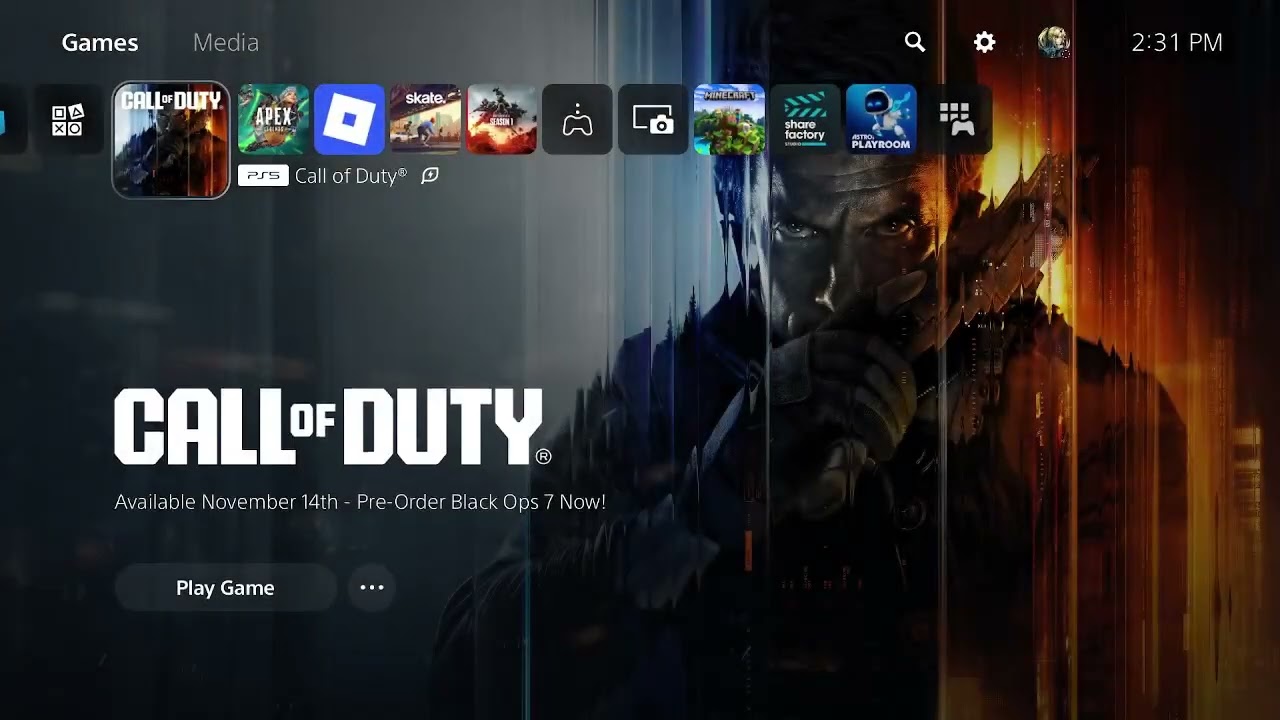
The game must confirm platform ownership, Activision access and current service permissions before online play. A service outage, stale account token, missing content pack or interrupted network request can break that chain. The source video demonstrates retrying, restoring PlayStation licenses, selecting a Wi-Fi band and testing Cloudflare DNS. The first two are the most directly related to permissions.
Optional Wi-Fi and DNS tests
If the official checks pass but the console still times out, test 5 GHz close to the router or 2.4 GHz at longer range. You may temporarily test Cloudflare DNS at 1.1.1.1 and 1.0.0.1. These are unofficial diagnostics, not guaranteed fixes. Return DNS and band selection to automatic if they do not help.
Warnings and undo steps
Do not factory-reset the console, expose it through router DMZ, or unlink an Activision account for this timeout. Restoring licenses does not delete save data. Undo a DNS change by choosing automatic settings.
FAQ
Is this an account ban?
The message alone does not establish a ban. Check the Activision account and official support notices for any enforcement message.
Why does retry sometimes work?
The previous permission request may have timed out during a short service or network interruption. A new request can succeed.
What if the error says “instance inventory” instead?
That is a different service response. Check status and contact Activision Support with the exact wording rather than applying unrelated fixes.
Official references
Black Ops 6 PUGET-MILAN variant
The additional Black Ops 6 source labels the same failure PUGET-MILAN while the game waits to check permissions. It adds no separate destructive fix: update the game, restart, check services and restore PlayStation licenses. Its public-DNS suggestion remains an optional, reversible network test rather than a guaranteed entitlement fix.
Original source video
The video below supplies the original workaround. Network-setting suggestions are unofficial and may work only for some connections.
As an Amazon Associate I earn from qualifying purchases. This guide includes no product recommendations or affiliate purchase links.