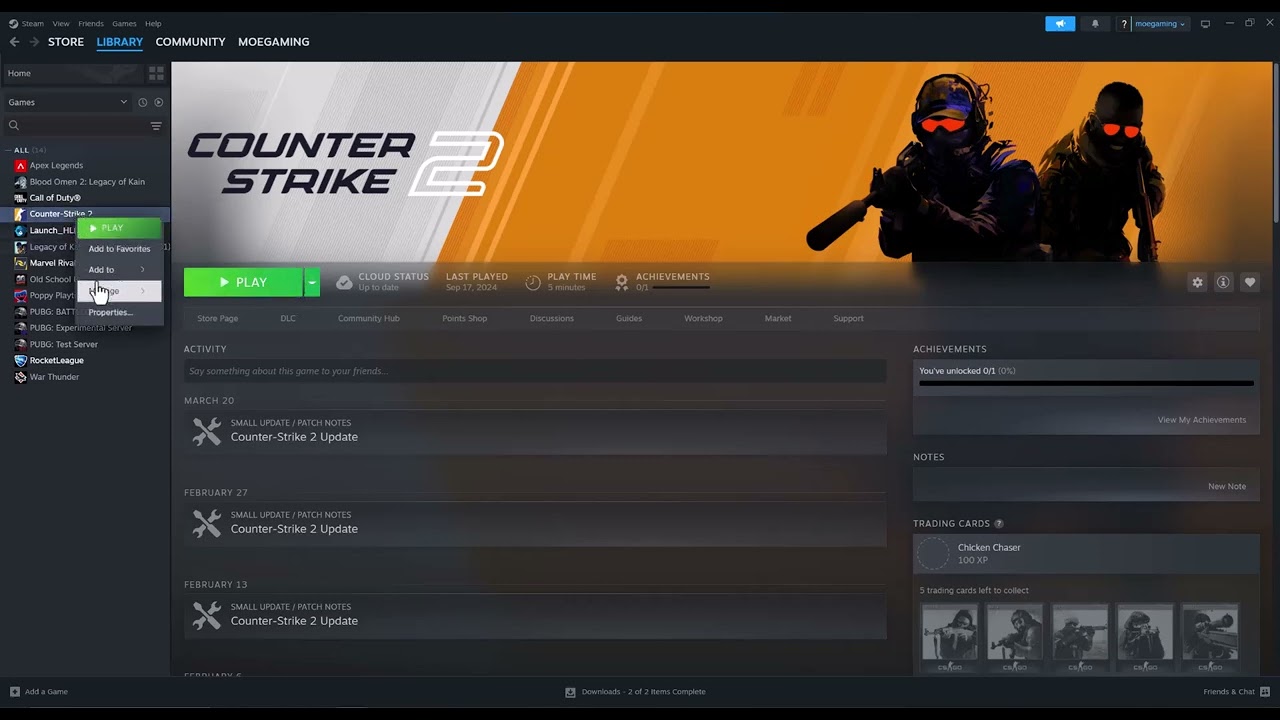
Quick answer: Fully exit Steam, reopen it so the client can update, launch Counter-Strike 2 from the Steam Library, and verify the game’s installed files. These steps repair the handoff between CS2 and the local Steam process without forcing administrator mode or changing compatibility settings.
Before you start
- Save any work and close Counter-Strike 2.
- Make sure Steam is online and signed into the account that owns or can access CS2.
- Allow time for Steam to verify the installation; it may download replacement files.
Fix the local Steam client process error
- Close CS2. In Steam, choose Steam > Exit. Check Task Manager and wait for Steam and CS2 processes to close normally.
- Open Steam from its normal shortcut. Let any client update finish, then sign in again if prompted.
- Open Library, select Counter-Strike 2, and click Play. Avoid launching the game executable directly because the game needs the active Steam session.
- If the error returns, right-click Counter-Strike 2 in the Library and choose Properties > Installed Files > Verify integrity of game files.
- When verification completes, restart Windows and try once more from Steam.
- Check Steam’s Downloads page for a pending client or game update. Finish it before testing again.
Why this works
CS2 relies on the local Steam client for ownership, account, update, and launch services. A stale client session, direct executable launch, or mismatched game file can break that connection. Restarting refreshes the client session; verification compares the installation with Steam’s current copy and reacquires damaged or missing files.
Safe alternatives
- Temporarily close nonessential overlays and monitoring tools, then test again.
- Check whether security software quarantined a Steam or CS2 file. Restore it only when your security product identifies the official signed file, then verify the game again.
- If Steam itself will not update, restart the PC and follow Steam’s update and installation troubleshooting.
- Use a different network only when Steam cannot sign in or download updates; a DNS change is not a primary fix for a local-process error.
Warnings
Do not download replacement DLL files from third-party sites. Do not permanently run Steam or CS2 as administrator unless official support specifically asks you to test it; mismatched privilege levels can create another launch conflict. Compatibility mode is also unnecessary on a supported Windows installation. Verification normally preserves settings, but it can replace modified game files.
Frequently asked questions
Will verifying CS2 delete my inventory?
No. Inventory is tied to your Steam account, not the local installation. Verification checks installed game files.
Why should I launch CS2 from the Library?
The Library launch starts the game through the authenticated Steam client. Opening the executable directly can miss that handoff.
Should I reinstall CS2 immediately?
No. Restarting Steam and verifying files are faster and less disruptive. Reinstall only after those steps fail and you have ruled out a Steam client problem.
Official references
- Steam Support: Verify Integrity of Game Files
- Steam Support: Games do not run after Preparing to Launch
Source video
As an Amazon Associate I earn from qualifying purchases.