Quick answer: If the PC actually runs Windows 7 or Windows 8, the supported fix is to upgrade to a supported version of Windows. Rockstar ended official Launcher and game support for those systems on January 30, 2024. If the message appears on Windows 10 or Windows 11, turn off Windows 7/8 compatibility mode for the Rockstar Games Launcher and GTA V, then update or reinstall the launcher.
Check which situation applies
- Press Windows + R, enter winver, and note the Windows version.
- If it says Windows 7 or 8/8.1, back up important data and plan an operating-system upgrade. A launcher workaround cannot restore official support.
- If it says Windows 10 or 11, continue with the compatibility checks below.
Fix a false Windows 7 or 8 warning on Windows 10/11
- Exit GTA V and the Rockstar Games Launcher.
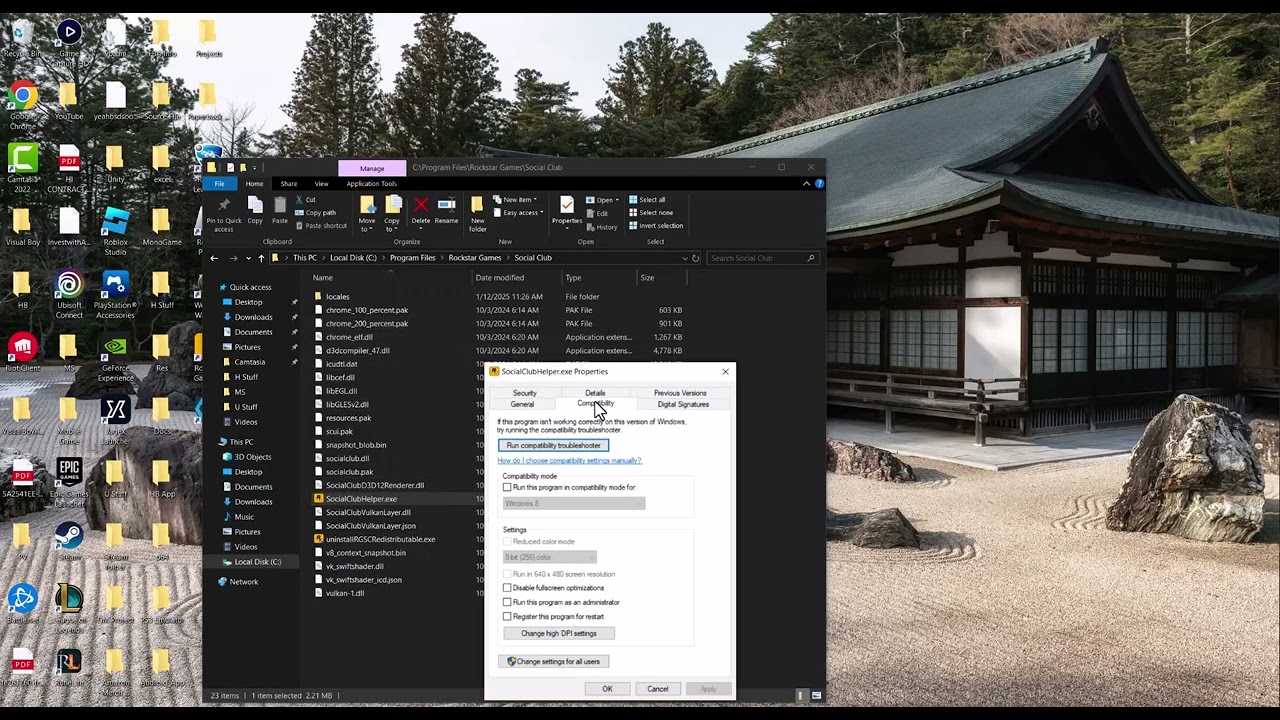
- Right-click the Rockstar Games Launcher shortcut and choose Properties.
- Open Compatibility and clear Run this program in compatibility mode for. Also select Change settings for all users and clear the same option there if it is enabled.
- Repeat the check for GTA V’s executable and the launcher executable. Do not enable Windows 7 or Windows 8 mode.
- Restart Windows, open the launcher normally, and install any available launcher and game updates.
- If the warning remains, uninstall the Rockstar Games Launcher from Windows Apps, download the current installer from Rockstar, and reinstall it. Keep local game data unless the uninstaller clearly says it will remove it.
Why this works
Windows compatibility mode can report an older operating-system environment to an application. Disabling an accidental Windows 7/8 compatibility flag lets the launcher detect the real Windows 10/11 version. On a genuine Windows 7 or 8 installation, however, the warning reflects Rockstar’s support policy, so an operating-system upgrade is the durable route.
What not to do
- Do not download modified launcher files or DLLs.
- Do not hide the warning with registry changes; that does not make an unsupported operating system secure or compatible.
- Do not rename or delete the entire Rockstar Games folder without a backup. That can remove settings or local data and is not the official remedy for ended OS support.
Alternatives and limitations
If the computer cannot meet a supported Windows version’s requirements, use a supported PC or console. Before an operating-system upgrade, back up documents and game-related local files, confirm hardware and driver support, and keep any account recovery information available. Upgrading Windows may require reinstalling drivers or applications.
Frequently asked questions
Can I keep playing GTA V on Windows 7?
It may launch in some circumstances, but Rockstar no longer officially supports Windows 7 or 8. Future launcher, security, or service changes can stop working without a supported fix.
Why do I see the warning on Windows 11?
A compatibility flag on the launcher or game is the most likely local cause. Disable it and restart before reinstalling anything.
Can I undo the compatibility change?
Yes. Return to Properties > Compatibility and restore the previous checkbox, although Windows 7/8 mode should not be needed on a current supported system.
Official reference
Rockstar Games Support: End of support for Windows 7 and Windows 8
Source video
As an Amazon Associate I earn from qualifying purchases.