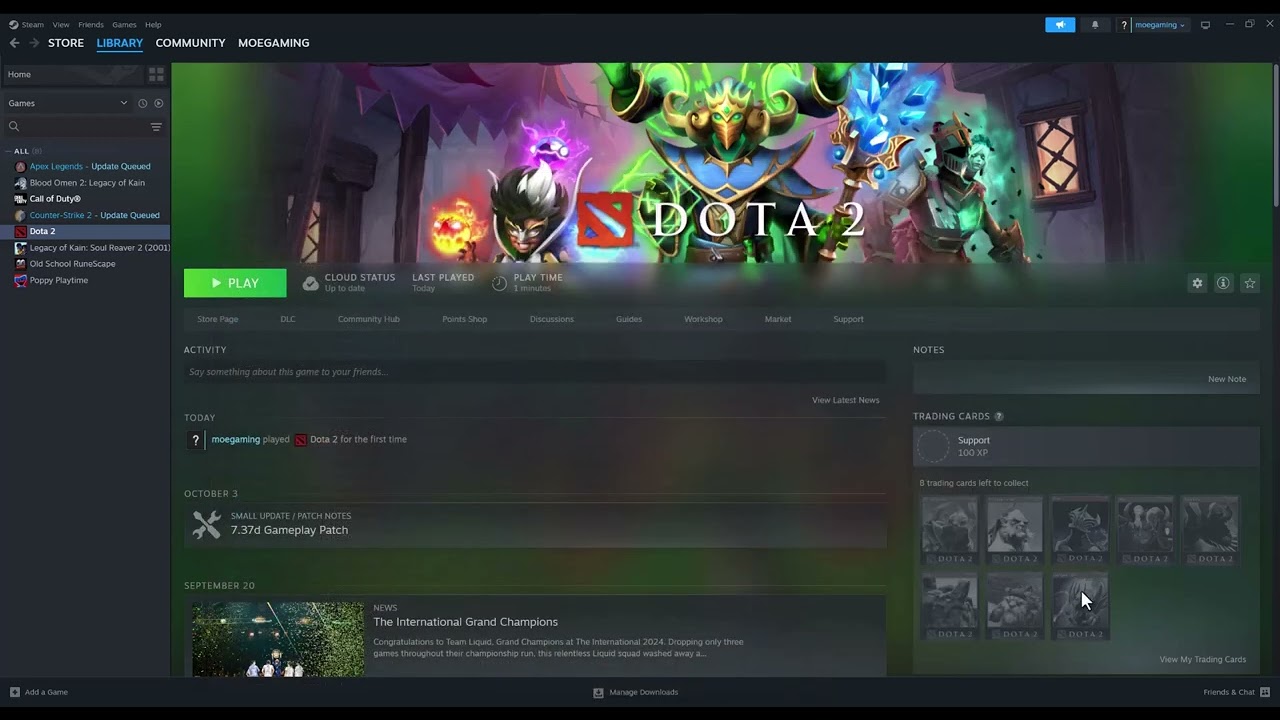
Quick answer: Exit Steam completely, restart Windows, verify Dota 2’s installed files, remove unknown launch options, and update Windows plus the graphics driver. Test the game from the Steam Library before reinstalling it.
Before you start
- Close Dota 2 and save other work.
- Confirm the PC still meets Dota 2’s current requirements on its Steam store page.
- Note any custom launch options or mods so you can restore them later.
How to fix Dota 2 not launching
- In Steam, choose Steam > Exit. Restart Windows, reopen Steam, and launch Dota 2 from Library.
- Right-click Dota 2, choose Properties > Installed Files, then select Verify integrity of game files. Let Steam finish any repair download.
- In Properties > General, review Launch Options. Remove entries you do not recognize. If you intentionally use options, copy them somewhere safe before testing with the field empty.
- Install pending Windows updates and the current graphics driver from NVIDIA, AMD, or Intel. Restart after updating.
- Temporarily close nonessential overlays, performance tuners, capture tools, and third-party antivirus features, then test. Re-enable protection after the test.
- If Steam reports the game as running when no window appears, end only the stuck Dota 2 process in Task Manager, restart Steam, and try again.
Why these fixes work
Verification replaces damaged or missing installation files. Clearing old launch options removes startup commands that may no longer match the current game build. Updating the operating system and graphics driver restores dependencies used when Dota 2 creates its window and rendering device.
Safe alternatives
- Use Steam’s normal uninstall and reinstall path only after verification fails.
- Check the Steam Downloads page for a paused Dota 2 or Steam client update.
- If the failure began after enabling a mod or custom configuration, remove that change and retest.
- Try a clean Windows user account when the game launches for other users on the same PC.
Warnings
Do not download DLL files from random websites. Do not permanently force Dota 2 or Steam to run as administrator or in compatibility mode; the source video suggests those methods, but they are unnecessary for a normal supported Windows setup and can create permission conflicts. Verification may replace modified game files. Any disabled security protection should be re-enabled immediately after testing.
Frequently asked questions
Will verifying Dota 2 remove my items or rank?
No. Account inventory and matchmaking data are stored with your Steam/Dota account. Verification checks local installation files.
Why does Steam say Dota 2 is running with no window?
A stuck process, overlay conflict, bad launch option, or graphics initialization failure can leave the process active. Restart the process and work through the steps in order.
Should I use compatibility mode?
Not on a supported Windows system. Turn compatibility mode off unless Valve support explicitly asks you to test a specific setting.
Official references
- Steam Support: Verify Integrity of Game Files
- Steam Support: Games do not run after Preparing to Launch
- Dota 2 on Steam: current system requirements
Source video
As an Amazon Associate I earn from qualifying purchases.