Quick answer: Update FC 27 and the PS5 system software, restart the console, disconnect unnecessary USB devices, restore licenses, and test again. If crashes continue, use PS5 Safe Mode to clear cache before reinstalling the game. Do not delete saved data unless you have confirmed a backup and have evidence that the save itself is damaged.
Before you start
- Note whether the crash happens at launch, in the menu, or during a particular mode.
- Record any error code exactly.
- Check EA and PlayStation service status.
- Sync important saved data to your available backup method before any advanced step.
- Leave enough free internal storage for updates and temporary installation files.
1. Update FC 27 and PS5
- Highlight FC 27 on the PS5 home screen.
- Press the Options button and select Check for Update.
- Open Settings > System > System Software and install any available system-software update.
- Restart the console and test the same FC 27 mode.
EA lists current platform software as the first PlayStation troubleshooting step. Game and system updates can contain compatibility and stability fixes.
2. Disconnect unnecessary USB devices and power-cycle
- Close FC 27 completely.
- Disconnect nonessential USB storage, capture devices, and accessories.
- Turn the PS5 off completely; do not use Rest Mode.
- Wait at least one minute, turn it back on, and test the game.
If FC 27 is installed on external storage, move or reinstall it to internal storage as a test. EA specifically recommends trying the internal drive when an external drive may be involved.
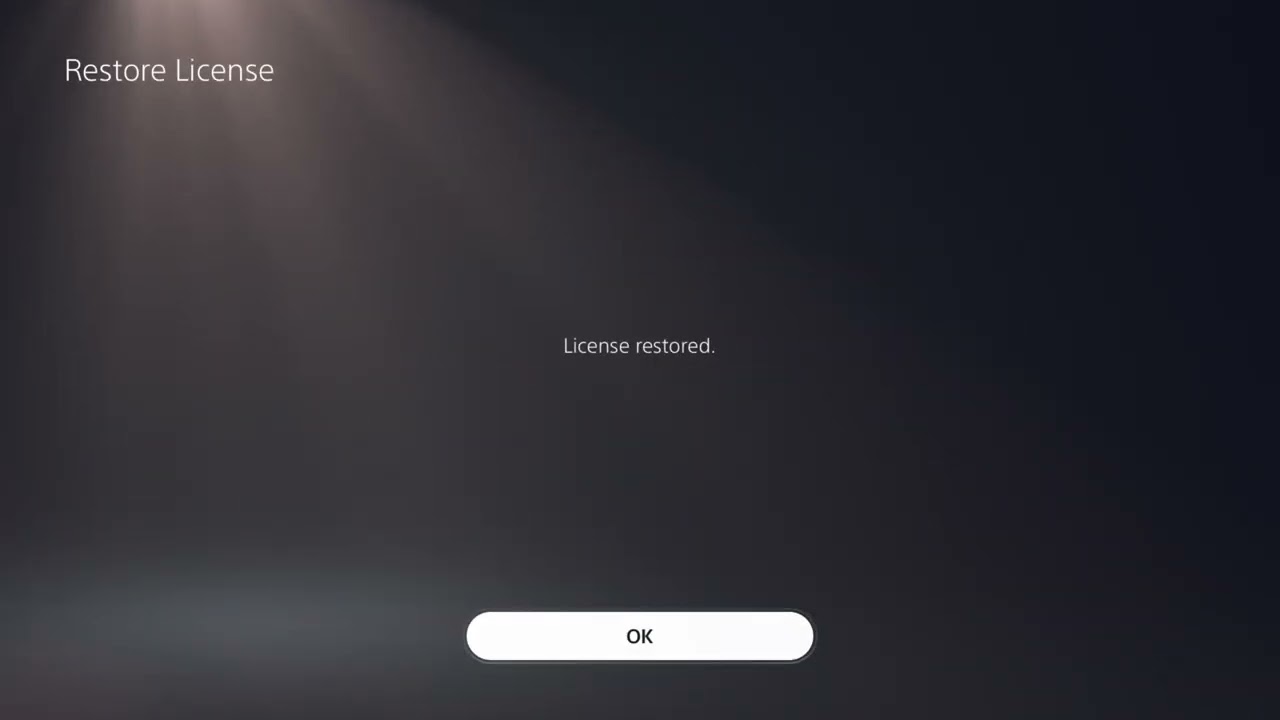
3. Restore the FC 27 license
- Open Settings > Users and Accounts > Other.
- Select Restore Licenses.
- Wait for the process to finish.
- Restart FC 27.
Restoring licenses refreshes access records. It does not delete the game or saved data, and it cannot add an edition or entitlement that the account does not own.
4. Clear cache in PS5 Safe Mode
- Turn the PS5 off completely.
- Press and hold the power button until you hear the second beep.
- Connect the controller with a USB cable and press the PS button.
- Select Clear Cache and Rebuild Database.
- Choose Clear System Software Cache, then restart and test FC 27.
Clearing cache removes temporary system data. It is different from resetting the console. Read every Safe Mode option before selecting it; options that reset or reinstall system software can remove data.
5. Reinstall FC 27
- Confirm that saved data is synced or backed up where applicable.
- Delete the FC 27 game installation, not your saved data.
- Restart the PS5.
- Download the PS5 version again from Game Library.
- Wait for the complete installation and updates before testing.
Why these fixes work
Updates correct known software faults. A full restart clears a stuck process and reinitializes attached devices. License restoration repairs entitlement checks. Cache clearing removes temporary system data that can become stale. Reinstalling replaces the full local game package after the lower-risk steps have failed.
Unsupported suggestions to avoid
The source narration repeatedly refers to FC 24 even though the upload title says FC 27. Its generic update, license, and reinstall ideas agree with current EA and PlayStation guidance, but this article does not repeat the video’s language-change workaround because there is no current first-party evidence that changing the PS5 language fixes FC 27 crashes.
- Do not delete saved data as a routine crash fix.
- Do not initialize or reset the PS5 for one crashing game without exhausting safer steps and backing up data.
- Do not download unofficial game files.
- Do not repeatedly power off the console while storage repair or an update is running.
If only one FC 27 mode crashes
- Check EA service status and the FC 27 support hub for a known mode-specific issue.
- Test another mode to separate a local installation problem from an online-service problem.
- Capture the exact menu path and time of the crash for EA Support.
- If the issue began after a new update, include the installed game version in your report.
Frequently asked questions
Does Restore Licenses delete anything?
No. It refreshes license information and does not remove games or saves.
Is clearing cache the same as rebuilding the database?
No. They are separate Safe Mode actions. Start with Clear System Software Cache. Rebuild Database is another maintenance option and can take longer.
Should I reinstall immediately?
No. Update, restart, disconnect accessories, restore licenses, and clear cache first. Reinstallation is slower and uses substantial bandwidth.
How do I undo these changes?
Reconnect accessories one at a time after the game is stable. Cache clearing and license restoration do not need to be undone. A reinstalled game can use the same account and backed-up saves.
More FC 27 help
Official references
- EA: Fix PlayStation crashing and freezing
- PlayStation: PS5 Safe Mode
- PlayStation: Restore licenses
- EA: FC 27 support hub