Quick answer: First decide whether FC 27 feels delayed offline or only online. Offline delay points to the controller, display, or game performance; online delay points to ping, packet loss, or jitter. Update the DualSense controller, test a data-capable USB connection, enable your display’s Game Mode, then check EA Connection Quality and use Ethernet or a stable Wi-Fi band.
Identify which kind of delay you have
- Offline input delay: button presses feel late in menus, training, or offline Kick-Off.
- Online lag: offline play feels normal, but online matches stutter, react late, or show connection icons.
- Performance stutter: the picture pauses or frame pacing becomes uneven even when the connection is stable.
These can feel similar but need different fixes. EA measures online Connection Quality using ping, packet loss, and jitter.
Fix controller input delay
- Connect the DualSense controller to the PS5 using a USB cable that carries data, not a charge-only cable.
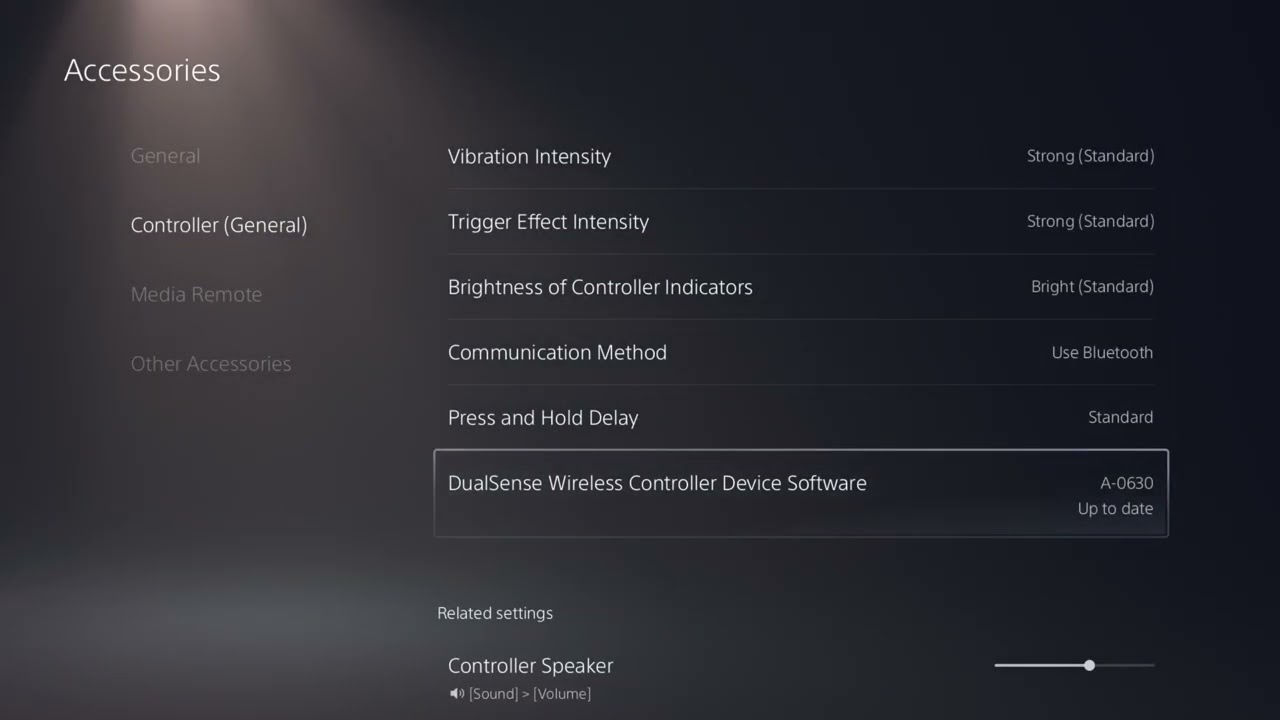
- Open Settings > Accessories > Controller (General).
- Install any available DualSense wireless controller device-software update.
- Test FC 27 with the controller connected.
- If your PS5 provides a communication-method setting for the connected controller, select the USB-cable option and test again.
- Turn on Game Mode or the lowest-latency mode on your TV or monitor.
The source video demonstrates updating the controller and testing USB communication. A wired test can remove Bluetooth interference as a variable, but it does not guarantee that every delay disappears. If there is no change, restore the communication method you prefer.
Fix online lag and unstable response
- Check EA’s FC server status and your platform status before changing network settings.
- Use the EA Connection Quality Report to review recent FC matches.
- Pause downloads, cloud backups, and 4K streaming on the home network.
- Restart FC 27, the PS5, and the router. Leave the router off for at least 30 seconds before reconnecting it.
- Use Ethernet if practical.
- If you must use Wi-Fi, move closer to the router and test 5 GHz at short range. Test 2.4 GHz if walls or distance make 5 GHz unstable.
The network video shows how to choose a Wi-Fi frequency band on PS5. EA’s current guidance agrees that 5 GHz is generally faster and more stable at short range, while 2.4 GHz travels farther but is usually slower and more prone to interference.
About changing DNS
The source video also suggests manually using Cloudflare DNS addresses 1.1.1.1 and 1.0.0.1. This is an optional, reversible troubleshooting test, not a guaranteed ping fix. DNS mainly helps the console look up service addresses; it does not control the route of every gameplay packet after a match connects.
- Write down the current DNS setting before changing it.
- Test the automatic setting first.
- If you test manual DNS, use a known provider and run several matches under similar conditions.
- Return DNS to Automatic if there is no consistent improvement or another service stops working.
Why the fixes work
Controller updates can correct device-software problems, and a USB test removes wireless interference from the local input path. Game Mode reduces display processing. Ethernet and a well-chosen Wi-Fi band reduce variation in how packets travel through the home network. These changes target separate sources of delay instead of treating every slow response as the same problem.
Warnings and limits
- USB mode requires a data-capable cable. Many inexpensive cables charge only.
- 5 GHz has shorter range; it may perform worse through several walls.
- A new DNS server cannot fix overloaded EA servers, ISP routing, or a distant game data center.
- Do not open router ports, enable DMZ, or disable firewall protection as a first step.
- When playing with friends in another region, EA warns that matchmaking may choose a location that raises ping for part of the group.
If the delay remains
- Test another controller and USB cable.
- Test a different display input and confirm Game Mode is active for that input.
- Compare offline and online play again after restarting the game.
- Use EA’s match history to compare ping, packet loss, and jitter across several matches.
- Contact your ISP if problems affect multiple devices, not only FC 27.
Frequently asked questions
Will a USB cable always reduce DualSense latency?
No. It is a useful diagnostic and can help with wireless interference, but display processing, game performance, and network delay can still be responsible.
Should I force 5 GHz?
Use 5 GHz when the PS5 is reasonably close to the router. At longer distances, 2.4 GHz may be more stable. Ethernet is the most consistent option when available.
Does changing DNS lower ping?
Usually not by itself. It may help name resolution or work around a resolver problem, but it does not guarantee a shorter gameplay route.
How do I undo the changes?
Return controller communication and DNS to their previous or Automatic settings, reconnect the original Wi-Fi band, and remove the test cable.
More FC 27 help
Official references
- EA: FC Connection Quality
- EA: FC connection troubleshooting
- EA: Troubleshoot Connection Quality
- PlayStation: DualSense troubleshooting