Quick answer: Rockstar identifies a failed zlib call as a damaged game-data problem. Reboot once, then verify GTA 5 through the launcher that owns the installation. Reinstall only if verification cannot replace the corrupted files.
Before you start
- Close GTA 5 and every launcher.
- Confirm which launcher owns the installation: Rockstar, Steam, or Epic.
- Back up local-only saves; do not delete the Documents save folder.
Fix ERR_GEN_ZLIB_2
- Restart Windows: This releases game files that may be locked by the launcher or security software.
- Rockstar Games Launcher: Sign in, open Settings, choose GTA 5 under My installed games, and select Verify Integrity.
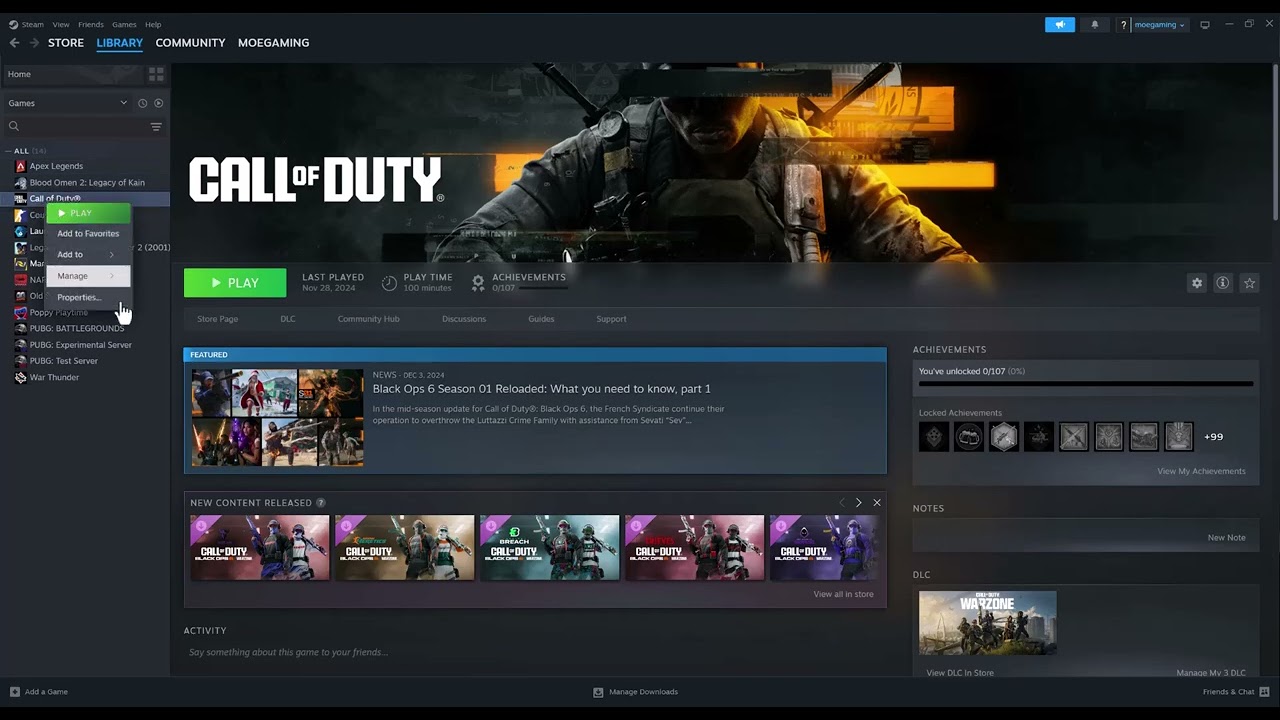
- Steam: Right-click GTA 5, choose Properties > Installed Files > Verify integrity of game files.
- Epic Games: Open Library, select the three dots beside GTA 5, choose Manage, then Verify.
- Install pending updates: Keep the launcher online until GTA 5 and launcher updates finish, then restart.
- Check security history: If antivirus quarantined a GTA 5 file, restore it only when its path and publisher are legitimate, then verify again.
- Reinstall last: Follow Rockstar’s launcher-specific uninstall and reinstall instructions only if file verification repeatedly fails.
Why this works
Zlib decompresses packaged game data. A damaged or incomplete archive can trigger ERR_GEN_ZLIB_2 when GTA 5 reads it. Launcher verification compares installed files with the official copy and downloads replacements.
Alternatives
- In Rockstar Games Launcher, use its current installer to repair launcher components if verification will not start.
- Check the drive for file-system errors and free space before another verification pass.
- Send Rockstar Support the exact error and launcher logs if corruption returns after a clean reinstall.
Warnings and reversal
Do not download replacement archives or DLLs from third-party sites. Do not delete random .rpf files to force a download. If you add a security exception for testing, limit it to the verified GTA 5 installation and remove it if it does not help.
FAQ
Will verification delete saves?
No. It checks installed game files, not the separate save-data folder.
Why does the error return?
Recurring corruption may point to a failing drive, unstable memory, interrupted updates, or security software changing files.
Should I run GTA 5 as administrator?
Not for this specific data error. Verify files first; elevated launch does not repair a corrupt archive.
Official references
- Rockstar: Failed zlib call error in GTA 5
- Rockstar: Verify game files
- Rockstar: GTA 5 PC troubleshooting
Source video
The video discusses rebooting and file verification. Viewer feedback was mixed about administrator mode, so the article follows Rockstar’s error-specific verification and reinstall guidance instead.
As an Amazon Associate I earn from qualifying purchases.