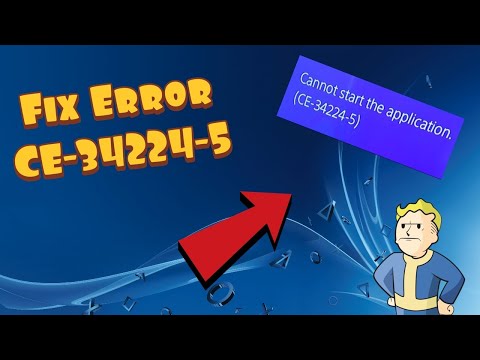
Quick answer: PlayStation classifies CE-34224-5 as a system error. Back up the PS4 first, then use Settings > Initialization > Initialize PS4 and restore the backup. If you replaced the internal hard drive, test the original or another compatible drive.
Before you start
- A USB drive with enough free space for the backup.
- Access to the PlayStation account and two-step verification method.
- Stable power during backup and initialization.
- Time to redownload updates and any content that is not included in the backup.
How to fix it
- 1. Restart and update first
Restart PS4 and install the latest system software if the console remains usable. If the error disappears, stop; do not initialize unnecessarily. - 2. Sync saves
Upload supported saves to PlayStation Plus cloud storage or copy them to USB where available. - 3. Create a full backup
Connect a USB drive and open Settings > System > Back Up and Restore > Back Up PS4. Confirm the backup completes before proceeding. - 4. Initialize the PS4
Open Settings > Initialization > Initialize PS4. Follow the prompts only after verifying the backup. This erases local console data. - 5. Restore the backup
After setup, sign in, update system software, connect the USB drive, and use Settings > System > Back Up and Restore > Restore PS4. - 6. Check a replacement hard drive
If the internal HDD was changed and the error persists, reinstall the original compatible drive or test another known-good compatible drive, then reinstall system software as PlayStation directs. - 7. Arrange service if it continues
Persistent errors with multiple compatible drives can indicate console hardware trouble. Contact PlayStation Repairs instead of repeating initialization.
Why these fixes work
PlayStation’s exact code page treats CE-34224-5 as a system-level problem and prescribes backup followed by initialization. That recreates the system data, while testing another drive isolates a failing or incompatible replacement HDD. The source video is only seconds long and no transcript became available after all retries, so no unverified video-only steps are included.
Other safe options
- If Settings is inaccessible, use PS4 Safe Mode and follow PlayStation’s system-software guidance, but read each option because some erase data.
- Before changing hardware, reseat the drive only if the console is powered off and you are comfortable following PlayStation’s hardware instructions.
- Use PlayStation Repairs when the original drive also fails.
Warnings
- Initialize PS4 erases local users, games, screenshots, settings, and unsynced saves.
- Never interrupt power during backup, initialization, or system-software installation.
- Do not repeatedly initialize a console that shows signs of a failing drive; secure the backup and seek service.
Frequently asked questions
What does CE-34224-5 mean?
PlayStation labels it a system error.
Can I skip the backup?
Only if you accept permanent loss of local data. Back up before initialization whenever the console allows it.
Will Initialize PS4 erase trophies?
Synced trophies remain tied to your account, but sync them before initialization. Unsynced local information may be lost.
What if I installed a new HDD?
PlayStation specifically recommends trying another HDD or reinstalling the original drive if the error persists.
Source video
Official references
As an Amazon Associate I earn from qualifying purchases.