Important limitation: This workaround is for GTA V Story Mode only. Disabling BattlEye prevents GTA Online from starting. If you want to play GTA Online, keep BattlEye enabled and use the repair steps later in this guide.
Quick answer: If GTA V on PC stops with BattlEye error 0xc000009a and you only need Story Mode, close the game, open Rockstar Games Launcher settings, turn off BattlEye for Grand Theft Auto V, and relaunch into Story Mode. Turn BattlEye back on before attempting GTA Online.
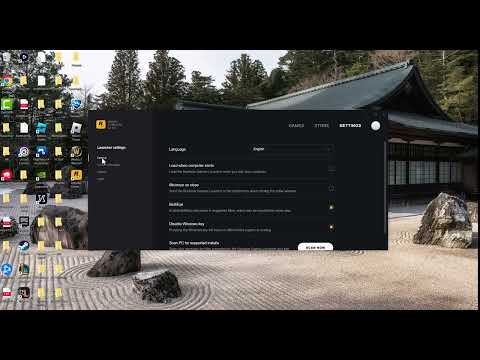
What this workaround does
This does not repair BattlEye. It prevents BattlEye from starting with the game, which can let the single-player campaign launch when the anti-cheat component is the part failing. Rockstar requires BattlEye for GTA Online on PC, so online sessions, jobs, races, and heists will not be available while it is disabled.
Before you start
- Use this workaround only when you intend to play Story Mode.
- Close GTA V completely before changing the launcher setting.
- Update Rockstar Games Launcher and GTA V first.
- Do not delete save files, install unofficial DLLs, or disable Windows security.
- Remember where the BattlEye setting is so you can restore it before going online.
Use the Story Mode-only workaround
- Close GTA V.
Exit the game and wait for it to disappear from Task Manager. Close Rockstar Games Launcher as well if it is still handling an unfinished launch. - Open Rockstar Games Launcher.
Sign in with the Rockstar account normally used for GTA V. - Open the launcher settings.
Select Settings, choose Grand Theft Auto V, and locate the BattlEye option shown for the game. - Turn BattlEye off.
Disable the BattlEye setting. Do not remove unrelated game files or change anti-cheat services manually. - Launch GTA V into Story Mode.
Start the game and choose Story Mode. If the same error remains, stop and use the repair options below; repeatedly toggling the setting will not help. - Re-enable BattlEye before GTA Online.
Close the game, return to the same launcher setting, and turn BattlEye back on. Restart the launcher before selecting GTA Online.
Why it can work
BattlEye loads alongside GTA V when the protected online environment is enabled. If error 0xc000009a occurs during that startup process, disabling the component can remove the failing launch stage and allow Story Mode to open. That is why this is a bypass for offline play, not a complete repair. The source video demonstrates disabling BattlEye, while several viewers correctly note that GTA Online cannot then be used.
If you need GTA Online, repair the installation instead
- Turn BattlEye back on.
GTA Online will not launch correctly without the anti-cheat component enabled. - Restart Windows.
A full restart clears a stuck BattlEye service or launcher process. - Update everything.
Install current Windows updates, Rockstar Games Launcher updates, and GTA V updates. - Verify GTA V’s files.
In Rockstar Games Launcher, open Settings, select GTA V under installed games, and run the game-file verification option. Steam and Epic owners should use the equivalent verification command in their store client. - Repair BattlEye only through the official installation.
If verification does not restore it, use the BattlEye files installed with GTA V or allow the official launcher to reinstall them. Do not download replacement anti-cheat executables from third-party websites. - Check security-software history.
See whether Windows Security or another trusted security tool quarantined a verified Rockstar or BattlEye file. Restore or allow a file only after confirming it belongs to the official GTA V installation. - Contact Rockstar Support.
Include the exact error, launcher/store, GTA V edition, Windows version, and whether Story Mode works with BattlEye disabled.
Other safe checks
- Close overlays, monitoring utilities, and mod loaders before starting the game.
- Remove Story Mode mods temporarily and verify the original game files.
- Run the launcher from the normal Windows account first; do not change service permissions unless Rockstar Support directs you.
- If the error began after an update, check Rockstar service status and current support notices before reinstalling the entire game.
Warnings
- GTA Online does not work with BattlEye disabled. This includes online sessions and heists.
- Do not use the workaround to load cheats or modified files into GTA Online.
- Do not permanently disable antivirus protection or the Windows firewall.
- Do not download “fixed” BattlEye files, DLL bundles, or registry cleaners from unofficial sites.
- If the game launches only with BattlEye off, the underlying online launch problem is still unresolved.
Frequently asked questions
Can I play GTA Online after disabling BattlEye?
No. Rockstar requires BattlEye for GTA Online on PC. Re-enable it and restart the launcher before trying to join an online session.
Does disabling BattlEye delete my GTA Online character?
No. It changes how the PC game starts; it does not delete your Rockstar account or online character. You simply cannot access GTA Online while BattlEye is disabled.
Is this a permanent fix for error 0xc000009a?
No. It is a temporary Story Mode workaround. A permanent online fix requires BattlEye to start correctly.
What if Story Mode still shows the error?
Turn BattlEye back on, restart Windows, update the launcher and game, verify the installation, and contact Rockstar Support if the error continues.
Should I uninstall BattlEye manually?
Use game-file verification or the official GTA V installation files first. Avoid third-party uninstallers and downloads.
Source video
Official references
As an Amazon Associate I earn from qualifying purchases.