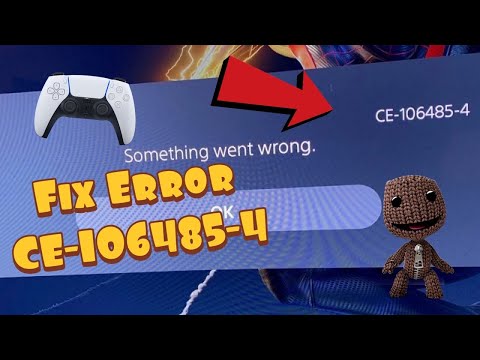
Quick answer: Sony says CE-106485-4 indicates trouble reading system software or application data. Update PS5 system software first, restart, remove a partial install, check the disc if applicable, then clear cache or rebuild the database.
Before you start
- Keep the PS5 connected to stable power.
- Back up important saves before deleting application data.
- For disc games, have a clean microfiber cloth.
- Confirm enough free storage is available.
How to fix it
- 1. Update PS5 system software
Open Settings > System > System Software > System Software Update and Settings > Update System Software. Install the latest version and restart. - 2. Retry the operation once
Cancel the failed copy, download, or installation, restart the PS5, and start it again from the original source. - 3. Remove only the partial application
If a broken tile or partial install remains, delete that application data, not your saved data, then retry. - 4. Check the disc
For disc copies, eject the disc, confirm the label faces the correct direction for your console orientation, and wipe the readable surface from the center outward with a soft dry cloth. - 5. Test another disc or digital title
A known-good disc helps distinguish damaged media from the console drive. If digital titles also fail, focus on system software and storage data. - 6. Clear cache and rebuild the database
Start PS5 in Safe Mode, choose Clear Cache and Rebuild Database, clear system software cache first, then use Rebuild Database if needed. - 7. Contact PlayStation Support
If multiple clean discs or digital apps fail after the supported steps, stop before resetting the console and arrange support or repair.
Why these fixes work
The official code description points to unreadable system or application data. Updating system software addresses known platform issues; restarting and removing a partial install clears inconsistent application data; disc checks isolate physical media; and Safe Mode maintenance refreshes cached/indexed data. The source video demonstrates disc orientation, cleaning, retrying, and rebuilding. Its factory-reset suggestion is not used as a routine fix because safer supported steps should come first.
Other safe options
- Install the digital version only if you already own it; do not repurchase merely to test.
- Try the disc in another compatible console if available.
- Use PlayStation’s backup and restore process before considering any reset suggested by Support.
Warnings
- Do not use liquids, abrasives, or circular wiping on a game disc.
- Deleting application data is different from deleting saved data—check the screen carefully.
- Do not select Reset PS5 during Safe Mode maintenance unless data is backed up and PlayStation Support recommends it.
Frequently asked questions
What does CE-106485-4 mean?
PlayStation says there may be a problem reading system software or application data.
Can a dirty disc cause it?
It can contribute in disc-copy cases, but digital titles can also be affected, so update system software first.
Does Rebuild Database delete my games?
The maintenance option normally rebuilds the content index. It is not the Reset PS5 option, but back up important data before deeper troubleshooting.
Should I factory-reset the PS5?
Not as an early fix. Complete update, restart, partial-install, media, cache, and database checks first, then contact Support.
Source video
Official references
As an Amazon Associate I earn from qualifying purchases.