Quick answer: Update both the affected game and PS4 system software, then restart the console. If CE-34878-0 continues, disconnect a PlayStation Camera and turn off face recognition if you use them, then rebuild the database in Safe Mode. Back up your data before any initialization step; initializing the PS4 erases console storage and should be a last resort.
Before you start
- Note whether CE-34878-0 affects one game or every application.
- Sync trophies and back up important saved data to PlayStation Plus cloud storage or a USB drive.
- For Safe Mode, use a data-capable USB cable; a charge-only cable will not pair the controller.
- Do not choose Initialize PS4 while following the database steps.
How to fix PS4 error CE-34878-0
- Install the latest game update. Highlight the affected game, press Options, and select Check for Update. Let the installation finish.
- Update PS4 system software. Open Settings > System Software Update and install any offered update. Sony lists current game and system software as the first requirement for this error.
- Restart the PS4. Fully restart rather than entering Rest Mode, then test the game again.
- Disconnect PlayStation Camera if applicable. Sony specifically recommends unplugging the camera, restarting, then opening Settings > Login Settings and turning off Enable Face Recognition.
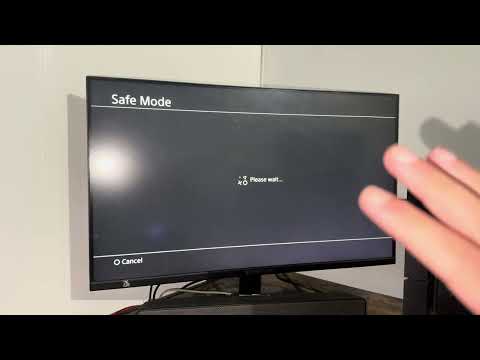
- Rebuild the database in Safe Mode. Turn the PS4 completely off. Hold the power button until the second beep, about seven seconds later. Connect the controller with a USB data cable, press the PS button, and select 5. Rebuild Database. This scans the drive and recreates the content index without intentionally deleting games or saves.
- Update system software from Safe Mode if normal updating fails. Return to Safe Mode and choose 3. Update System Software, then Update Using Internet. Use Sony’s official USB update instructions only if the online method will not work.
- Test the original hard drive configuration. If CE-34878-0 started after replacing the internal HDD, Sony recommends reinstalling the original drive to determine whether the replacement or its installation is responsible.
- Initialize only after a full backup. If the error persists after the supported steps, back up the console, then use Settings > Initialization > Initialize PS4. This deletes console data. A USB system-software reinstall is an even more destructive last step.
- Request repair if every app crashes. A recurring error across many games, especially immediately at startup, can indicate a console or storage fault rather than one damaged game.
Why rebuilding the database can help
The PS4 database is an index of installed content. If the index is inconsistent, the console may fail while loading a game even when most game files remain intact. Rebuilding the database recreates that index. It is less destructive than initialization, but it cannot repair failed hardware or guarantee that damaged game data is restored.
If only one game shows CE-34878-0
- Back up its save, delete the game application, and reinstall it from the disc or your library.
- Check the publisher’s service and known-issues page for a current game-specific crash.
- Remove newly installed add-ons for one test if the crashes began immediately after adding them.
Warnings
- Initialize PS4 erases data. Back up first and verify the backup before proceeding.
- Use update and reinstallation files only from PlayStation’s official system-software page.
- Do not interrupt a database rebuild or system update by removing power.
Optional PS4 gaming gear
The WESEARY wireless gaming headset lists PS4, PS5, and PC compatibility. It is an optional accessory and will not resolve CE-34878-0.
As an Amazon Associate I earn from qualifying purchases.
Frequently asked questions
Does Rebuild Database delete PS4 games or saves?
It is designed to rebuild the console’s content index, not erase user data. Backups are still wise before storage troubleshooting.
What is the difference between Rebuild Database and Initialize PS4?
Rebuild Database reindexes stored content. Initialize PS4 resets the console and deletes local data.
Should I reinstall system software first?
No. Start with game and system updates, restart, the camera check, and database rebuild. Reinstallation belongs near the end because it is disruptive and can be destructive.