Quick answer: CE-30005-8 means the PS4 had trouble reading the internal HDD or Blu-ray/DVD drive. If you use a disc, eject it and check for dirt, deep scratches, or damage. If the disc is usable—or the game is digital—start the PS4 in Safe Mode and choose 5. Rebuild Database. If the error affects several games after that, contact PlayStation Support because the storage or disc drive may need service.
Before you start
- Determine whether the failing game is on disc, internal storage, or USB extended storage.
- Back up important saves before deleting any corrupted entry or reinstalling a game.
- Use a clean, dry microfiber cloth on a disc; do not use solvents or abrasive materials.
- Have a USB data cable ready for the controller in Safe Mode.
How to fix CE-30005-8 on PS4
- Restart and test once. Close the game, restart the PS4, and try again. A single interrupted read does not automatically mean the drive has failed.
- Inspect the game disc. Eject it and look for fingerprints, dirt, cracks, or deep scratches. Wipe from the center toward the edge with a soft cloth, reinsert it, and test. Try another known-good game disc to learn whether the problem follows one disc or the drive.
- Check the installation location. If a digital game is on USB extended storage, power the PS4 down and reconnect the drive securely. If possible, test the game from internal storage. A failing external drive or cable can produce a read symptom similar to an internal-storage problem.
- Handle explicitly corrupted data carefully. Open Settings > Storage > System Storage. If PS4 labels an application item as Corrupted Data, back up saves and delete only the affected application or corrupted item. Do not delete every saved-data file merely because CE-30005-8 appeared.
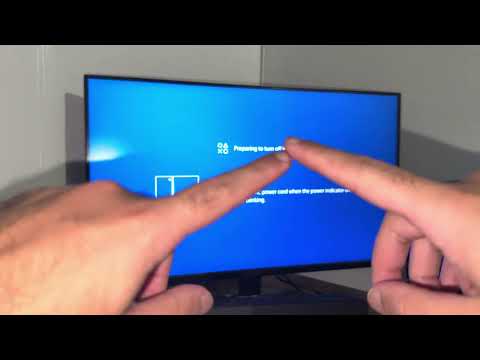
- Rebuild the database. Turn the PS4 completely off. Hold the power button until the second beep, connect the controller by USB, press the PS button, and select 5. Rebuild Database. Allow the scan to finish without removing power.
- Reinstall one affected game. If only one digital game fails, delete its application data—not its backed-up save—and reinstall it from your library. For a disc game, allow all patches to download before testing.
- Update PS4 system software. Install any available update under Settings > System Software Update. If normal updating cannot complete, use PlayStation’s official Safe Mode update instructions.
- Arrange service if the error is broad or recurring. CE-30005-8 on several discs and digital games, repeated corrupted-data notices, clicking from the HDD, or rebuild failures all point beyond a single application.
Why these steps work
Sony defines CE-30005-8 as a read problem involving the hard drive or optical drive. Cleaning and comparison testing isolate a bad disc. Rebuilding the database recreates the index the PS4 uses to find application files. Reinstalling replaces one damaged game. None of these steps can repair a mechanically failing HDD or Blu-ray drive, which is why repeated cross-game failures should go to PlayStation Support.
What not to delete
- Do not delete all saved data unless a specific file is labeled corrupted and you have a backup.
- Do not initialize the PS4 as the first response to CE-30005-8.
- Do not download PS4 system files from third-party sites.
Optional PS4 gaming gear
The WESEARY wireless gaming headset lists PS4, PS5, and PC compatibility. It is optional equipment and does not repair a storage or disc-drive error.
As an Amazon Associate I earn from qualifying purchases.
Frequently asked questions
Is CE-30005-8 always a bad hard drive?
No. It can be caused by a damaged disc, a corrupted application, an inconsistent database, an external-storage problem, or failing hardware.
Will rebuilding the database erase my games?
The function is intended to reindex content rather than erase it. Still keep a current backup whenever you troubleshoot storage.
When should I contact PlayStation Support?
Contact support when the error affects multiple discs and digital games, returns after a database rebuild, or is accompanied by repeated storage corruption or unusual drive sounds.