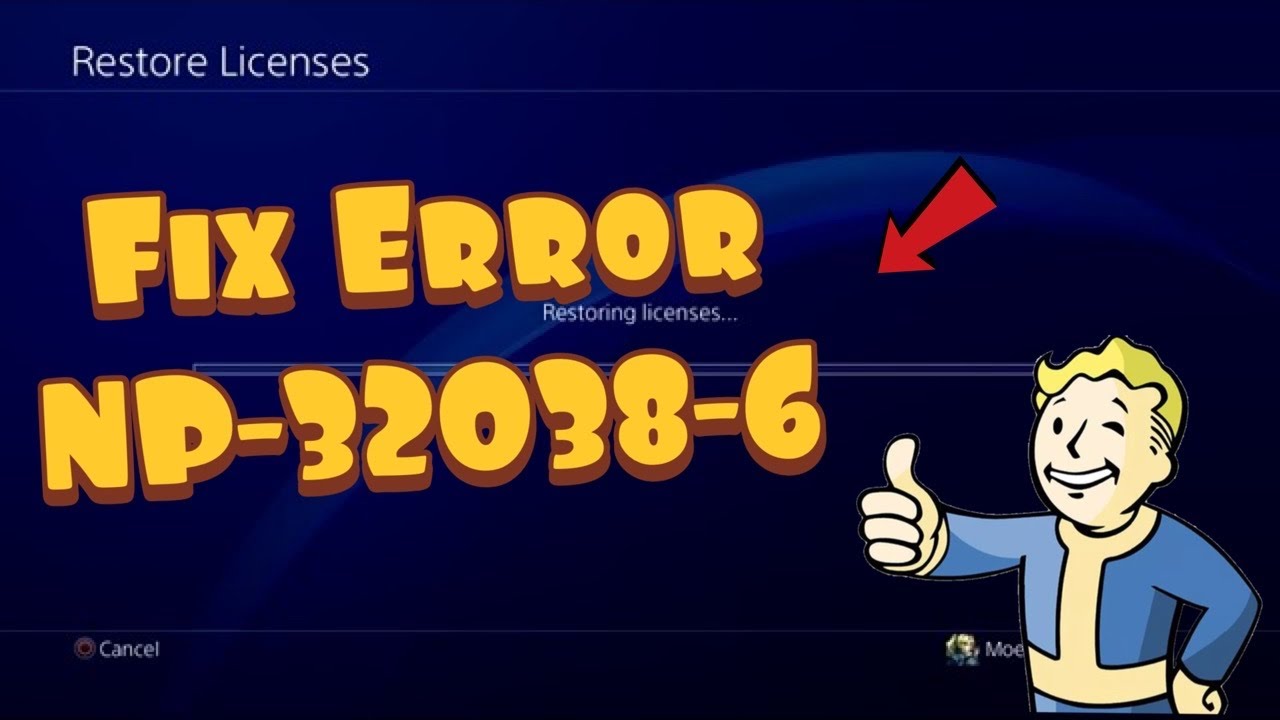
Quick answer: If PS4 error NP-32038-6 interrupts a game launch, first check PSN status and confirm the account owns the game. Then use Settings > Account Management > Restore Licenses > Restore, restart the PS4, and retry. The Moe Gaming video also tries custom DNS and signing out/in; those are optional network checks, not evidence of any account ban.
What you need
Know which PSN account acquired the game, have a working connection, and record any custom DNS settings so you can undo them. If a game requires PlayStation Plus, check that the subscription is active. The video speculates about a “shadow ban” but supplies no account-level evidence; do not present that as a diagnosis.
Steps to try
- Check PlayStation status on a phone or computer. If account or game services are affected, wait for recovery instead of repeatedly changing settings.
- Sign into the purchasing account. On PS4 go to Settings > Account Management > Restore Licenses > Restore. Sony says the restore does not remove saved data.
- Restart PS4, return to the Library, and test the affected game. If only one title fails, check its edition and entitlement rather than altering the entire network.
- If connection tests are failing, run Settings > Network > Test Internet Connection. Try a wired connection if convenient, or reconnect to the Wi-Fi network using your normal automatic settings first.
- Optional, unofficial video-derived DNS test: Under Settings > Network > Set Up Internet Connection choose your Wi-Fi/LAN, choose Custom, keep IP address Automatic and DHCP host name Do Not Specify, then enter DNS Manual with primary 1.1.1.1 and secondary 1.0.0.1. Keep MTU Automatic and proxy Do Not Use. Test the connection and game; this might help only if DNS resolution was the issue.
Why these checks help
Sony supports restoring licenses when a purchased game is missing, locked or crashing. The DNS change changes only the resolver, not the game license or PSN account status. The captions appear to say “1.1.1” once, but the recognizable complete address is 1.1.1.1; do not enter an incomplete address. Neither Sony nor the video establishes a guaranteed, code-specific DNS cure.
Warnings and alternatives
Undo the DNS test: repeat network setup and choose DNS Automatic (or restore your recorded addresses). Avoid changing your PSN password solely to test this code; follow PlayStation’s normal account-security process only if you have actual login/security evidence. If entitlement is still missing, contact PlayStation game support with the exact code and purchase details.
FAQ
Does this error prove I am banned?
No. A video speculation is not proof of a suspension.
Will custom DNS fix everyone?
No; if the underlying problem is entitlement or PSN service, changing DNS will not solve it.
Official references
Sony license restore · PSN status · Game support.
Source video
Watch the original Moe Gaming demonstration below. The video is source material, while official references above govern current supported steps.
As an Amazon Associate I earn from qualifying purchases. This guide includes no product recommendations or affiliate purchase links.