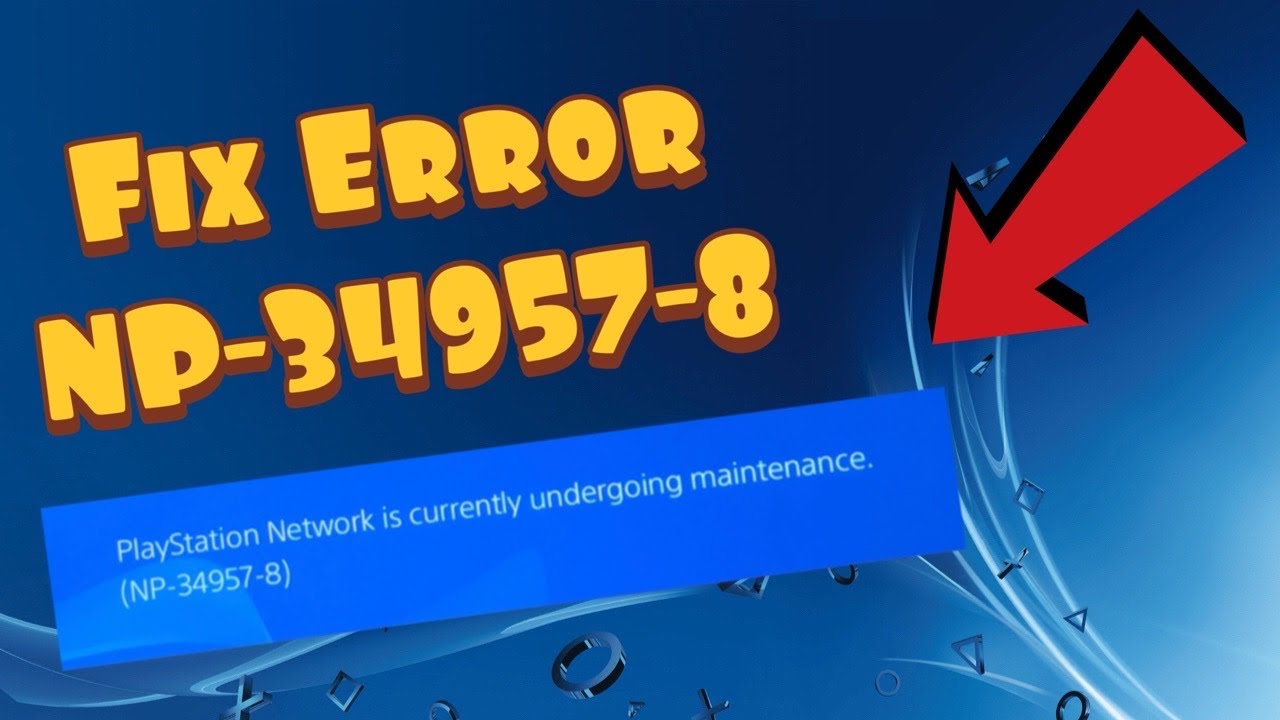
Quick answer: PS4 error NP-34957-8 is a server-connection problem. Check PlayStation Network status first. If PSN is online, fully turn off the PS4, restart the modem/router, reconnect by Ethernet if possible, and test the Internet connection again. If many players are seeing the code at the same time, waiting for the service to recover is safer than changing console settings.
Before you start
- Confirm whether other online games and PlayStation Store are also unavailable.
- Save the Wi-Fi password before removing a saved network.
- Do not factory-reset the router; a normal power cycle is enough for this test.
- Leave account, storage and saved-data settings alone while PSN reports an incident.
Fix PS4 error NP-34957-8
- Check PlayStation Network status. Look for an incident affecting Account Management, Gaming and Social, or PlayStation Store. If a service is degraded, wait and retry after its status returns to normal.
- Close the game or app completely. Highlight it on the home screen, press Options and choose Close Application. Relaunching forces a fresh connection instead of reusing the failed session.
- Restart the PS4. Choose Power > Turn Off PS4. Wait until the light is fully off, unplug power for about one minute, reconnect it and start the console.
- Power-cycle the modem/router. Unplug the network equipment for about five minutes, as PlayStation recommends for this code. Reconnect it and wait until the normal Internet lights are stable before starting the PS4.
- Test Ethernet. Connect the PS4 directly to the router with a known-good cable, then open Settings > Network > Set Up Internet Connection > Use a LAN Cable > Easy. If wired access works, Wi-Fi range or interference is likely involved.
- Test the connection. Open Settings > Network > Test Internet Connection. Note which stage fails: obtaining an IP address, Internet connection, or PlayStation Network sign-in.
- Reconnect Wi-Fi only if needed. Set up the saved wireless network again and enter the password carefully. Keep IP Address, DHCP Host Name, MTU and Proxy on their normal automatic settings unless the network administrator gave you specific values.
Why these steps work
The PS4 must reach both the home router and PlayStation’s servers. A status check separates an external outage from a local connection problem. Restarting clears a stale session, while cycling the router renews its Internet state. Ethernet removes Wi-Fi interference from the test.
Alternatives if the code remains
- Pause downloads and streaming on other devices for one test.
- Try another Ethernet cable or router port.
- Use a phone hotspot briefly as a diagnostic test, not a permanent setup; watch mobile-data use.
- Contact the ISP if several household devices also lose Internet access.
- Contact PlayStation Support with the code, time and failed connection-test stage if PSN is online and only the console is affected.
Warnings
Do not initialize the PS4, delete saved data, disable router security or open ports at random for NP-34957-8. A factory reset will not repair a PlayStation outage and can create more work.
FAQ
Is NP-34957-8 a ban?
No. PlayStation documents it as a server-connection error. Suspension errors use different codes and normally include an account or console restriction notice.
Should I change DNS?
Not first. DNS does not fix an outage or weak signal. Test the official restart and connection steps before changing advanced settings.
Why did the error disappear later?
That can happen when a temporary PSN incident or local router session clears. Several viewers reported that the code appeared simultaneously and later resolved, but individual causes can differ.
Official references
Source video
As an Amazon Associate I earn from qualifying purchases.