Quick answer: PS5 error CE-109531-9 means the Bluetooth audio device is not supported for a direct console connection. You cannot fix that incompatibility by pairing it again. Use a PlayStation-compatible wireless headset with its USB or PlayStation Link adapter, connect a wired 3.5 mm headset to the DualSense controller, or route audio through a compatible TV or receiver.
This error is different from a temporary pairing failure. PlayStation’s official error page says the Bluetooth device is not compatible, so the correct solution is to use a supported connection method rather than repeatedly deleting and re-pairing the same earbuds or headphones.
Why PS5 shows CE-109531-9
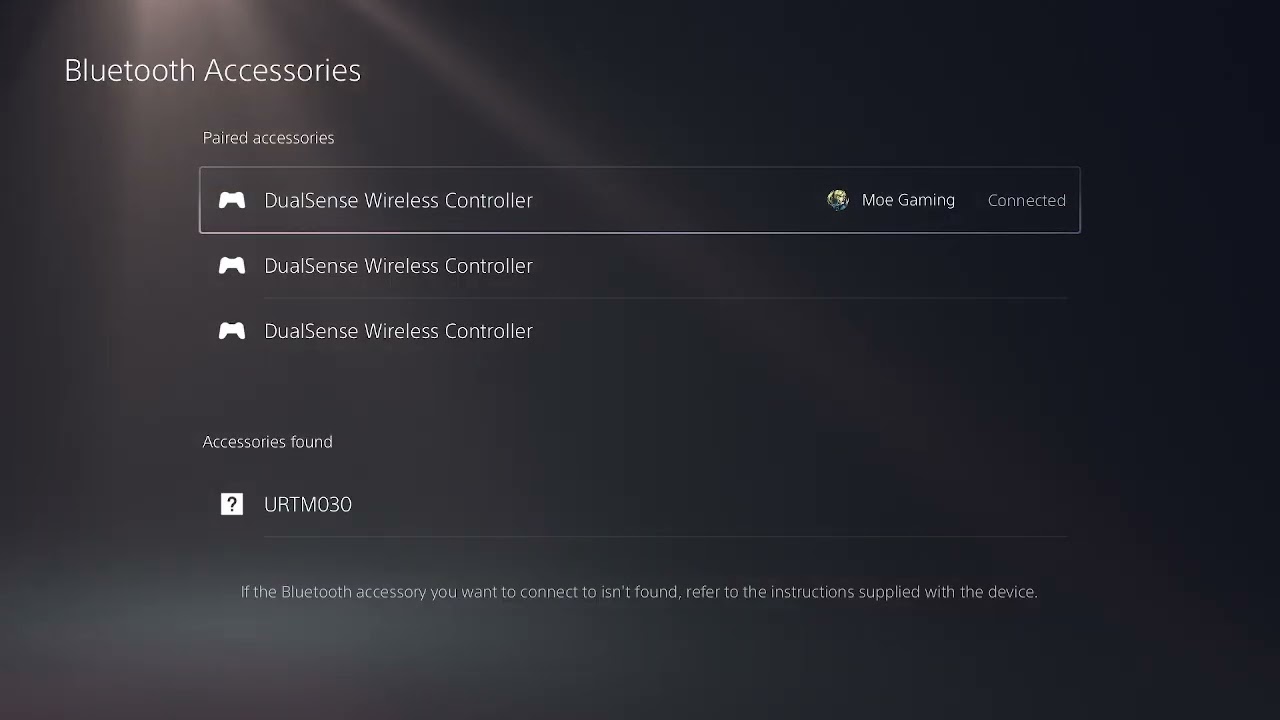
The PS5 supports Bluetooth for selected accessories, including controllers and certain input devices, but it does not provide a general direct Bluetooth-audio profile for ordinary headphones and earbuds. Direct wireless game audio also has demanding latency and chat requirements. When an unsupported audio device is selected from Settings > Accessories > General > Bluetooth Accessories, the console can display CE-109531-9.
How to fix PS5 error CE-109531-9
Option 1: Use the headset’s supported USB wireless adapter
- Confirm the headset’s product page or manual explicitly lists PS5 compatibility.
- Connect the headset’s included USB transmitter or adapter to the PS5. Do not substitute an unrelated Bluetooth dongle.
- Turn on the headset and follow its pairing procedure.
- Open Settings > Sound > Audio Output.
- Select the USB headset or adapter under Output Device.
- Open Microphone > Input Device and select the same headset if it includes a microphone.
A headset that uses its own PS5-compatible 2.4 GHz USB receiver does not rely on the console’s unsupported direct Bluetooth-audio route. Keep the receiver paired with the headset according to the manufacturer’s instructions.
Option 2: Use a PlayStation Link device and USB adapter
Compatible PlayStation Link headsets and earbuds communicate through the PlayStation Link USB adapter. Connect the adapter to the console, put the accessory in pairing mode, and use the Link buttons as described in the device’s quick-start guide. Then confirm it is selected under Audio Output.
The adapter is for supported PlayStation Link products; it is not a universal Bluetooth receiver for arbitrary headphones.
Option 3: Connect a wired headset to the DualSense controller
- Connect a compatible 3.5 mm headset plug to the jack on the bottom of the DualSense controller.
- Open Settings > Sound > Audio Output.
- Choose Headset Connected to Controller as the output device.
- Set Output to Headphones to the desired option.
- Test microphone level under Settings > Sound > Microphone.
This is the simplest way to use many conventional gaming headsets without buying a wireless adapter. A headset with separate PC microphone and headphone plugs may need a compatible four-pole console adapter.
Option 4: Use the TV, monitor, or receiver’s audio output
The PS5 sends audio over HDMI. If the connected television, monitor, soundbar, or AV receiver supports your headphones, pair or connect them to that device instead. This bypasses direct PS5 Bluetooth pairing.
Check for audio delay, microphone limitations, and whether the display passes multichannel audio correctly. A headset connected to the TV usually cannot provide PS5 voice-chat microphone input.
What not to do
- Do not repeatedly re-pair the same unsupported earbuds. CE-109531-9 identifies compatibility, not a forgotten pairing record.
- Do not assume every generic USB Bluetooth dongle works. The PS5 may not recognize it as a supported USB-audio device, and microphone or volume control may fail.
- Do not buy a headset based only on the word “Bluetooth.” Look for explicit PS5 support and confirm whether it includes the required USB receiver.
- Do not reset the PS5. A factory reset cannot add an unsupported Bluetooth-audio profile.
If a supported USB headset is not detected
- Restart the PS5 with the adapter connected.
- Try another supported USB port and avoid an unpowered hub.
- Update the PS5 system software.
- Charge the headset and repeat the manufacturer’s adapter-pairing process.
- Check Settings > Sound > Audio Output and select the device manually.
- Test the headset on another supported device if the manufacturer provides that option.
If the headset is explicitly PS5-compatible but never appears as an input or output device, contact the headset manufacturer with the exact model and adapter version.
Why a USB or wired connection works
With a supported USB receiver, the headset’s adapter handles the proprietary wireless link and presents it to the PS5 as a compatible USB audio device. With a wired headset, the DualSense controller carries audio and microphone data through its supported connection. Both methods avoid the unsupported direct Bluetooth-audio pairing that triggers CE-109531-9.
Compatible accessory options
As an Amazon Associate I earn from qualifying purchases.
- PS5/PC-compatible wireless gaming headset — verify that the listing includes the required PS5-compatible USB wireless connection.
- DualSense wireless controller — includes the supported 3.5 mm headset connection for compatible wired headsets.
- DualSense charging station — an optional controller accessory; it does not add Bluetooth-audio support.
Watch the original walkthrough
Frequently asked questions
Can PS5 connect directly to AirPods or ordinary Bluetooth earbuds?
Not through the standard direct Bluetooth-audio pairing used by phones. Use a supported USB-audio adapter solution or another compatible audio route.
Will any Bluetooth USB adapter fix CE-109531-9?
No. Compatibility, microphone support, latency, and controls vary. Use an adapter included with or explicitly supported by the headset and listed for PS5.
Can I use the headset through my television?
Often, if the TV supports it. Game audio may work, but PS5 voice-chat microphone input usually will not pass back through the TV.
Is CE-109531-9 a broken Bluetooth chip?
Usually no. The official meaning is that the selected Bluetooth device is not supported. Controllers and other supported accessories can still work normally.