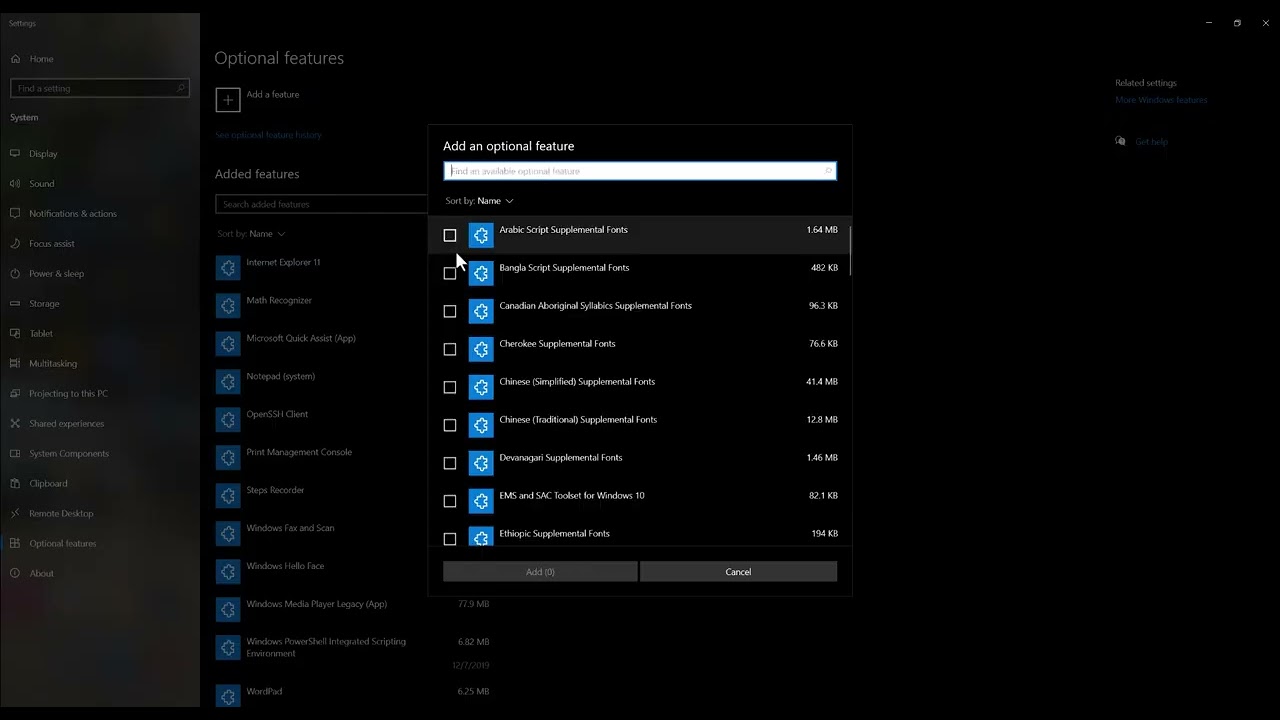
Quick answer: First check Settings > System > About > Windows specifications. If the edition name ends in N, install Media Feature Pack from Settings > Apps > Optional features > View features, restart Windows, and run Windows Update. If you do not use an N edition, repair system files and reinstall Roblox from the official site or Microsoft Store instead of downloading EVR.dll separately.
Before you start
- Confirm the full message names
EVR.dll. - Check whether Windows is an N edition; the Media Feature Pack is specifically for N editions.
- Save work before restarting.
- Never download a loose DLL from a file-sharing or driver-download site.
Fix the EVR.dll error
- Check the Windows edition. Open Settings > System > About and read Edition under Windows specifications.
- Install Media Feature Pack on Windows N. Open Settings > Apps > Optional features > View features, search for Media Feature Pack, select it and install.
- Restart and update. Restart Windows, then install current Windows updates. Optional media components do not fully register until restart.
- Test Roblox. Launch the same experience. If it opens, no separate DLL download is needed.
- Repair Windows files if the PC is not N. Open Terminal as administrator and run
DISM /Online /Cleanup-Image /RestoreHealth, thensfc /scannow. Restart after both finish. - Reinstall Roblox safely. Uninstall Roblox, restart, and download a new installer from Roblox or install the official Microsoft Store app.
- Check security software. Review quarantine history for the official Roblox files. Restore only when the publisher and path are verified; do not disable protection permanently.
Why this works
EVR.dll belongs to Windows media playback infrastructure. Windows N editions omit media technologies until Media Feature Pack is installed. On standard editions, a missing or corrupt system component is better repaired through Windows servicing than by copying a DLL from the web.
Alternatives
- Try the Microsoft Store Roblox build if the desktop installer remains damaged.
- Create a new Windows user for one test to rule out a profile-specific problem.
- Install current graphics drivers from the GPU maker after Windows is repaired.
- Send Roblox Support the exact message, Windows edition and diagnostics if the error remains.
Warnings and undo steps
The source video points to an old standalone download path. Current Windows 10/11 N systems normally install Media Feature Pack through Optional Features. Do not use an outdated package or third-party DLL. To remove the optional component, return to Optional features > Installed features, select Media Feature Pack and choose Uninstall, then restart.
FAQ
What is Windows N?
It is a Windows edition sold without some media technologies. The edition name explicitly includes N.
Should every Roblox player install Media Feature Pack?
No. This step is for N editions or systems where Microsoft explicitly offers the feature.
Can I download EVR.dll by itself?
No. Use Windows Update, Optional Features, DISM and SFC so the file comes from a trusted Microsoft source.
Official references
Source video
As an Amazon Associate I earn from qualifying purchases.